How to Write a Tuko Skill: Step-by-Step Guide With an Example
 by Aristotto12 min
If you make the same kind of content again and again, you probably type the same brief again and again too: the model, the format, the look, the things that must never change. A Tuko skill writes that down once. After that, you pick the skill and Tuko works your way from the first message.
This guide explains what a skill is, how Tuko reads one, how to write instructions it follows reliably, and how to test and share what you made. At the end there is a complete example skill you can copy, upload and adapt.
What is a Tuko skill?
Tuko is Aristotto's creative agent. You describe what you want, Tuko picks the models, shows the price as a plan, and generates only after you approve.
A skill teaches Tuko one way of working: the steps, the models, the settings and the prompt style that produce a result you want again. When a chat uses a skill, Tuko follows its instructions on top of its own rules, never instead of them.
A skill is instructions only. It can't run code, add tools, raise limits, skip your approval, loosen safety checks or open anyone else's files. Everything still goes through a plan with the exact credit cost, so a skill never needs rules about prices or approvals.
When is a skill worth making?
A single prompt is enough for one-off work. A skill pays off when the same job comes back:
You reshoot product photos in the same studio look every week.
Your team makes the same ad format for every new product.
A recipe took several tries to get right, and you don't want to rediscover it next month.
Other people should get the same result without learning all the settings.
If you notice yourself pasting the same paragraph into Tuko, that paragraph wants to be a skill.
What goes into a skill?
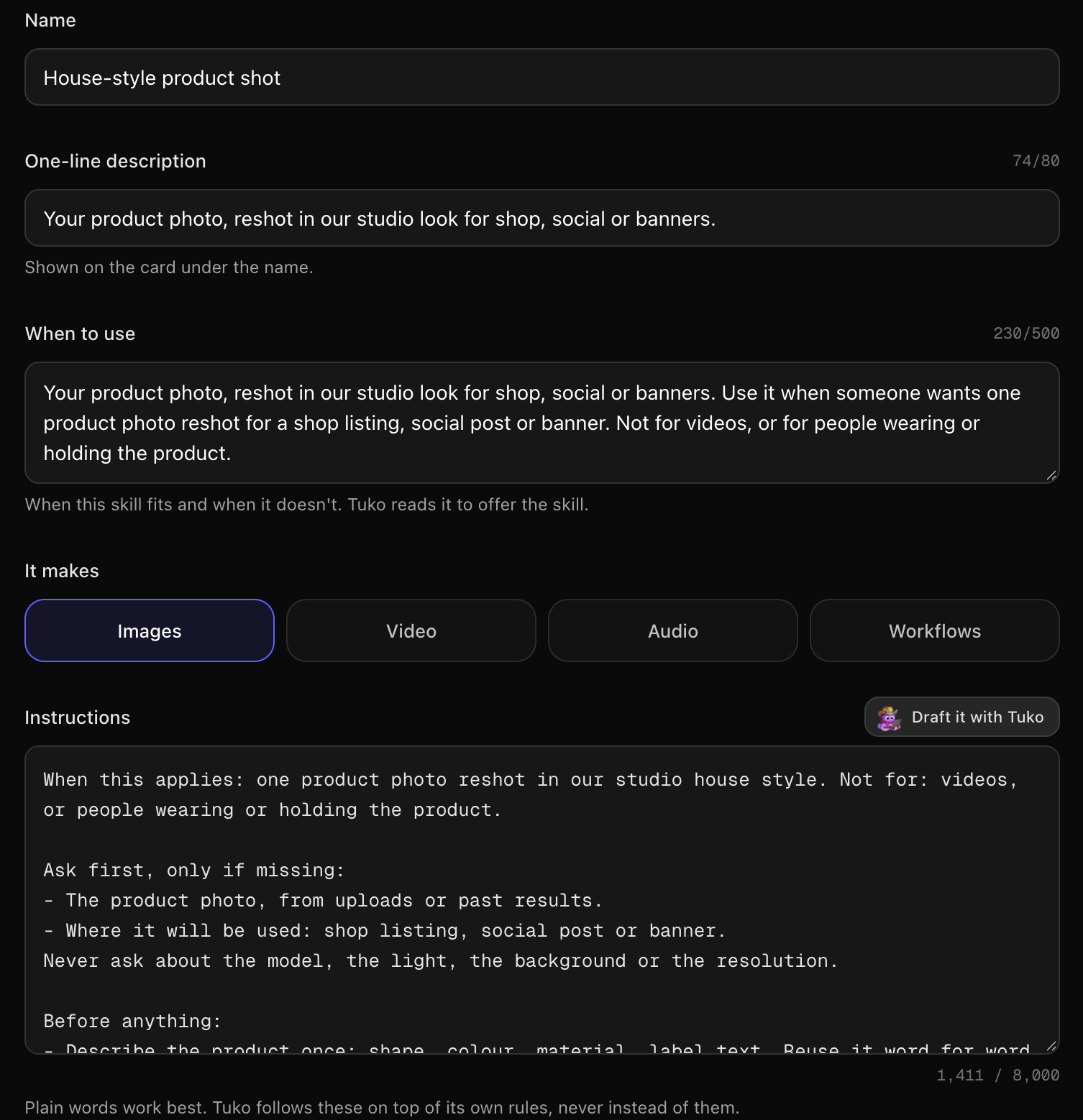
Every skill has a few fields. Most of the quality comes from two of them: the instructions and "When to use".
| Field | Limit | What it is for |
|---|---|---|
| Name | 1 to 60 characters | The card title. Say what it makes: "Unboxing reveal clip", not "My cool skill". |
| One-line description | 1 to 80 characters | Shown under the name. Say what goes in and what comes out. |
| When to use | Optional, up to 500 characters | When the skill fits and when it doesn't, in the words people use. Tuko reads it to offer your skill. |
| It makes | Images, Video, Audio, Workflows | Where the skill appears when people filter the library. |
| Instructions | Up to 8,000 characters, as good practice | The rules Tuko follows. Most good skills need 1,000 to 4,000 characters. |
| Reference files | Up to 6 pictures and 10 documents | Brand notes, glossaries, product facts and style references Tuko can use. |
| Starter prompt | Up to 500 characters | Fills the composer when someone picks the skill. Words in [brackets] become blanks to fill. |
| Cover and examples | 1 cover, up to 4 examples | What people see on the card and on the skill's page. |
How does Tuko read your skill?
Knowing this is the difference between a skill Tuko follows and one it half-follows.
With every message, Tuko loads the chat's skill and adds its instructions to its own rules. Where they disagree, Tuko's rules and safety checks win.
The first 8,000 characters stay in mind with every message. Anything after that, Tuko reads only when it needs it, such as when it starts planning. That is why the most important rules belong at the top.
Reference documents and pictures are material, not rules. Tuko reads documents before it plans and can use pictures as inputs, but a rule written only in a document is not followed as a rule. Anything Tuko must or must not do belongs in the instructions.
"When to use" is how Tuko finds your skill. In a chat with no skill, Tuko knows your own and your team's skills by name and "When to use". When a brief clearly fits one, it offers it, and you decide.
Then Tuko plans as usual. It proposes models, settings and the exact price, and nothing generates until you approve.
How do you make a skill?
Open Skills in Tuko and choose Create skill. There are three ways in:
From a chat that went well. Pick one of your chats. Tuko reads the steps, models and prompts that worked and drafts a skill from them.
Describe it. Say what the skill should do in plain words. Tuko drafts the instructions for you to check.
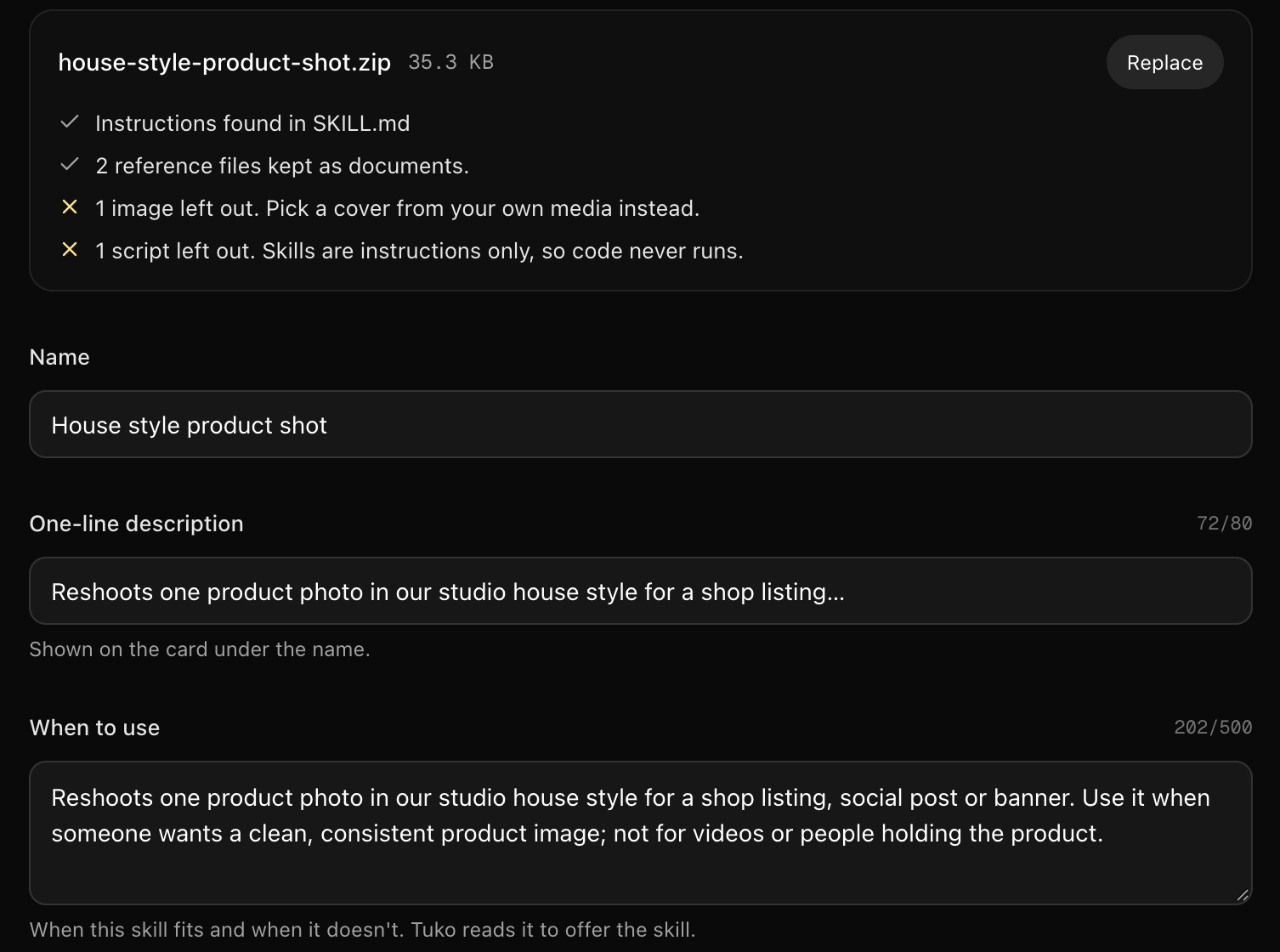
Upload a file. Bring a SKILL.md or a .zip you already wrote, including skills written for other AI assistants. Tuko keeps the instructions and any Markdown or text reference documents; scripts never run.
Drafting costs no credits and generates nothing, and nothing is saved until you choose Save skill.
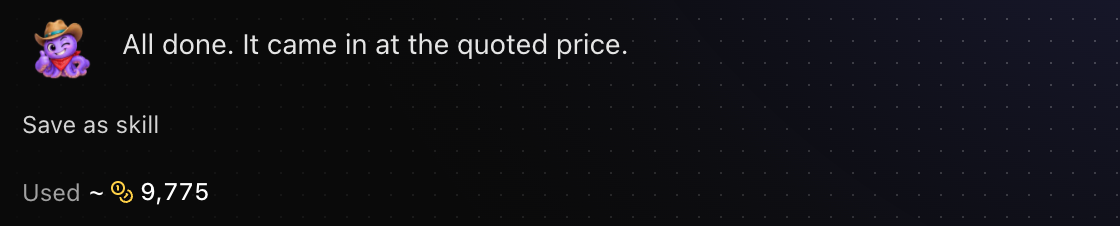
There is also a shortcut for recipes that just worked. When a plan of two or more steps finishes and every step succeeded, Tuko shows a Save as skill link right under the result.
How do you write instructions Tuko follows?
The best skills read like a short brief from an experienced producer. These eight habits make the biggest difference:
One job per skill. "Unboxing reveal clip" is one job. "All my UGC videos" is five, so make five skills.
Open with when it applies. Start with one line:
When this applies: … Not for: …. It keeps Tuko on track when someone asks for something next to it.Say what to ask, and what never to ask. List the few inputs Tuko must have, then fix the rest:
Never ask about the model, the aspect ratio or the resolution.Be concrete about settings. "Seedance 2.0, 9:16, 1080p, 15 seconds, sound on", not "high quality vertical video". Name models the way the app shows them.
Number the steps and add stop points.
Show me the board and wait for my OK before making the clip.Tuko then proposes one stage at a time.Lock what must stay the same. Describe the product or character once and tell Tuko to reuse that description word for word in every prompt.
Say what to check before showing. One product in frame, two hands per person, no garbled text.
Say what to do when something fails. One line per case, for example a result blocked by the safety check.
Keep lines short, one rule per line, and leave out code, tool names, prices and personal details.
Weak: "Make cool product videos."
Strong: "When this applies: a 15-second vertical clip of one product being unboxed by a creator. Not for: product-only clips."
How do you write "When to use"?
"When to use" is matched against real briefs, so write it the way people ask, not in production terms. One or two sentences are enough:
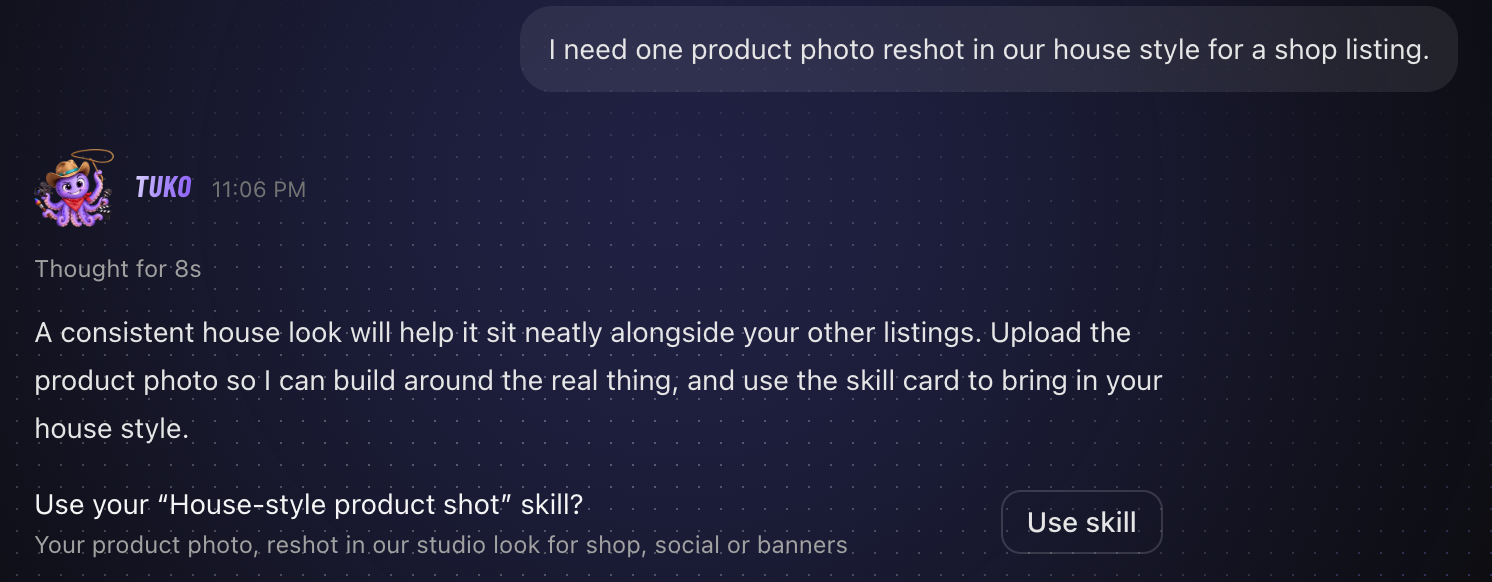
When someone wants one product photo reshot in our studio look for a shop listing, social post or banner. Not for videos, or for people wearing or holding the product.
When a brief fits, Tuko answers as usual and adds a card under its reply. Choosing Use skill attaches the skill to the chat. Tuko offers at most one skill per reply and only your own or your team's skills, and it never follows a skill you haven't picked.
Example: a complete skill you can copy
Here is a full skill in the SKILL.md format: a short header with a name and a description, then the instructions. Save it as a .md file and upload it in Skills, then Create skill, then Upload a file. The description becomes the one-line description and "When to use"; everything under the header becomes the instructions.
---
name: house-style-product-shot
description: "Your product photo, reshot in our studio look for shop, social or banners. Use it when someone wants one product photo reshot for a shop listing, social post or banner. Not for videos, or for people wearing or holding the product."
---

When this applies: one product photo reshot in our studio house style. Not for: videos, or people wearing or holding the product.

Ask first, only if missing:
- The product photo, from uploads or past results.
- Where it will be used: shop listing, social post or banner.
Never ask about the model, the light, the background or the resolution.

Before anything:
- Describe the product once: shape, colour, material, label text. Reuse it word for word in every prompt.

Steps:
1. Make 2 options in one plan with Seedream 5 Pro at 2K: 1:1 for a shop listing, 3:4 for a social post, 16:9 for a banner.
2. Let me pick one. If I ask for changes, change only what I name.

Look:
- Warm off-white paper sweep. Soft window light from the left, gentle shadow to the right.
- Colours: warm off-white #F4EFE6 for backgrounds, clay #C9A38B for accents, ink #2B2B2B for shadows and dark details. No other colours except the product's own.
- At most two props: a linen napkin and a small ceramic dish.
- Never use these words in prompts: glossy, neon, futuristic, luxury.

Keep the same:
- The product's shape, colour and label exactly as in the photo.

Never:
- Add text, logos or badges that are not on the product.

Check before showing:
- One product, label readable or turned slightly away, nothing floating.

If something goes wrong:
- A result blocked by the safety check: say so in one line and offer a calmer prompt.
Prefer a file? Download the example skill (.md), or download it as a .zip with a reference document. The .zip has the same SKILL.md plus a "Brand look" reference document with palette, prop and light notes, so you can see how reference files come in with an upload.
After uploading, add a starter prompt such as Shoot [product] in our house style for [where it will be used], set It makes to Images, pick a cover, and change the colours and props to your own brand.
How do you test a skill?
Try it in a chat saves the skill and opens Tuko with it. It is free until something is generated, so you can check how Tuko plans before spending anything. Run these five chats:
The starter prompt, filled in. Does Tuko ask only what your skill lists, and use your models and settings in the plan?
A missing input. Leave out the product photo. Does Tuko ask for it once, clearly?
A full brief. Give everything up front. Does Tuko go straight to a plan?
A request next to it. Ask for something the skill is not for. Does Tuko say so instead of forcing the recipe?
A brief that fits, in a new chat without the skill. Does Tuko offer it? If not, rewrite "When to use" closer to how people ask.
Then approve one real run, compare the result with your own "Check before showing" list, and adjust. Edits apply from the next message.
Can you share or download a skill?
Every skill starts private. You can share it with your team, or submit it to Community, where it is listed for everyone after a review. Every update to a community skill is reviewed again.
People you share with see the card and the skill's page: the name, description, cover, what it makes, "When to use", the starter prompt, your examples, the typical cost and time, and how often it was used. They never see your instructions or reference files.
A saved skill also has a Download button. It gives you a .zip in the open SKILL.md format, with your documents in a references folder, so you can keep a copy or use the skill elsewhere.
Got any questions left?
Does using a skill cost credits?
Talking to Tuko and drafting a skill are free. Credits are spent only on what gets generated, at the usual price, after you approve the plan.
Can I upload a skill I wrote for another AI assistant?
Yes. Upload the SKILL.md or a .zip of its folder. Tuko keeps the instructions and Markdown or text reference documents, and leaves out images and scripts. Long playbooks usually need trimming to work well.
How long should a skill be?
As good practice, keep the instructions to 8,000 characters or fewer, with the most important rules first. Most good skills need 1,000 to 4,000 characters.
Why doesn't Tuko suggest my skill?
Tuko offers a skill only when a brief clearly fits its "When to use", and only your own or your team's skills. Write "When to use" in the words people actually type, and test it with a fitting brief in a new chat.
Who can see my instructions?
Only you, and team admins for a team skill. People you share with see the card and the skill's page, never the instructions or files.
Can a skill include reference images or documents?
Yes: up to 6 pictures and 10 documents. Documents are material Tuko reads, such as brand notes or product facts, not rules. Pictures are used only for you and your team.
What happens when I edit a shared skill?
Every chat that uses it follows the new version from its next message. Community skills go back to review after each update.
Can I download a skill?
Yes. A saved skill has a Download button that gives you a .zip in the SKILL.md format, if you can edit it.