10 AI Image Tools: Upscale, Remove Background, Edit With Words and More
 by Aristotto3 min
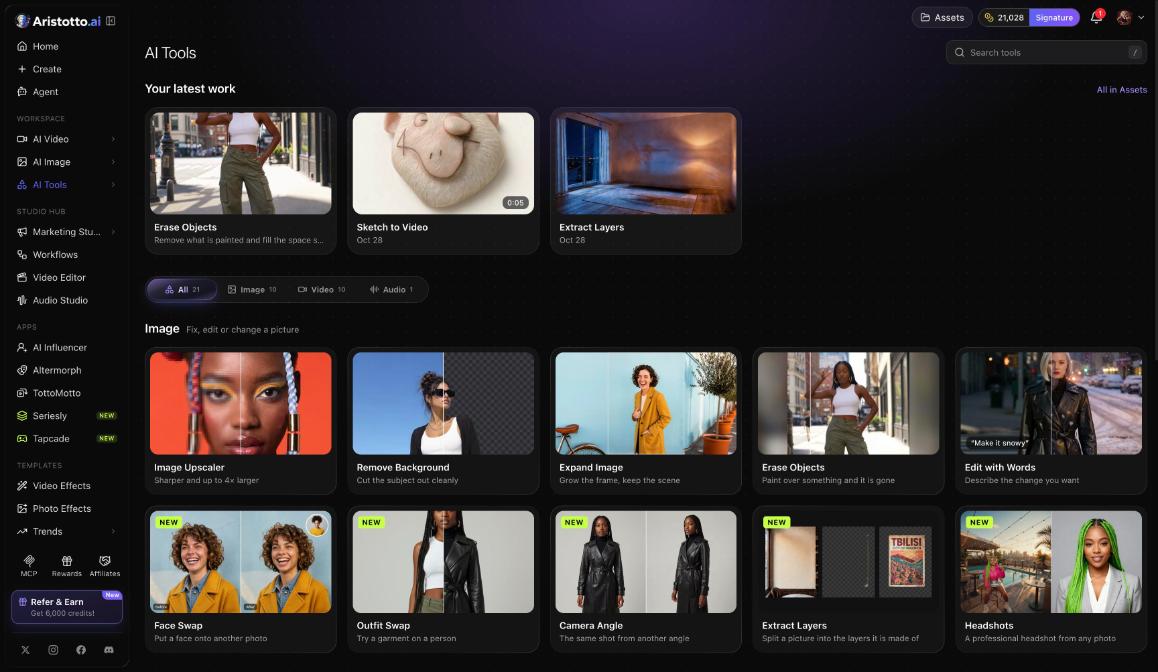
The AI Tools page has 10 tools for images. They upscale a picture, remove its background, expand it, erase objects, edit it from a sentence, swap a face or an outfit, change the camera angle, split it into layers and make headshots. Find them under Workspace in the left rail, at /app/ai-tools. Each run is paid in credits, and the price shows on the button before you press it.
What each image tool does
| Tool | What it does |
|---|---|
| Image Upscaler | Makes a picture sharper and up to 4x larger |
| Erase Objects | Paint over something and it is gone |
| Edit with Words | Describe the change you want |
| Outfit Swap | Tries a garment on a person |
| Camera Angle | The same shot from another angle |
| Extract Layers | Splits a picture into the layers it is made of |
| Headshots | A professional headshot from any photo |
The other three image tools are Remove Background, Expand Image and Face Swap.
How to use an image tool
Open AI Tools under Workspace in the left rail.
Use Search tools, or pick an image tool from the page.
Check the model card. Swap changes the model.
Add your picture: upload it, or choose From your Assets.
Set the settings.
Check the price on the button, then press it.
Each tool page has three tabs: Your work, Examples and How it works. Use this example puts an example's words into your settings.
Example: Edit with Words
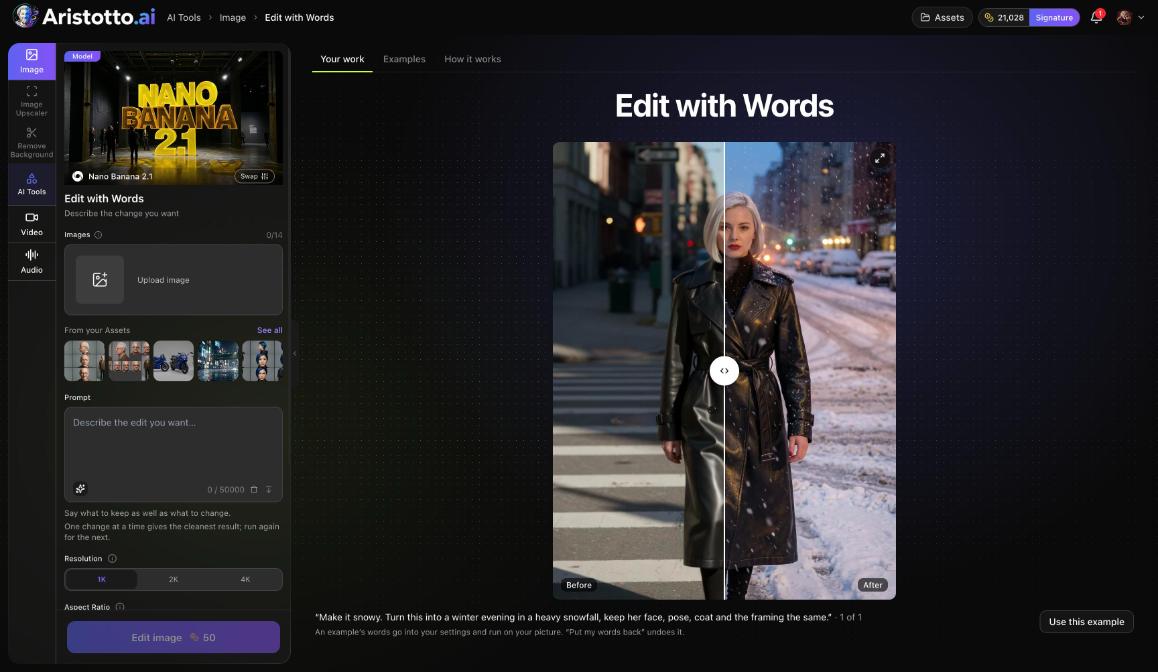
Edit with Words changes a picture from a description. You write the change you want, and the tool makes it.
Open Edit with Words.
Add your picture, or choose From your Assets.
Describe the change you want.
Pick a resolution: 1K, 2K or 4K.
Press the button. In the example on the page, it reads Edit image for 50 credits.
The model on the card is Nano Banana 2.1. Swap changes it if you want another model.
Which tool for which job
A picture is too small or soft: Image Upscaler, up to 4x larger.
Something in the picture should not be there: Erase Objects. Paint over it.
You know the change but not how to make it: Edit with Words. Describe it.
You want to see a garment on a person: Outfit Swap.
You want the same shot from another side: Camera Angle.
You need the layers a picture is made of: Extract Layers.
You need a professional headshot: Headshots, from any photo.
Where results go
Results go to Assets. Your latest work also shows on top of the AI Tools page, with All in Assets for the rest. Outputs are private by default. Make one public from the preview, the result row, Assets or your profile.
Failed, timed-out and partly failed runs are refunded automatically.
Questions
How much larger can Image Upscaler make a picture?
Up to 4x larger, and sharper.
Can I change a picture by describing what I want?
Yes. Use Edit with Words and describe the change you want.
Can I use a picture I already made on Aristotto?
Yes. Choose From your Assets on the tool page instead of uploading.
What does Extract Layers do?
It splits a picture into the layers it is made of.
Are my edited pictures public?
No. Outputs are private by default. You choose when to make one public.