AI Video and Audio Tools: Lip Sync, Dub Video, Relight, Voice Changer and More
 by Aristotto3 min
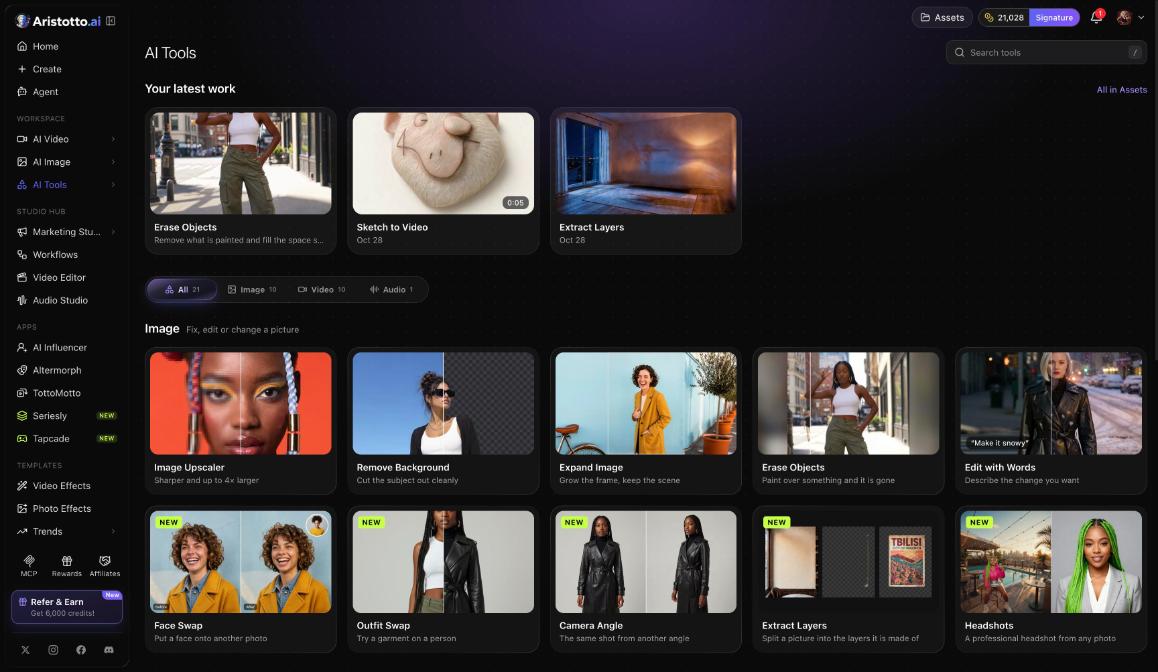
The AI Tools page has 10 tools for video and 1 for audio. They cover upscaling, lip sync, face swap, dubbing, backgrounds, sound effects, relighting, reframing, masking and sketches, plus Voice Changer for audio. Find them under Workspace in the left rail, at /app/ai-tools, or open some of them straight from a video you made. Each run is paid in credits, and the price shows on the button before you press it.
The video tools and the audio tool
| Video tools | Audio tool |
|---|---|
| Video Upscaler | Voice Changer |
| Lip Sync | |
| Face Swap Video | |
| Dub Video | |
| Video Background | |
| Add Sound Effects | |
| Relight Video | |
| Video Reframe | |
| Mask and Regenerate | |
| Sketch to Video |
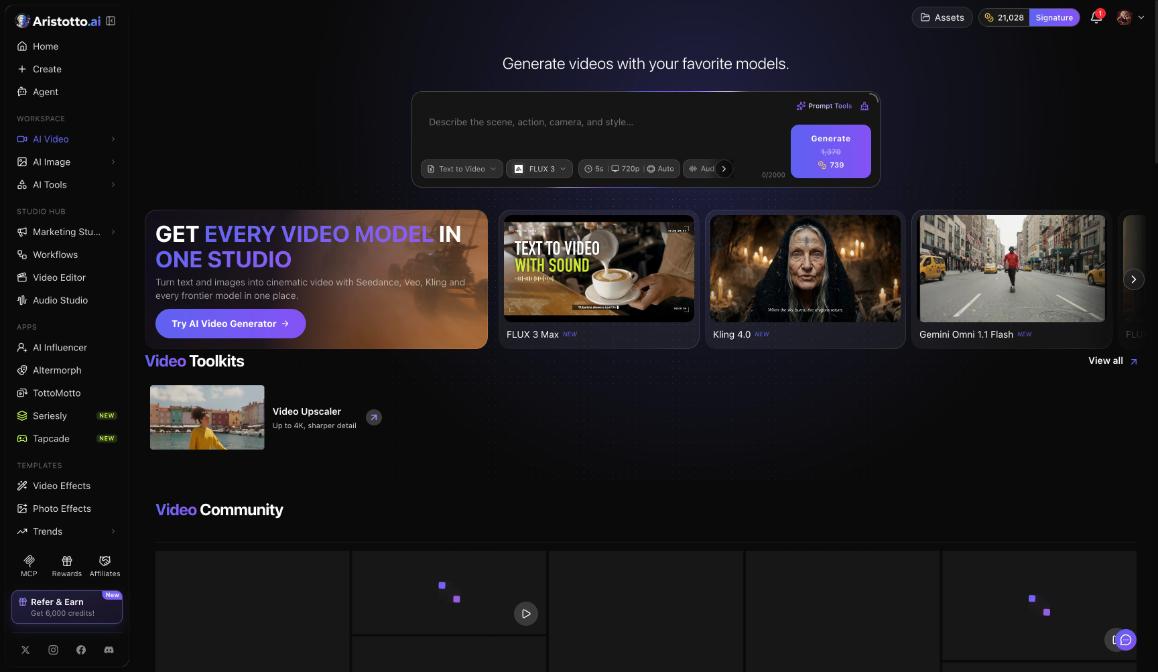
The AI Video page also lists Video Upscaler under Video Toolkits, up to 4K.
How Lip Sync works
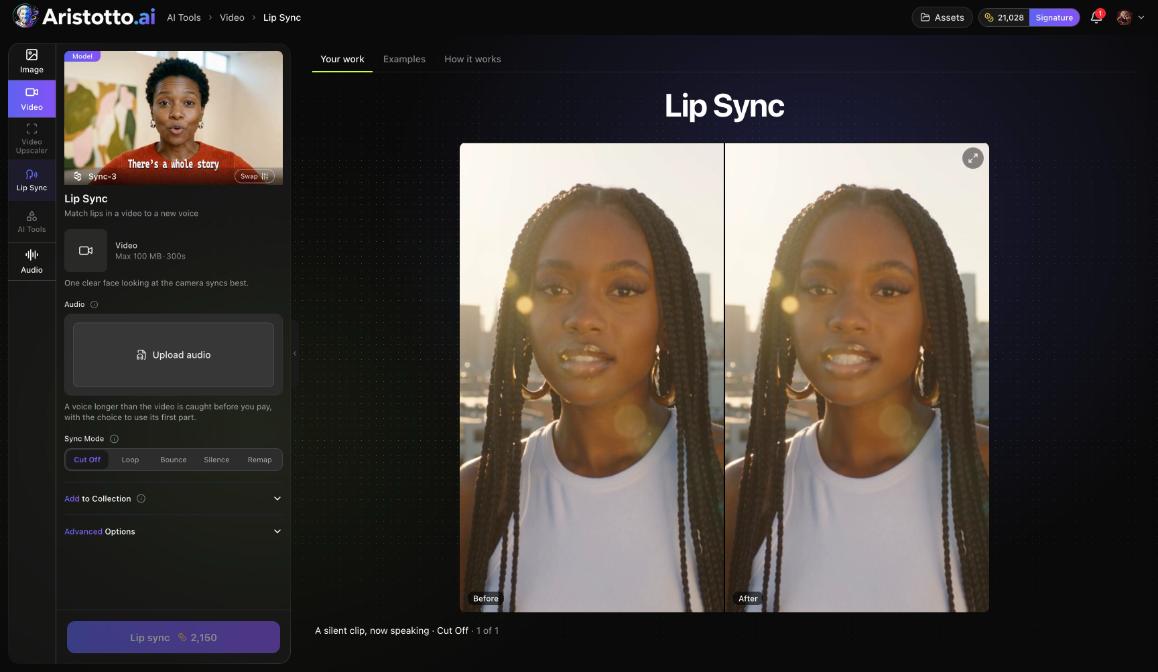
Lip Sync takes your video and an audio track.
Model: Sync-3.
Your video: up to 100 MB and 300 seconds.
Upload audio for the voice.
Sync Mode: Cut Off, Loop, Bounce, Silence or Remap.
To run it:
Open Lip Sync on the AI Tools page.
Add your video: upload it, or choose From your Assets.
Press Upload audio and add the voice.
Pick a Sync Mode.
Check the price on the button, then press it.
If the voice is longer than the video, Lip Sync catches it before you pay.
How to use any video tool
Each tool page has the same parts, so the steps are the same:
Open AI Tools under Workspace in the left rail.
Use Search tools, or pick a video tool.
Check the model card. Swap changes the model.
Add your file: upload it, or choose From your Assets.
Set the settings.
Check the price on the button, then press it.
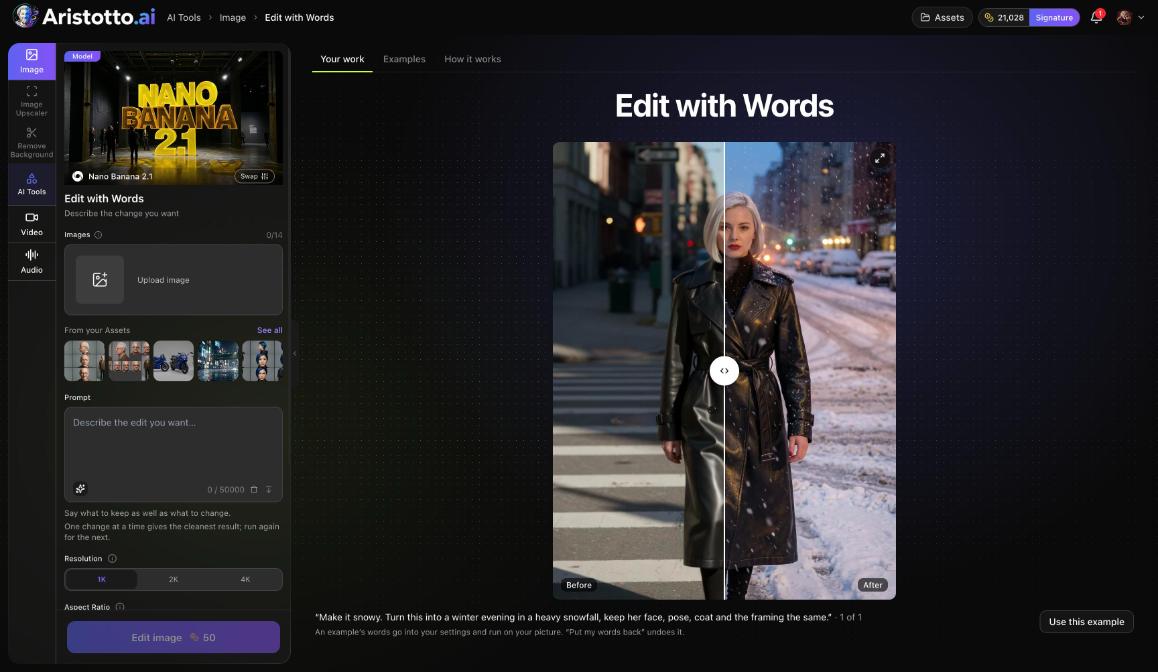
Each tool page has three tabs: Your work, Examples and How it works. Use this example puts an example's words into your settings.
Open a tool from your video
You do not have to go to the AI Tools page first. A creation's preview lists AI Tools for this video, such as Video Upscaler, Lip Sync, Face Swap Video and Dub Video. They open in place. In the workspace, the Video tab also has LipSync and AI Tools tasks, and the Audio tab has LipSync and AI Tools too.
Results and refunds
Results go to Assets. Your latest work also shows on top of the AI Tools page, with All in Assets for the rest. Outputs are private by default.
Failed, timed-out and partly failed runs are refunded automatically. You can cancel a run only while it is still queued; once it has started it runs to the end.
Questions
How big a video can Lip Sync take?
Up to 100 MB and 300 seconds.
What if my voice track is longer than the video?
Lip Sync catches it before you pay.
Can I upscale a video to 4K?
Yes. The AI Video page lists Video Upscaler under Video Toolkits, up to 4K.
Is there a tool for audio?
Yes, one: Voice Changer, on the same AI Tools page.
Do I need to download my video before I use a tool?
No. Choose From your Assets on the tool page, or open AI Tools for this video from the video's preview.