AI Image on Aristotto: Text to Image and Image to Image, Step by Step
 by Aristotto3 min
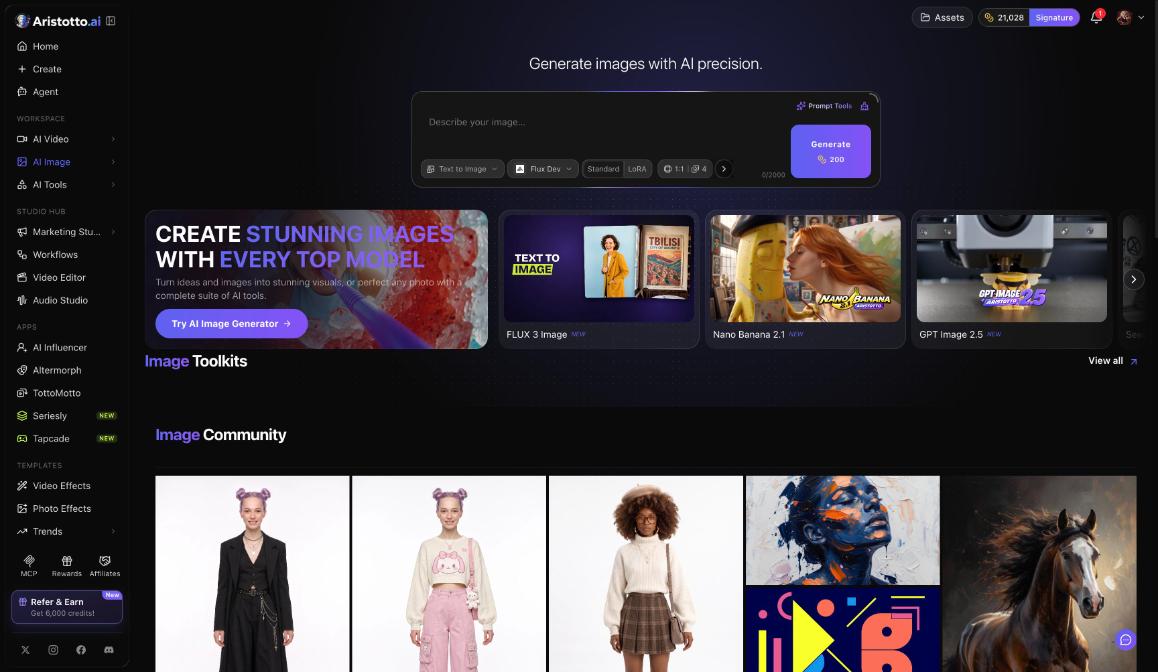
The AI Image page makes pictures from a prompt, or from a picture you add. Open it with AI Image in the left rail, under Workspace. You choose Text to Image or Image to Image, a model, Standard or LoRA, a ratio and the number of images, and the Generate button shows the price in credits before you run it.
The composer
Mode: Text to Image or Image to Image.
Model chip: featured models include FLUX 3 Image, Nano Banana 2.1 and GPT Image 2.5.
Standard or LoRA: a choice in the composer.
Ratio: the shape of the picture.
Number of images: how many pictures one run makes.
The page also has Image Community.
How to make an image from text
Open AI Image in the left rail.
Choose Text to Image.
Pick a model on the model chip.
Choose Standard or LoRA, a ratio and the number of images.
Write your prompt.
Read the price on the Generate button, then press Generate.
How to make an image from another image
Open AI Image and choose Image to Image.
Add the picture you want to start from.
Pick a model, a ratio and the number of images.
Write a prompt that says what to change.
Read the price on Generate and press it.
You can also start from the workspace. Press Create in the left rail, choose the Image tab, check the model on the top card and press Swap to change it.
What an image costs
The price depends on the model, resolution, quality and how many results you ask for. More images in one run means a higher price, and the Generate button shows the total first.
| Plan | Credits a month | About this many images |
|---|---|---|
| Atelier | 8,000 | 880 |
| Virtuoso | 25,000 | 2,700 |
| Signature | 60,000 | 6,600 |
At the time of writing, subscribers get 46% off FLUX 3 until Dec 20, 2026, applied automatically at Generate. Failed runs are refunded automatically.
Changing an image after it is made
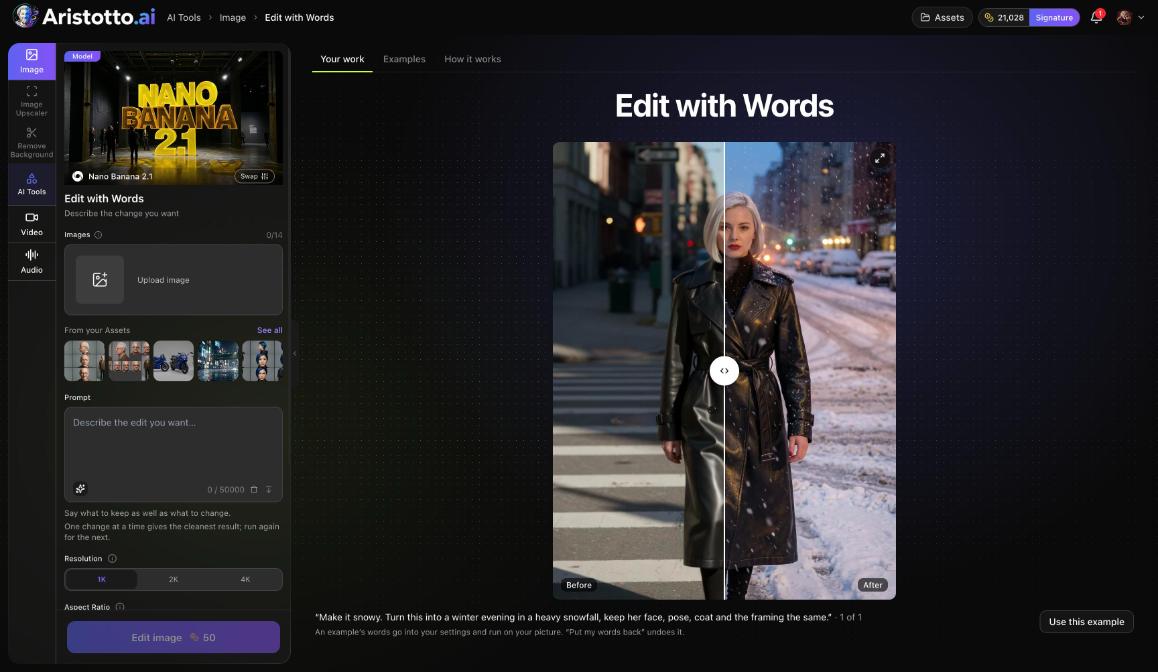
AI Tools in the left rail has 10 image tools. Each one shows its model card, your file, its settings and the price on the button. Pick your file by uploading it or with From your Assets.
Image Upscaler: sharper and up to 4x larger.
Remove Background.
Expand Image.
Erase Objects: paint over something and it is gone.
Edit with Words: describe the change you want.
Face Swap.
Outfit Swap: try a garment on a person.
Camera Angle: the same shot from another angle.
Extract Layers: split a picture into the layers it is made of.
Headshots: a professional headshot from any photo.
For example, Edit with Words runs on Nano Banana 2.1 at 1K, 2K or 4K, and the button reads Edit image for 50 credits. Results go to Assets.
For ready-made looks, Photo Effects under Templates has 40+ effects. Pick one, upload your photo and press Generate.
Questions
What is the difference between Text to Image and Image to Image?
Text to Image starts from your prompt alone. Image to Image starts from a picture you add, and your prompt says what to change.
Does making more images cost more?
Yes. The price depends on how many results you ask for, and the Generate button shows the total before you press it.
Can I change one part of an image with words?
Yes. Edit with Words in AI Tools takes a description of the change you want. On Nano Banana 2.1 the example run costs 50 credits.
Can I make an image bigger?
Yes. Image Upscaler in AI Tools makes it sharper and up to 4x larger.
Who can see my images?
Only you, until you make them public. Outputs are private by default.