Gemini Omni 1.2 Flash on Aristotto: 15-Second Scenes With Sound, Extend and Edits, Up to 4K
 by Aristotto11 min
Gemini Omni 1.2 Flash is live on Aristotto. Google DeepMind released it on November 5, 2026, and it is the first Gemini Omni that makes a full 15-second scene in one generation, with the picture and the sound made together: footsteps, voices and the room they are in. A clip can grow with Extend, and Edit changes one thing in a shot, such as an outfit, a product or the weather, while the motion and the camera stay as they were.
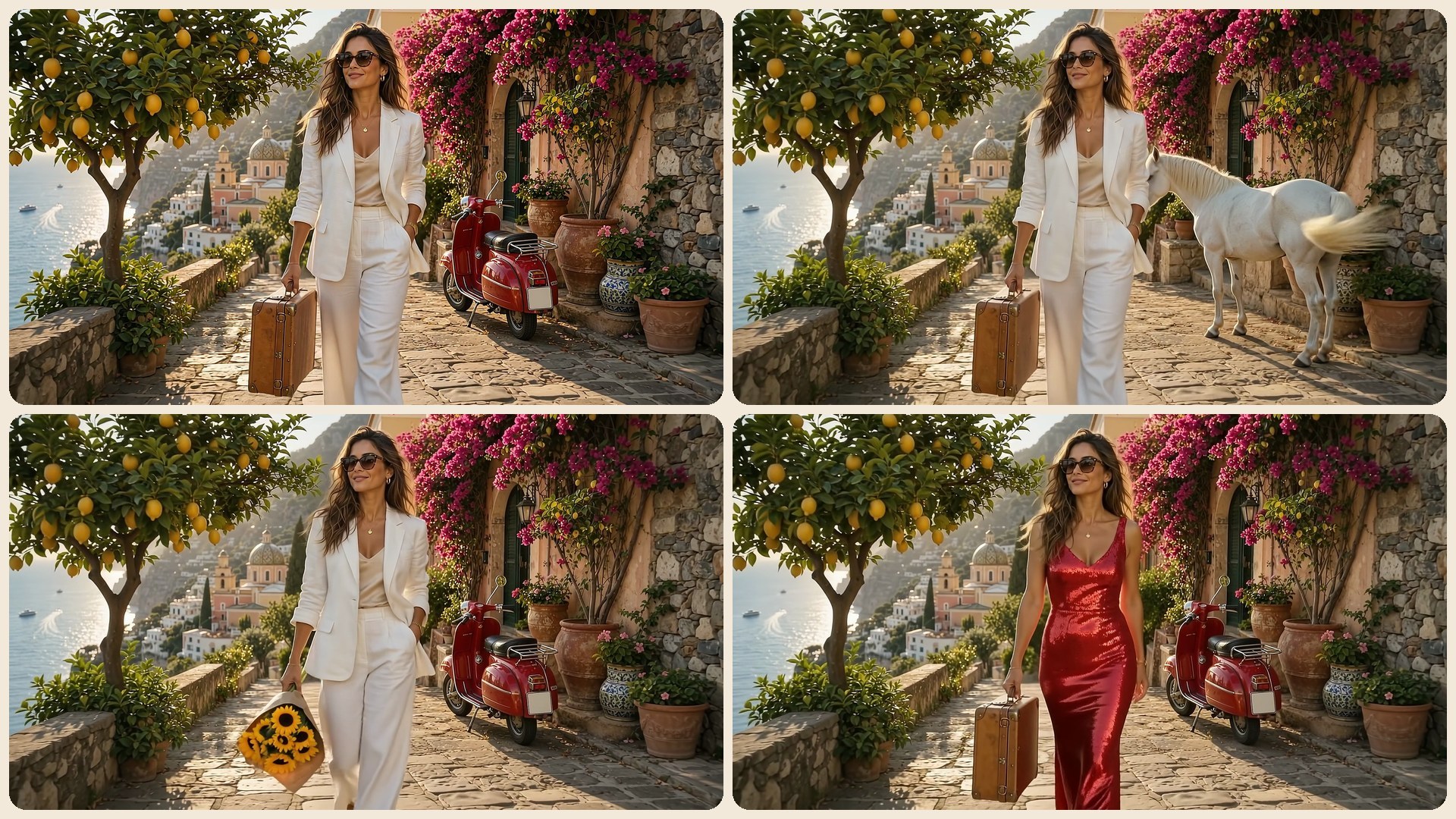
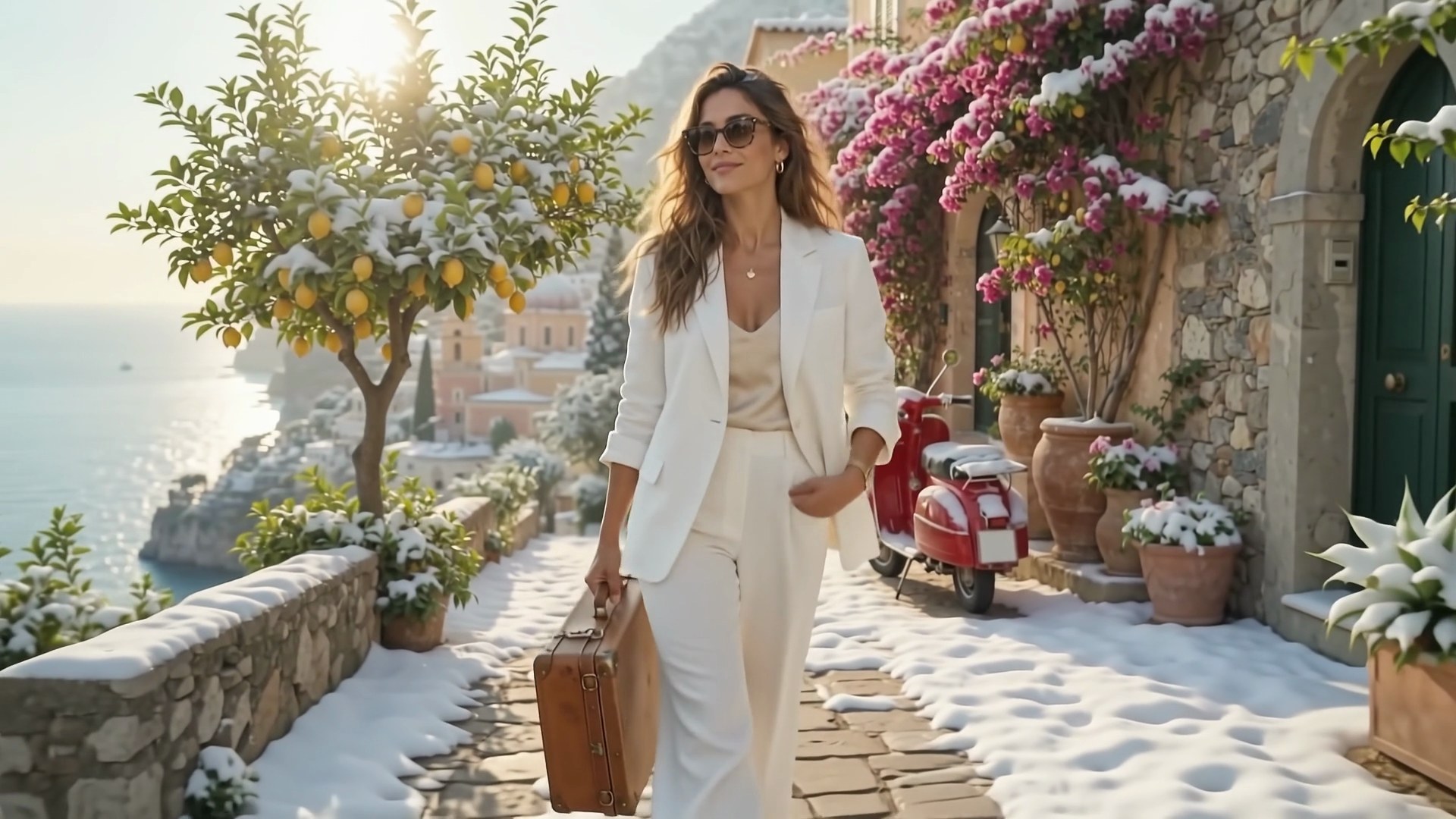
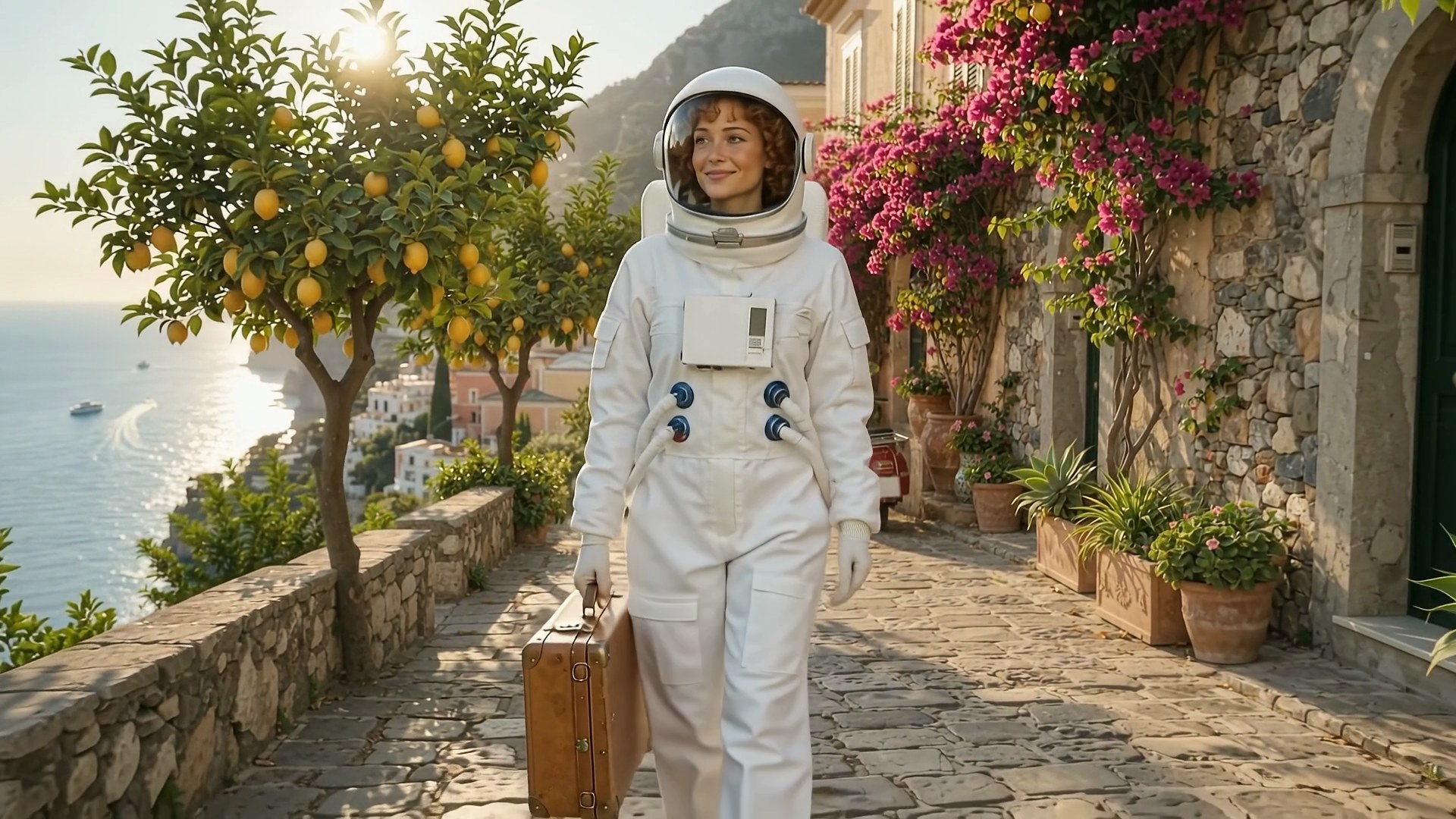
Our launch film is one shot. A woman in a white linen suit walks down a lemon-grove lane on the Amalfi coast, and Gemini Omni 1.2 edits the same take again and again: the scooter beside her becomes a white horse, her suitcase becomes a bouquet of sunflowers, her suit becomes a red sequin gown, the lane fills with snow, and she becomes an astronaut who says: “Same shot. New story.” Her walk, the camera and the light stay the same in every version. This guide covers what the model is, everything it does on Aristotto, how we made the film, prices, and tips.
What is Gemini Omni 1.2 Flash?
Gemini Omni is Google DeepMind’s multimodal video family. One model reads text, pictures, video and sound together, so the audio is generated with the picture instead of being added afterwards: footsteps land on the stones, waves break when they hit the rocks, and characters speak with their lips in sync. Version 1.2 is the Flash tier, made for speed and price. What changed from 1.1:
Longer clips: up to 15 seconds in one generation (1.1 stopped at 10), set in one-second steps from 3 to 15.
Edits turn by turn: refine the same clip instead of starting over. Google’s examples include swapping a product or a background, changing the lighting or the weather, and switching the camera angle.
Better references: characters, products and styles from your pictures hold up better, and short reference clips (up to 3 seconds) steer the motion.
Steadier shots: Google reports less drift and morphing across camera moves and fewer unwanted jump cuts.
Clearer speech: more natural dialogue, cleaner lip sync, and distinct voices when more than one character speaks.
Lower price: Google lists 1.2 at about 30% below 1.1.
Everything it does on Aristotto
Gemini Omni 1.2 has five tasks in the workspace. Every clip comes with sound.
Text to video: describe a scene. 3 to 15 seconds, 16:9 or 9:16, at 360p, 720p, 1080p or 4K.
Image to video: animate one picture, or give a first and a last frame (Frames) and let the model fill the motion between them. With a last frame a clip runs up to 10 seconds.
Reference to video: up to 10 pictures and up to 3 short clips that keep your character, product or style in the shot. Each reference clip runs up to 3 seconds; for clips of 11 seconds or longer, use one reference clip.
Video to video: Edit changes what you ask for in a clip you bring and keeps the rest. Extend continues a clip by 3 to 10 seconds. Both take up to 10 pictures as references.
Upscale video: lifts a clip to 720p, 1080p or 4K. It takes the model’s own sizes: 640×360, 1280×720 or 1920×1080, or the same sizes upright. A clip at another size is refused before you pay.
Under Advanced options you can set the Thinking level to Low, Default or High. It changes how much the model plans before it renders, and the price stays the same.
| Task | What you give it | Length | Sizes |
|---|---|---|---|
| Text to video | A prompt | 3 to 15 s | 360p, 720p, 1080p, 4K |
| Image to video | A picture, or a first and a last frame | 3 to 15 s (10 s with a last frame) | 360p, 720p, 1080p, 4K |
| Reference to video | Up to 10 pictures and 3 clips of up to 3 s | 3 to 15 s | 360p, 720p, 1080p, 4K |
| Video to video: Edit | Your clip and up to 10 pictures | Your clip’s length | Keeps your clip’s shape |
| Video to video: Extend | Your clip and up to 10 pictures | Adds 3 to 10 s | Keeps your clip’s shape |
| Upscale video | A 640×360, 1280×720 or 1920×1080 clip (or upright) | Your clip’s length | 720p, 1080p, 4K |
How to make your first clip
Open the workspace, choose Video, and pick Gemini Omni 1.2 in the model list.
Choose the task: Text to video to start from words, Image to video for your picture, Reference to video for a cast or a product, or Video to video to edit or extend a clip.
Set the shape (16:9 or 9:16), the length and the resolution. Draft at 360p while you look for the shot: it costs a fraction of 1080p.
Write the prompt: the subject, the action, the camera and the sound. Put spoken lines in quotes and say who speaks.
Press Generate. The clip lands in My Generations with its sound.
Keep it? Upscale it to 1080p or 4K in Upscale video, or open Video to video to edit or extend it.
How we made the launch film
The film is one camera move: she walks toward the camera down the lane while the camera dollies back at her pace. Every change is a Gemini Omni 1.2 Edit of that same take, so her walk and the camera never change.
One picture. MAI Image 2.7 made the opening frame: a woman in a white linen suit with a tan leather suitcase on a sunlit lemon-grove lane on the Amalfi coast, a red scooter parked by a wall of bougainvillea.
One take. Gemini Omni 1.2 Image to video turned it into a 15-second walk at 720p, with her footsteps on the stones, distant seagulls and a sea breeze.
Five edits. Video to video with Edit made each version from that take: the scooter became a white horse, the suitcase a bouquet of sunflowers, the suit a red sequin gown, the afternoon a snowy one, and the woman an astronaut who stops and says her line.
Upscale. Upscale video lifted every version to 1080p.
The cut. Light sweeps reveal each change over the same moment of the walk, on the beat of the music.
The edit that brought the horse, with what to keep spelled out:
Replace the red scooter parked by the wall with a calm white horse standing in exactly the same place. Keep everything else exactly the same: the woman, her face, sunglasses, white suit and suitcase, her natural walking pace and its timing, the camera move, the lane, the sea and the golden light. Real-time motion, no slow motion. Add a soft horse snort to the original sound.
And the astronaut, whose line the model speaks with her lips in sync:
Replace the woman with an astronaut: a woman with short curly auburn hair and light freckles, in a plain white spacesuit with no logos, no patches, no flags and no text anywhere on it, her helmet visor raised to show her warm smiling face. … In the last two seconds she stops, looks into the camera and says clearly: “Same shot. New story.”
Every sound in the film comes from the model: the footsteps, the horse, the crunch of snow and the astronaut’s line. We added only music and the logos.
Prompt tips
Start from pictures. A reference picture of each person, place and character, and a first frame made from them, keep the look you planned.
One take or many shots. One take with timed beats can carry a whole scene, as ours does. For a story told in many shots, make each shot its own generation from its own first frame, then cut them together.
Ask for a big change. Our first “make it pour with rain” came back as a drizzle you could hardly see. “A heavy downpour: dark grey storm clouds replace the sunset sky, thick visible rain streaks fall across the whole frame” brought the storm.
Give an edit a picture when words are not enough. When words cannot pin it down, such as one particular dress or a city skyline, add one reference picture to the edit. Weather and light need words only.
Keep the motion simple. Spins and fast action are where video models still bend bodies; Google lists fast action and complex physics as still improving. A steady walk stayed real in every version of our film.
Time the beats. Write the beats with their seconds, like “[2-6s] she walks toward the camera”. In our tests the take hit every beat we wrote.
Ask for real time. We ended every prompt with “Real-time motion at a natural speed, no slow motion.”
Name the sounds. Every sound we listed is in the film. Put dialogue in quotes and say who speaks it.
Grow long scenes with Extend. A clip runs up to 15 seconds; Extend adds 3 to 10 seconds each time and keeps the same scene.
Give every Extend your references. Extend takes up to 10 pictures. In our tests, a character given her pictures in each Extend kept the same face and hair to the end of the clip.
Say what to keep when you edit. “Keep everything else exactly the same: the woman, her face, sunglasses, white suit and suitcase, her natural walking pace and its timing, the camera move,” and change one thing per edit.
Describe references in words. In Reference to video, say who is who: “the woman from the first picture wears the jacket from the second picture”.
What it costs
You pay by the second, by resolution, and the workspace shows the exact credits before you press Generate. Examples from our tests:
Text to video, 3 seconds at 360p: 110 credits.
Text to video, 8 seconds at 720p: about 770 credits.
Frames (a first and a last frame), 4 seconds at 360p: 150 credits.
Extend by 3 seconds at 360p: 230 credits.
Upscale a 3-second 720p clip to 1080p: 140 credits.
Good to know
Every clip has sound. There is no switch for silence; mute the clip in the editor if you need it silent.
Clips carry Google’s invisible SynthID watermark.
Google says fast sports action, rapid script changes and complex physics are still being improved, so plan a retake or two for those.
Extend can refuse a clip in which a real person speaks; in our tests it did. Plan the spoken lines before you extend.
Google’s safety filter can refuse a prompt or a picture. When one of ours was refused, a small change of wording or wardrobe went through.
Gemini Omni 1.1 is still in the model list if you need it.
Gemini Omni 1.2: questions
Does every clip have sound?
Yes. Gemini Omni 1.2 makes the sound together with the picture: speech, ambience and effects. There is no switch to turn it off; mute the clip in the editor if you need it silent.
How long can a clip be?
Up to 15 seconds in one generation, in one-second steps from 3. To go longer, open the clip in Video to video and choose Extend, which adds 3 to 10 seconds each time.
Can I edit a clip I made somewhere else?
Yes. Video to video takes your own clip for Edit and Extend. Upscale video is stricter: it takes 640×360, 1280×720 or 1920×1080 clips, or the same sizes upright.
What does the Thinking level do?
It sets how much the model plans before it renders, from Low to High. Try High for complex scenes and edits. The price is the same at every level.
Is there a watermark?
There is no visible watermark. Google adds an invisible SynthID watermark to every clip.
Is Gemini Omni 1.1 still available?
Yes. Gemini Omni 1.2 is a new model next to it; 1.1 stays in the model list.