Video Effects: How to Make a Video From Your Photo With a Ready-Made Look
 by Aristotto3 min
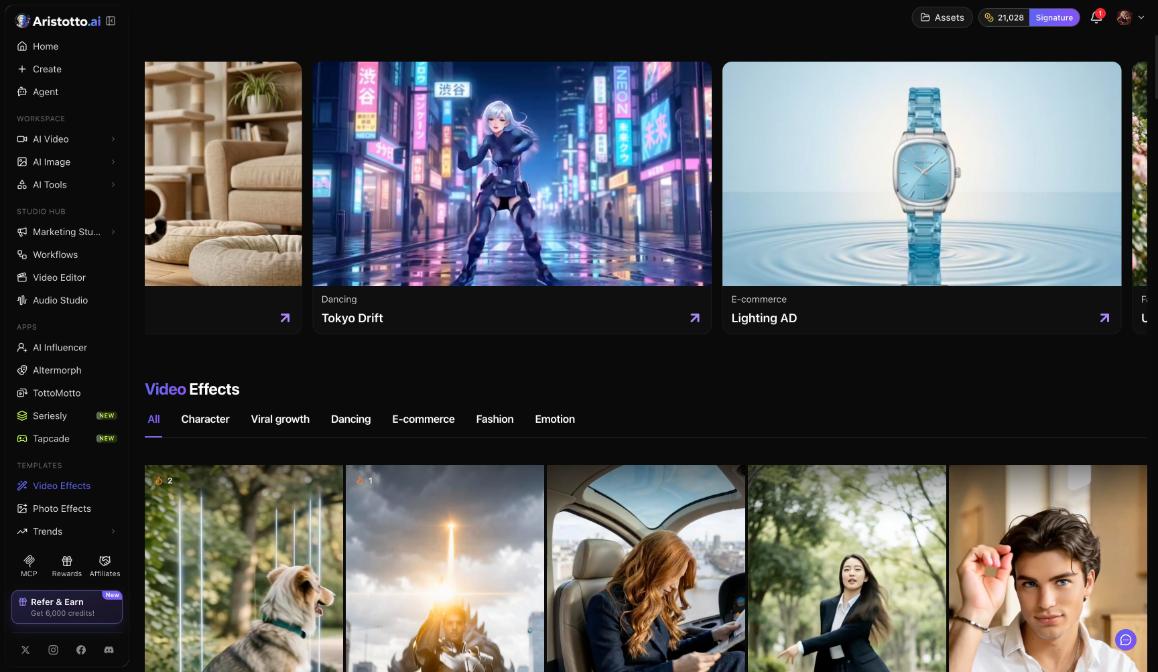
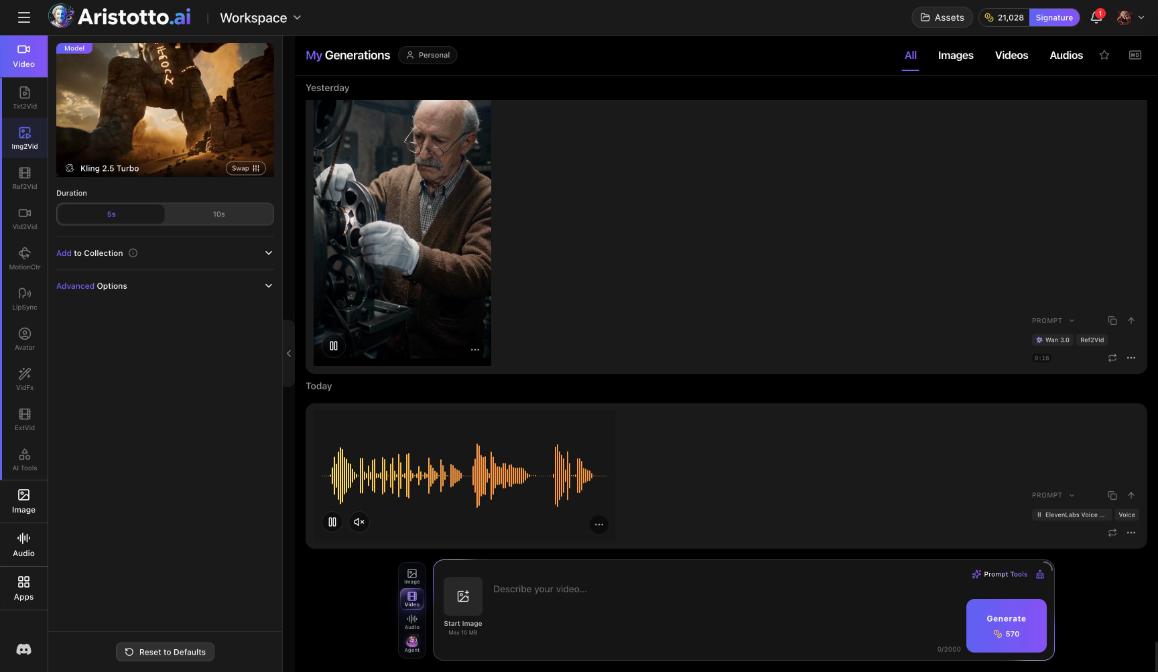
Video Effects are ready-made looks you use with your own photo. You pick an effect, it opens in the workspace set to that effect, you upload your photo and press Generate. Find Video Effects under Templates in the left rail. The price shows on the Generate button before you press it, and the result lands in Assets.
The categories
Video Effects are grouped into six categories:
Character
Viral growth
Dancing
E-commerce
Fashion
Emotion
Some of the effects you will find there:
3D Figurine Factory
God Wing Gacha
Dragon Evoker
Anime Magic
Pixel World
Fairy Wings
How to use a Video Effect
Open Templates in the left rail, then Video Effects.
Browse the categories and pick an effect.
The effect opens in the workspace, set to that effect.
Upload your photo.
Check the price on the Generate button.
Press Generate.
The workspace is the same one you open with Create in the left rail.
What it costs
Every run on Aristotto shows its price in credits on the Generate button before you press it. The price depends on the model, length, resolution, quality and how many results you ask for.
Plan credits are used first, then purchased credits, oldest first.
On the free Base plan, you get free daily reward credits that renew every morning.
Failed, timed-out and partly failed runs are refunded automatically.
You can cancel a run only while it is still queued. Once it has started it runs to the end.
Where your result goes
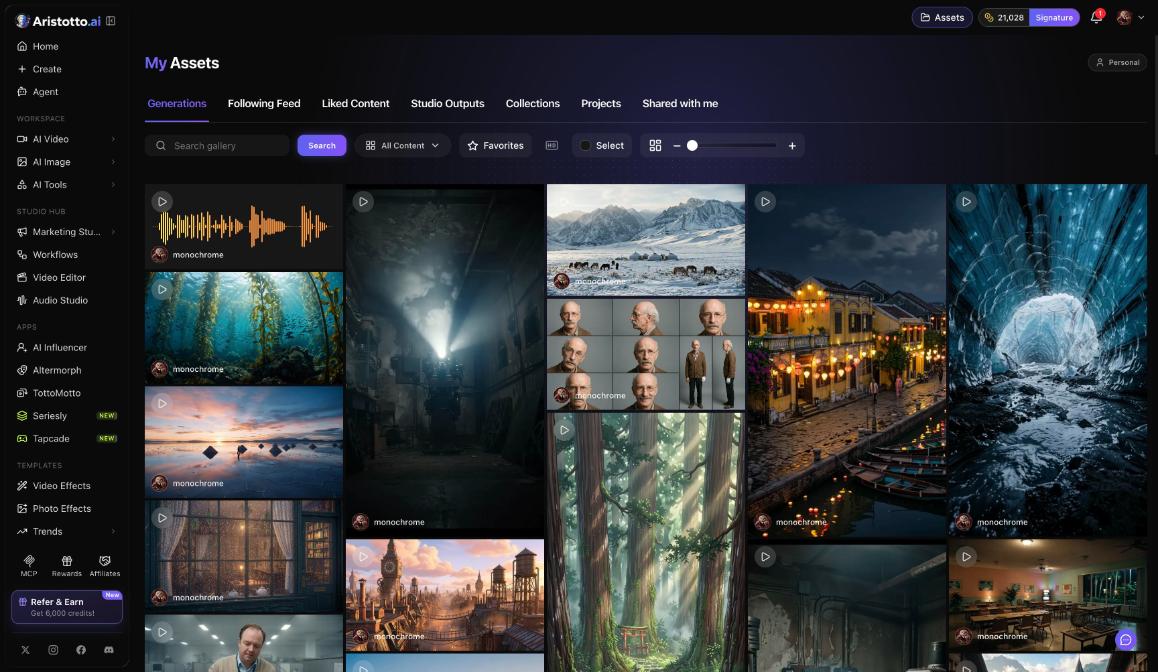
Your result goes to Assets. Because the effect runs in the workspace, it also shows in My Generations there.
Outputs are private by default. To share one, make it public from the preview, the result row, Assets or your profile. Your public profile counts your videos, images, effects and likes.
From the result's preview, AI Tools for this video opens tools such as Video Upscaler, Lip Sync, Face Swap Video and Dub Video in place.
Video Effects or Photo Effects
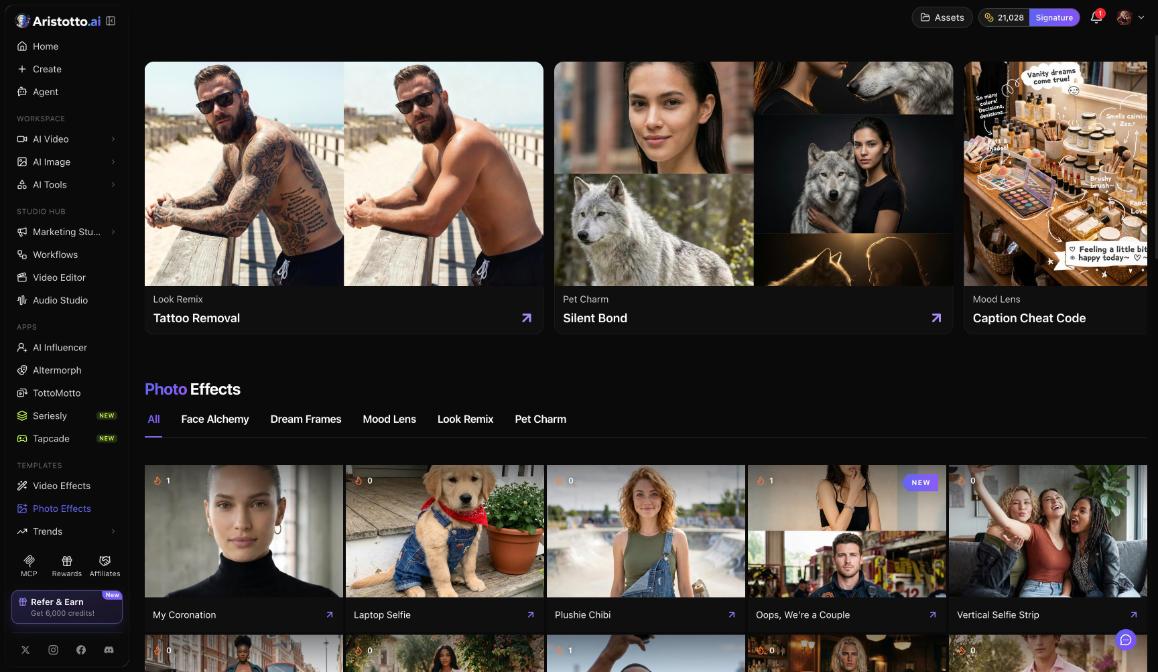
Templates in the left rail has a second set of looks, Photo Effects. They work the same way: pick an effect, it opens in the workspace, upload your photo and press Generate.
| What | Video Effects | Photo Effects |
|---|---|---|
| Categories | Character, Viral growth, Dancing, E-commerce, Fashion, Emotion | Face Alchemy, Dream Frames, Mood Lens, Look Remix, Pet Charm |
| Examples | Dragon Evoker, Pixel World, Fairy Wings | My Coronation, Plushie Chibi, Laptop Selfie |
| Where results go | Assets | Assets |
Photo Effects has more than 40 looks.
Questions
What do I need to use a Video Effect?
A photo. Pick an effect, upload your photo in the workspace and press Generate.
Where do I find Video Effects?
Under Templates in the left rail, next to Photo Effects, Trends and Audio Library.
How much does an effect cost?
The price shows in credits on the Generate button before you press it. It depends on the model, length, resolution, quality and how many results you ask for.
Is my result public?
No. Outputs are private by default. You can make one public from the preview, the result row, Assets or your profile.
What happens if the effect fails?
Failed, timed-out and partly failed runs are refunded automatically.