Connected Apps: How to Control What AI Agents Spend
 by Aristotto3 min
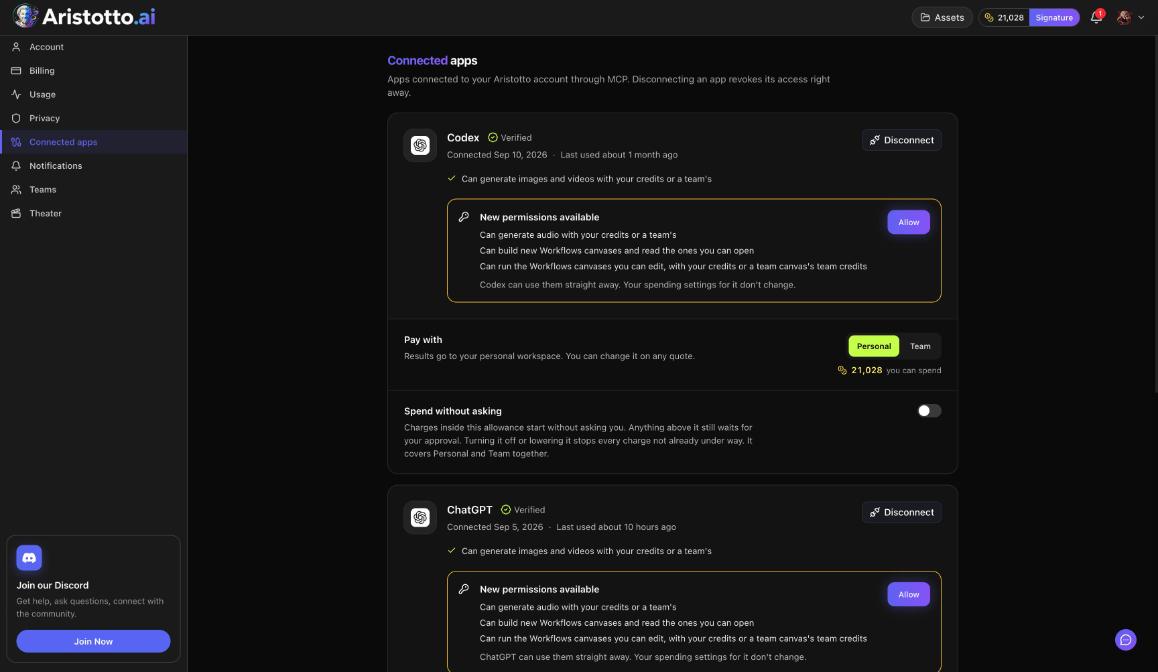
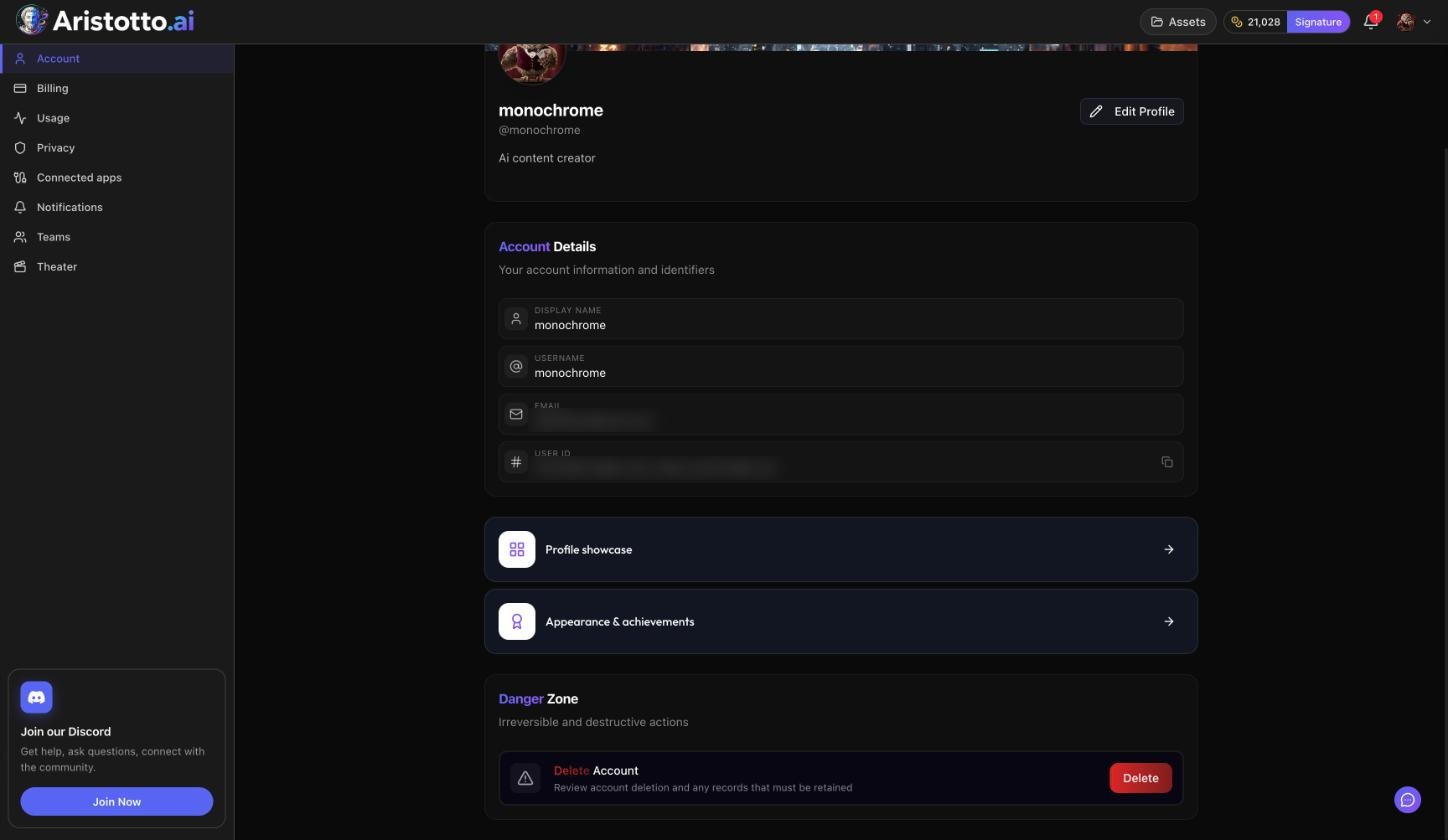
Connected apps is the Settings page that controls what AI apps can do with your Aristotto account. It lists every app you connected through MCP, such as Claude or ChatGPT, with the permissions it has. The same page sets which credits pay and how much may be spent before you are asked. Open Manage Account in the account menu, then Connected apps.
What each app shows
Connected apps lists every app connected through MCP. For each app you see:
Verified, Connected and Last used dates.
The permissions it has.
New permissions available, with Allow, when there is something new to approve.
Disconnect.
The page also has two spending settings: Pay with and Spend without asking.
The permissions an app can have
When you first connect, the client asks you to sign in to Aristotto and approve what it may do. The permissions cover:
The catalog and prices.
Image and video generation.
Audio.
Workflows canvases.
Viewing or cancelling generations.
Connected apps shows which of these each app has. When New permissions available appears, press Allow to give the app the new ones.
Choose who pays
Pay with sets which credits connected apps spend:
| Pay with | Credits used |
|---|---|
| Personal | Your own credits |
| Team | Your team's shared pool |
Plan credits are used first, then purchased credits, oldest first.
Set Spend without asking
Spend without asking is an allowance for charges that do not need your approval each time.
Charges inside this allowance start without asking you.
Anything above it still waits for your approval.
One allowance covers Personal and Team together.
So an agent can work through charges inside the allowance on its own, and you still see every price above it.
Approve or reject a price
A price raised from Claude or another client can be reviewed at aristotto.ai and approved or rejected there. In the chat, you approve each price that is above your allowance.
Check what was spent
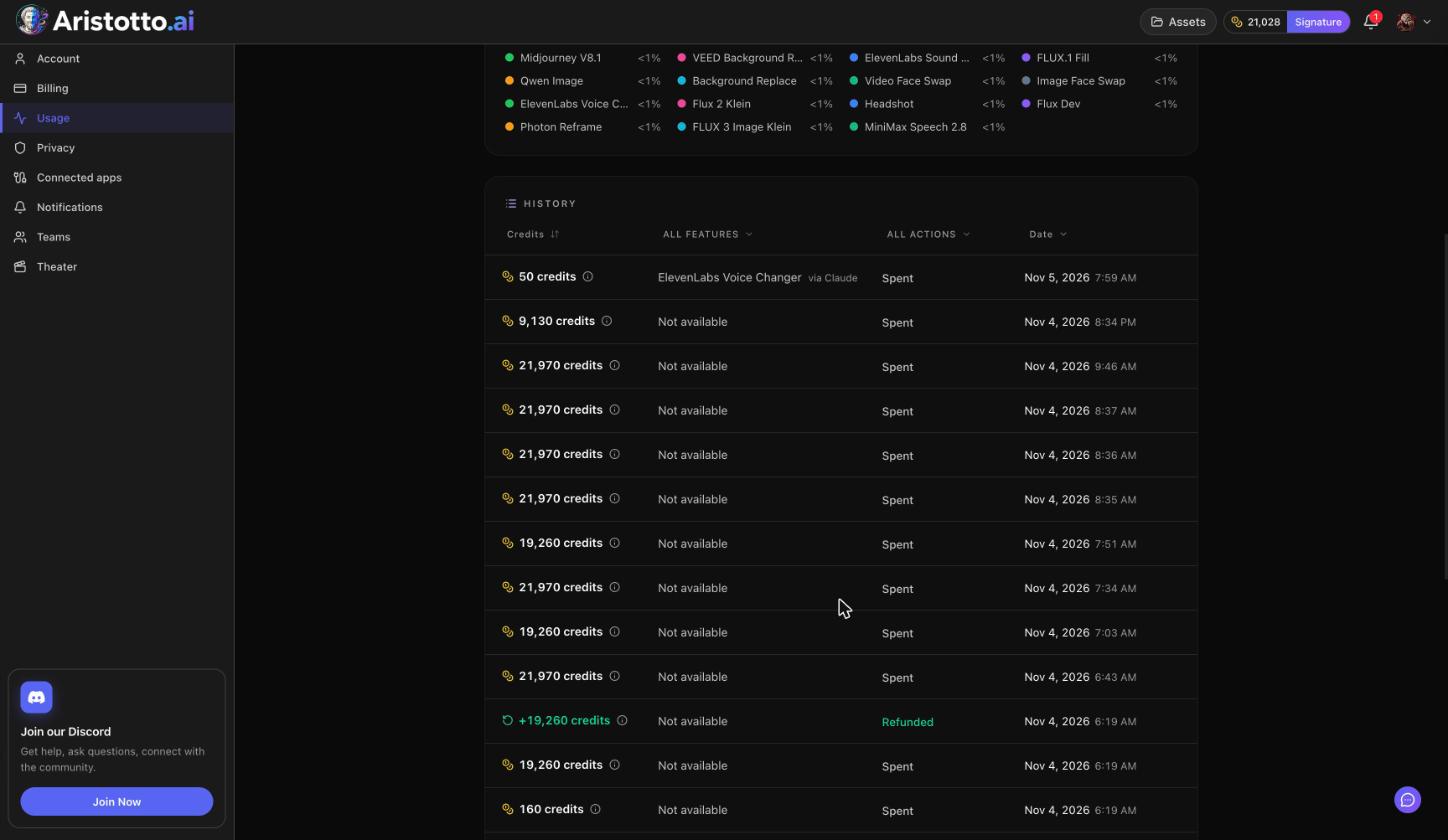
Settings, Usage shows your Usage history:
A spend overview.
A feature breakdown.
A History ledger you can filter by feature, by action (Spent or Refunded) and by date.
Teams have a Team Usage button on the same page. Failed, timed-out and partly failed runs are refunded automatically, and the Refunded filter shows those refunds.
Disconnect an app
Press Disconnect for that app. Access is revoked right away. To use the app again, connect it from the MCP page at /mcp.
Questions
Does an app need my approval for every charge?
Yes, unless the charge is inside your Spend without asking allowance. Anything above it waits for your approval.
Is there a separate allowance for my team credits?
No. Spend without asking covers Personal and Team together.
Can a connected app use my team's credits?
Yes. Set Pay with to Team in Connected apps.
What happens when I press Disconnect?
The app loses access right away. You can connect it again from the MCP page.
Where can I see what I spent?
In Settings, Usage. The History ledger can be filtered by feature, by action (Spent or Refunded) and by date.