GPT Image 2.6 on Aristotto: How to Make Signs, Ads and Edits That Read Right
 by Aristotto4 min
GPT Image 2.6 is OpenAI's newest image model, and it's live on Aristotto today. It writes the words you ask for exactly as written, takes up to 16 reference images, cuts out products on a transparent background and renders up to 4K.
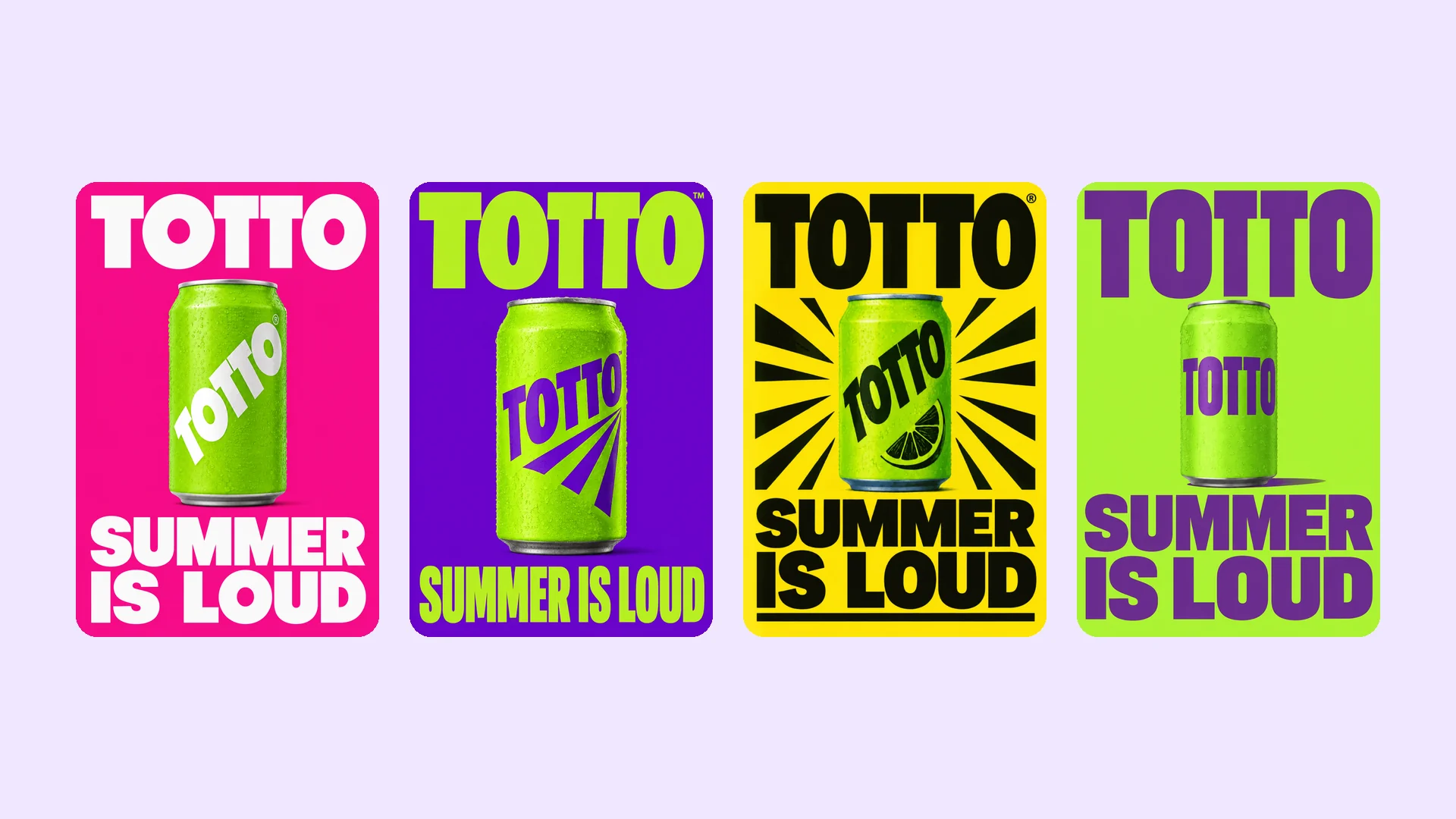
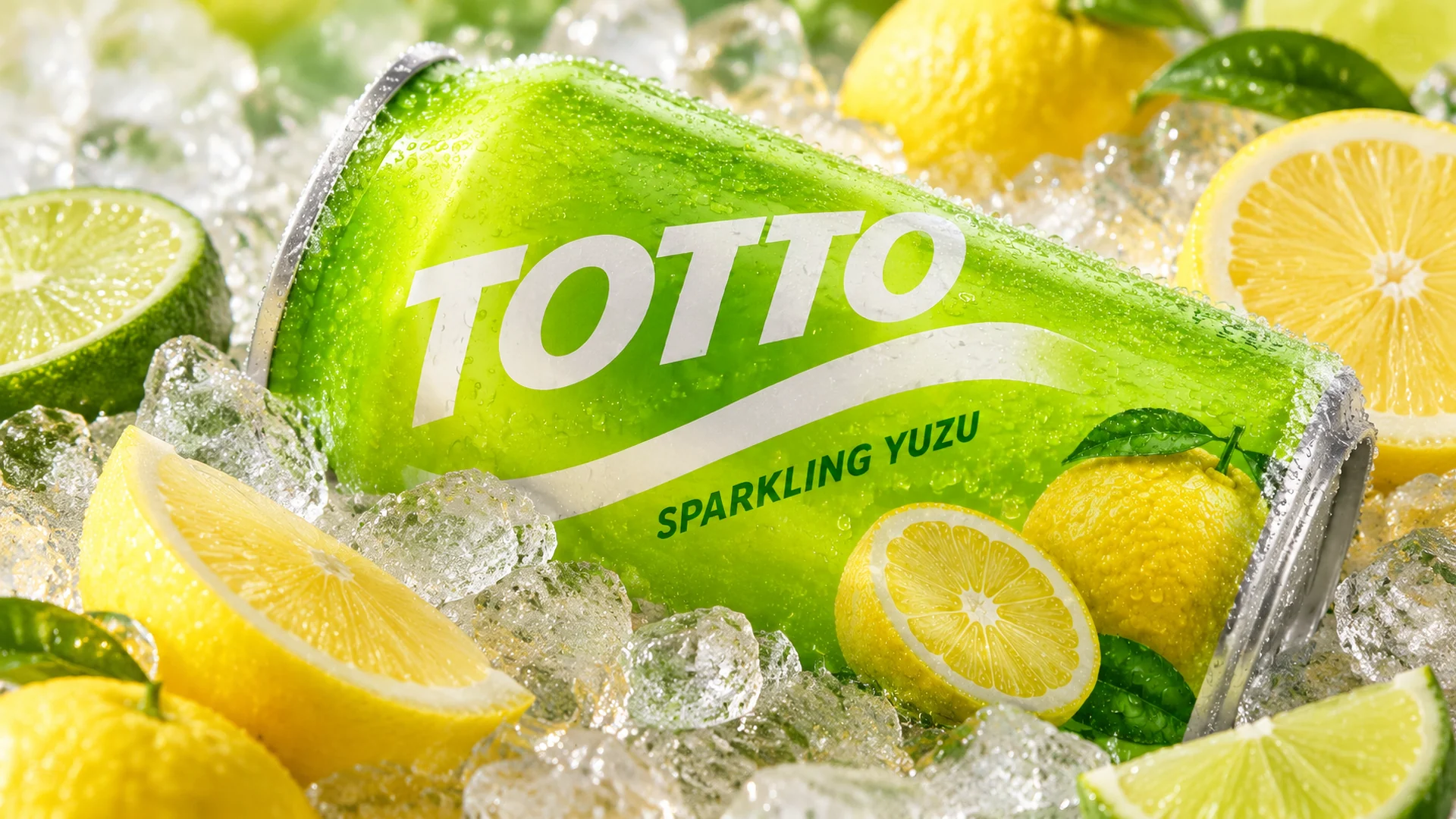
We made a whole summer soda campaign with it, from the can to the billboard. Here's how each part works, with the prompts we used.
How to pick Flare or Sunburst
GPT Image 2.6 has two modes. Pick one under the model name in the workspace.
Flare is built for speed. Use it to try ideas, layouts and colors.
Sunburst is built for intricate detail. Use it for the final image.
We drafted the poster in four colors with Flare at Low quality, then made every final image in Sunburst.
How to get text that reads right
Put the exact words in quotes and say where they go. GPT Image 2.6 spells them as written, down to an issue number or a price.
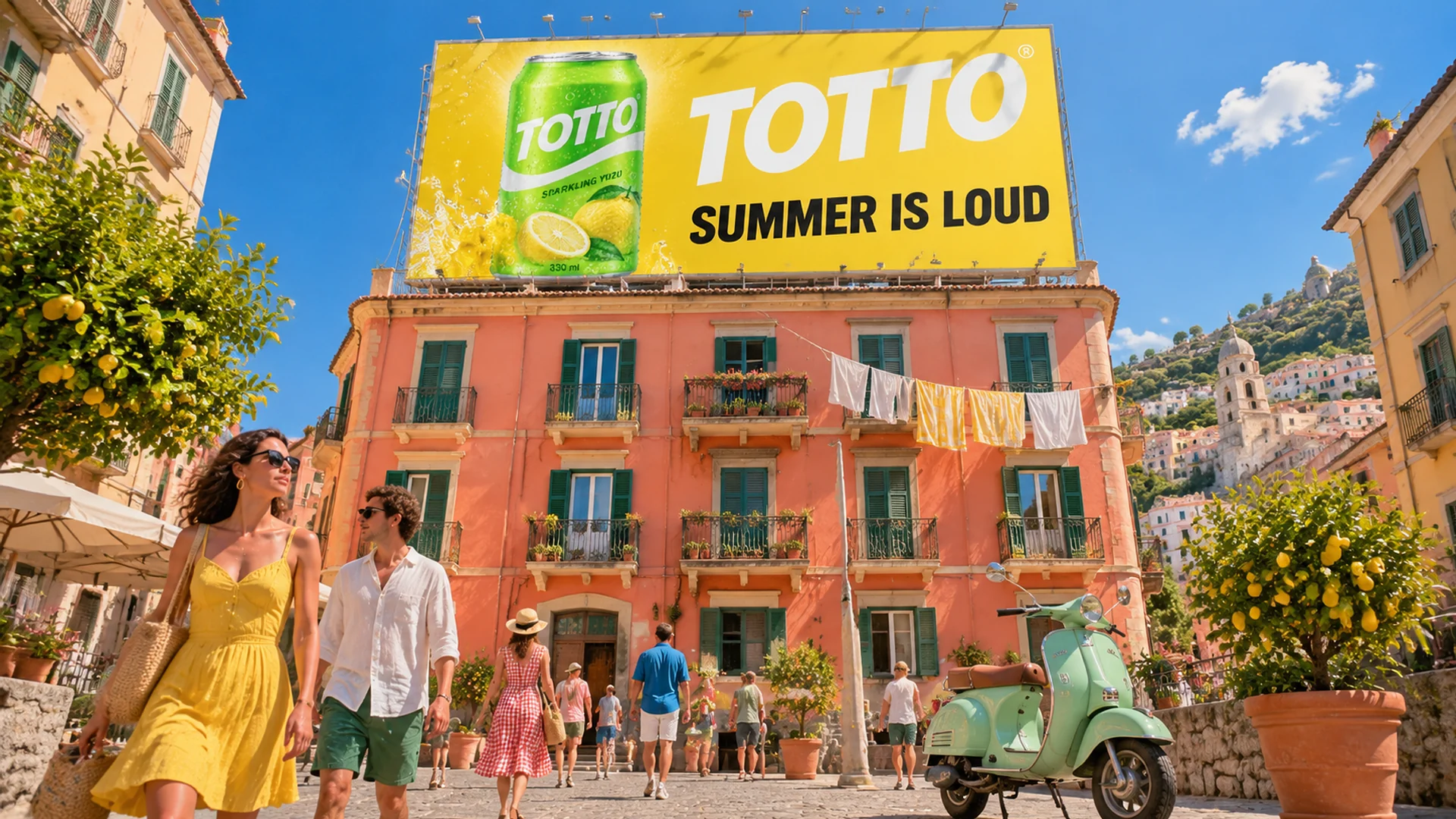
For the billboard we added the can as a reference and described the sign: huge chunky white letters "TOTTO" on a sunny yellow background, the line "SUMMER IS LOUD" in heavy black capitals, and the same lime green can.
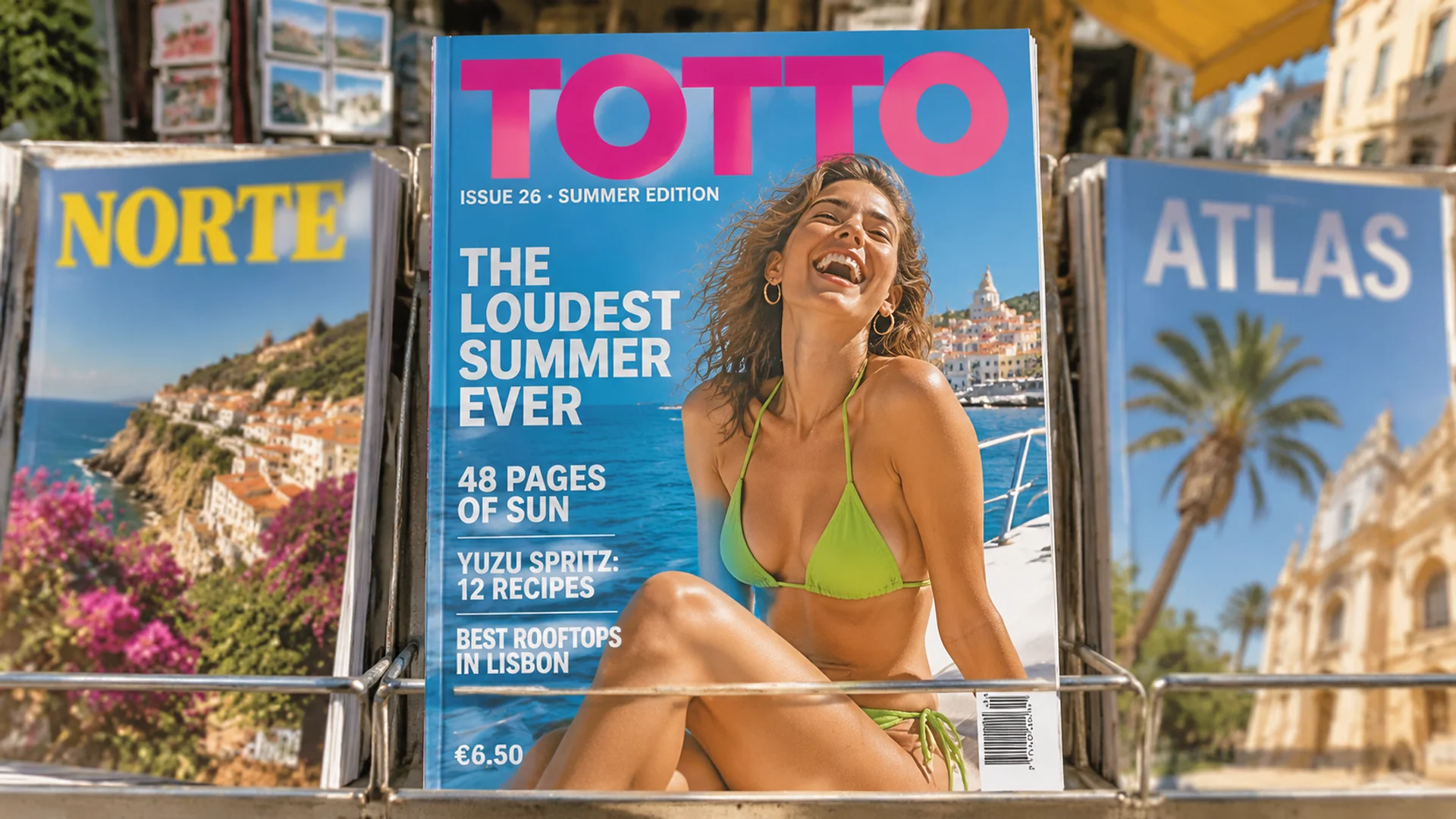
The magazine cover took one prompt: a masthead, an issue line, four cover lines and a price. Every line came out as written.
How to edit with up to 16 references
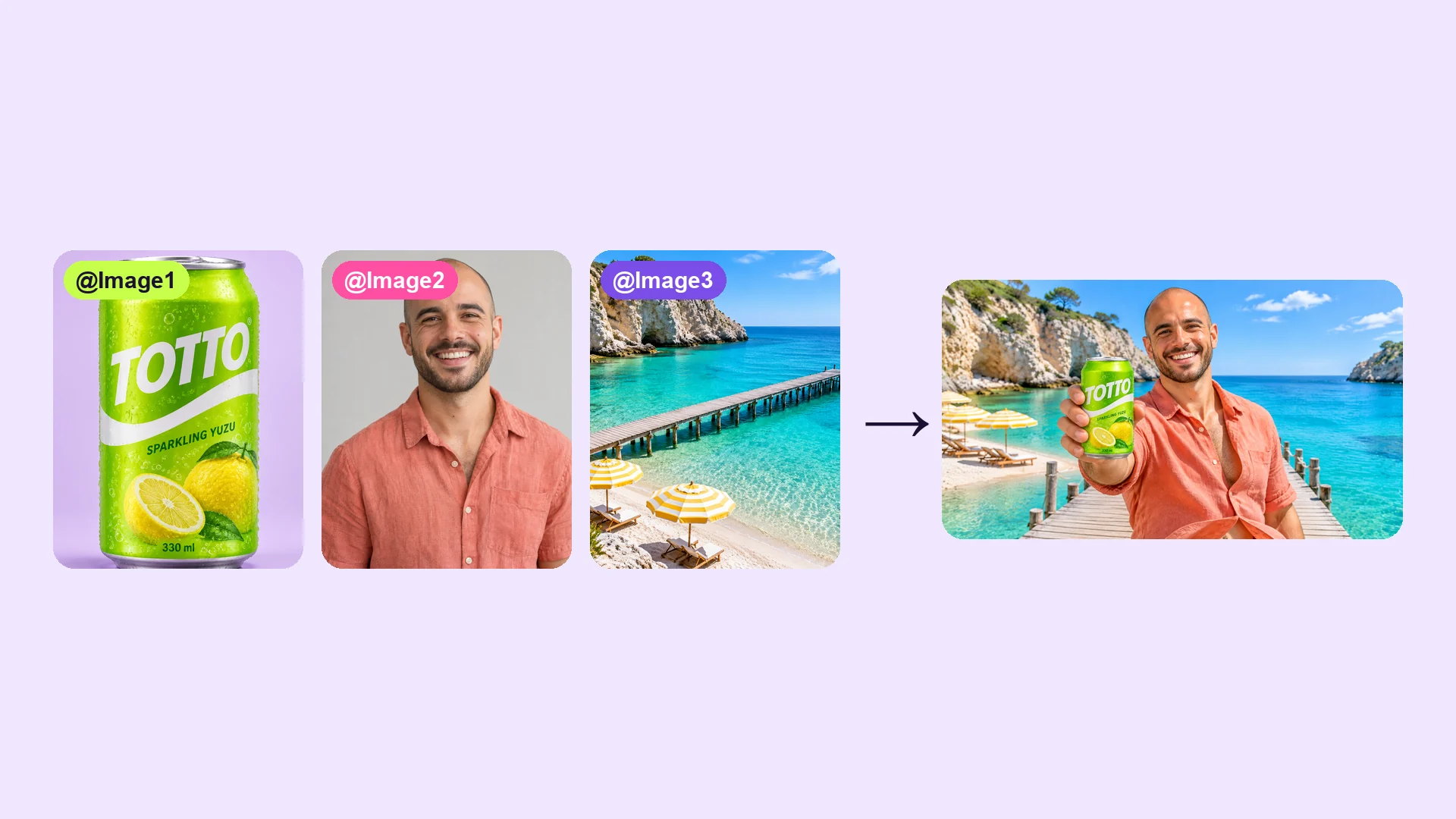
Switch to Image to Image and add up to 16 pictures with the Images tile next to the prompt. Then say what to take from each one, by its order.
Our prompt: "Use the soda can from image 1, the man from image 2 and the beach from image 3. The man stands at the end of the wooden pier laughing, holding the can up toward the camera. Keep the can's label exactly as in image 1 and the man's face exactly as in image 2."
Naming what to keep, like a label or a face, is what holds it steady.
How to make transparent cutouts
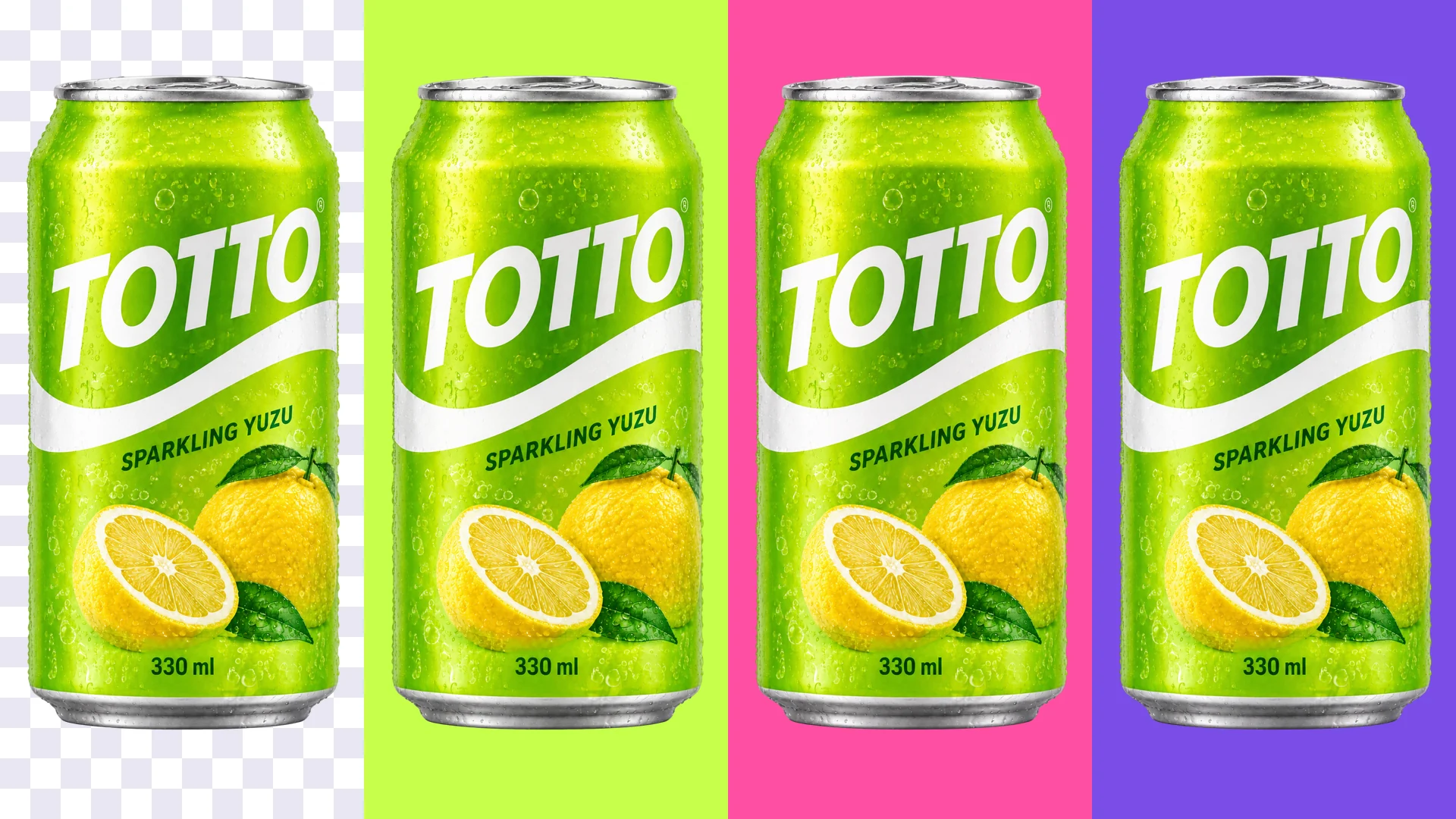
Add your product picture in Image to Image and ask for a cutout. Then open Advanced and set Background to Transparent. Output format switches to PNG or WebP, the two formats that keep transparency.
Our prompt: "Isolate the soda can from the image as a clean product cutout on a fully transparent background. Keep the can exactly the same, label and droplets included."
How to render in 4K
Pick an aspect ratio first: Resolution is hidden while Aspect ratio is on Auto. Then set Resolution to 4K. 1K and 2K are there when you don't need the extra detail.
4K is where the small things show: condensation, brushed metal, frost on the rim.
Questions
Should I use Flare or Sunburst?
Flare when you're trying ideas and want results fast. Sunburst when you're making the final image and want intricate detail.
How many reference images can I use?
Up to 16, in Image to Image. Refer to them by their order: image 1, image 2 and so on.
How do I get a transparent background?
Open Advanced and set Background to Transparent. Output format then offers PNG or WebP, which both keep transparency.
What sizes can it make?
1K, 2K or 4K, in 1:1, 3:2, 2:3, 4:3, 3:4, 16:9 or 9:16. On Auto, the model picks the shape and size for you.
Can I make more than one image at a time?
Yes. Set Output number to 2, 3 or 4.