Aristotto Video Editor: How to Edit a Video From First Clip to Export
 by Aristotto4 min
Until now, finishing a video meant downloading your clips and opening another app. The Video Editor ends that: it is a full timeline editor inside Aristotto, and everything you make here is already in it.
This guide cuts a short trailer from five clips. Follow along with your own.
How to start a project and bring in your clips
Open the Video Editor and press New Project. On the empty canvas, pick the frame for your video: 16:9, 21:9, 9:16, 4:3, 1:1, 4:5 or 3:4. You can change it later from the format menu under the preview.
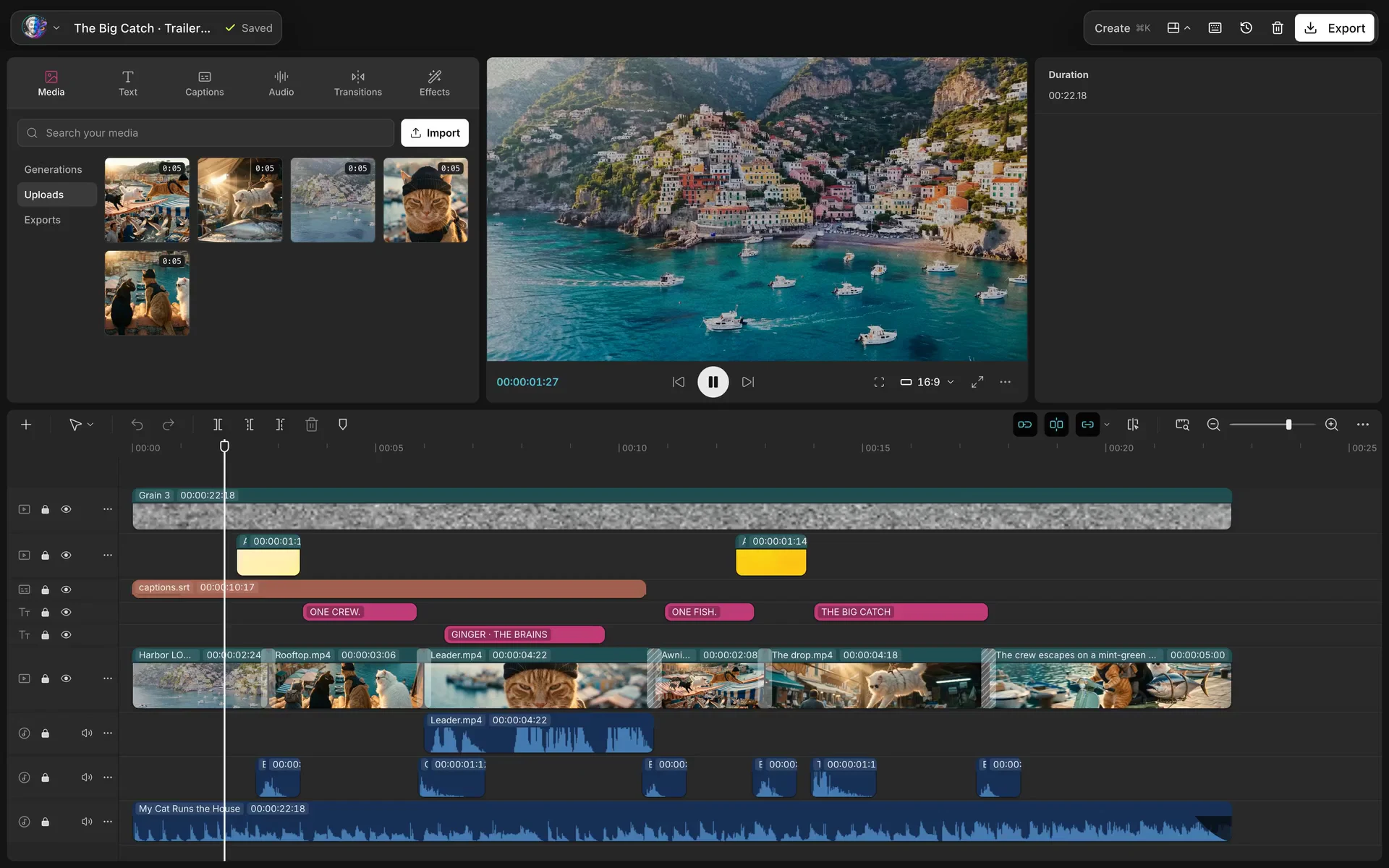
The Media panel on the left holds your Generations, Uploads and Exports. Press Import to add files from your computer, then drag a clip onto the timeline. If the clip has sound, the sound lands on its own track under the picture.
How to cut with the keys you already know
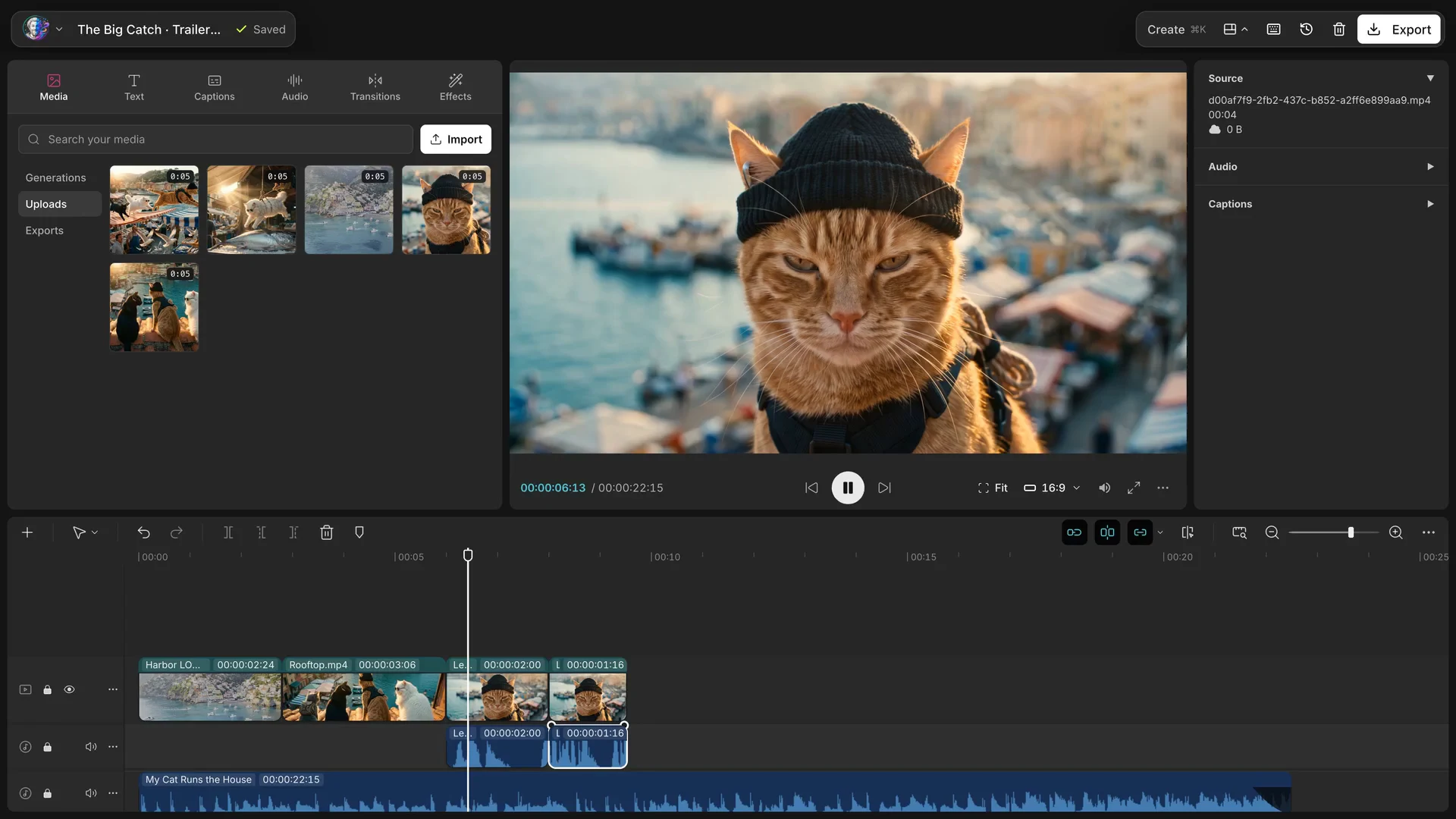
Put the playhead where you want the cut.
⌘B splits the clip at the playhead.
Q deletes everything left of the playhead on that clip.
W deletes everything right of it.
Space plays and pauses. J, K and L shuttle back, stop and forward.
⌘Z undoes.
On Windows, use Ctrl where this says ⌘. Press ? in the editor to see every shortcut.
How to add titles, captions and transitions
Titles. Open Text and click an animated title. It lands at the playhead. Type your own words in the panel on the right.
Captions. Open Captions, pick a look and press Generate. The editor listens to the cut and puts the words on the timeline, timed word by word.
Transitions. Open Transitions and click one. It lands on the cut nearest the playhead.
Film overlays. Open Effects and click a light leak, dust or grain. It lands on its own track above the video, and Strength sets how much of it you see.
Camera LUTs. Select a clip shot in Log, open Adjust and pick your camera from the LUT list. You can import your own .cube file too.
Music and sound effects. Open Audio and press the plus on a track. The SFX tab has the hits, swishes and ambiences.
How to generate a missing shot
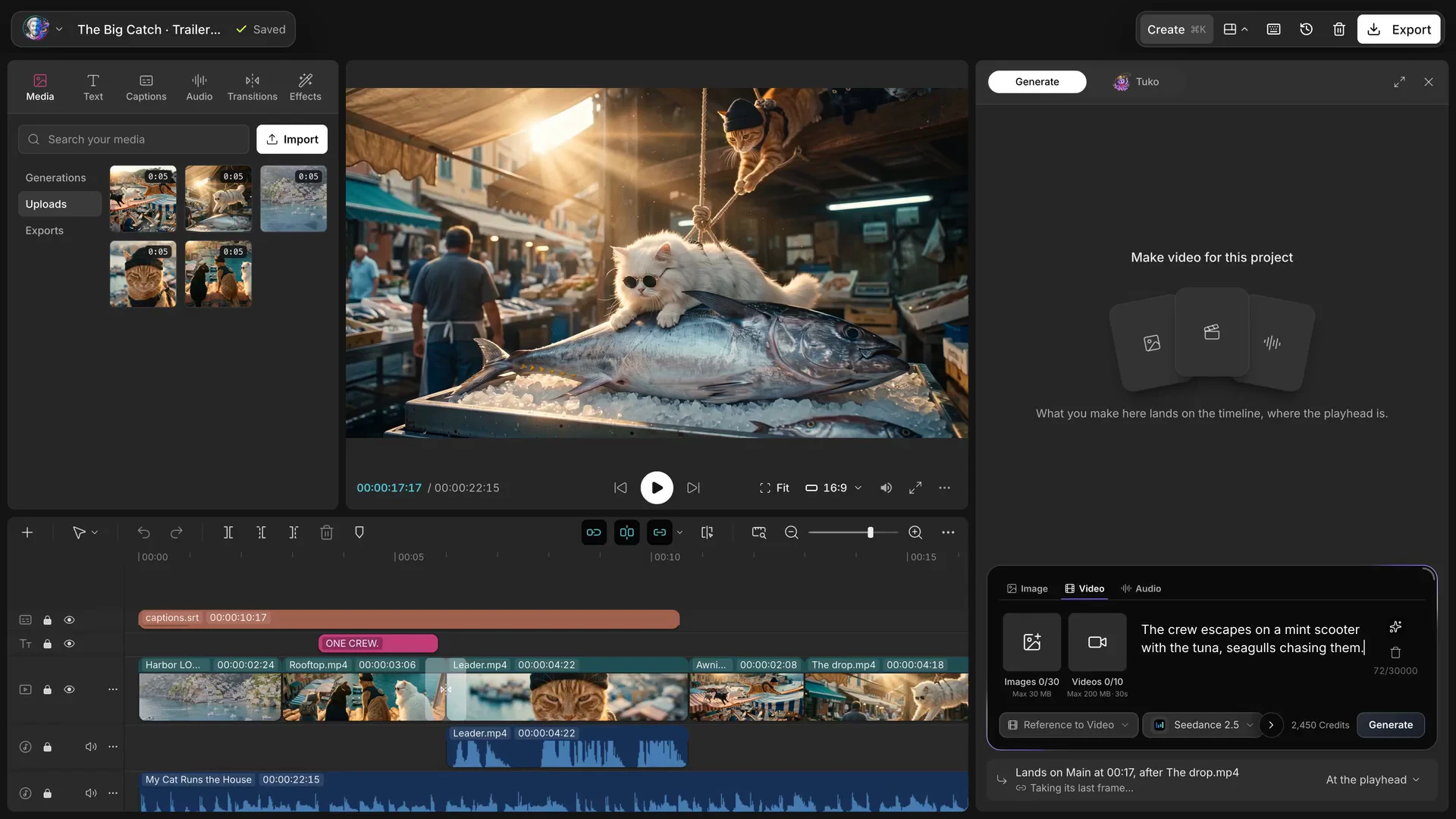
Press ⌘K to open Create. Describe the shot, press Generate, and it lands on the timeline where your playhead is. You do not leave the edit.
How to let Tuko edit for you
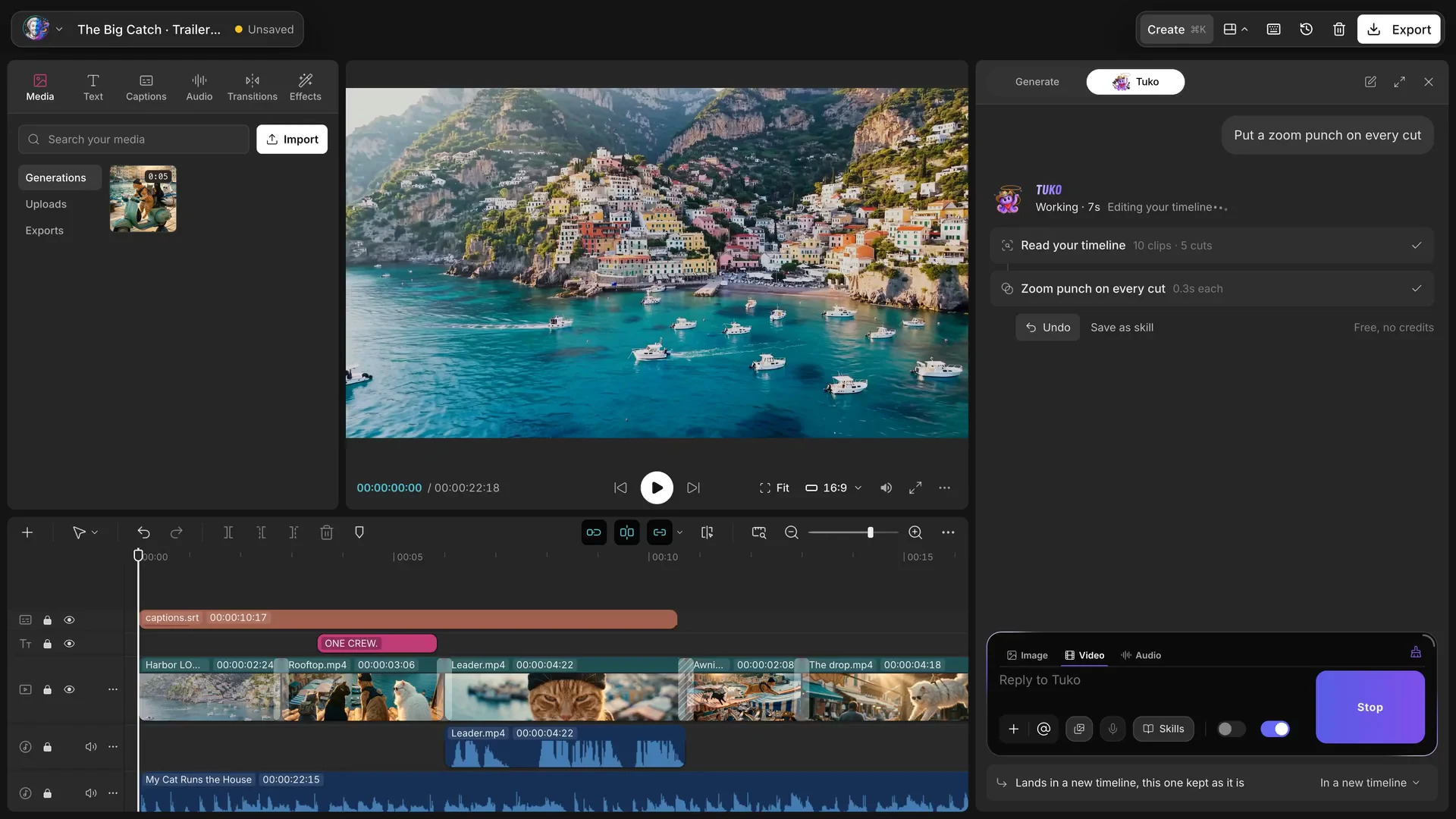
In Create, switch to Tuko and say what you want: "put a zoom punch on every cut" or "make a 9:16 version". Tuko reads your timeline and makes the change. If you do not like it, press Undo under its answer.
How to export
Press Export and choose the resolution (720p, 1080p or 4K), the frame rate and the quality. The file is an MP4. When it is done you can download it, and it is kept under Exports in the Media panel.
How to use the editor inside a workflow
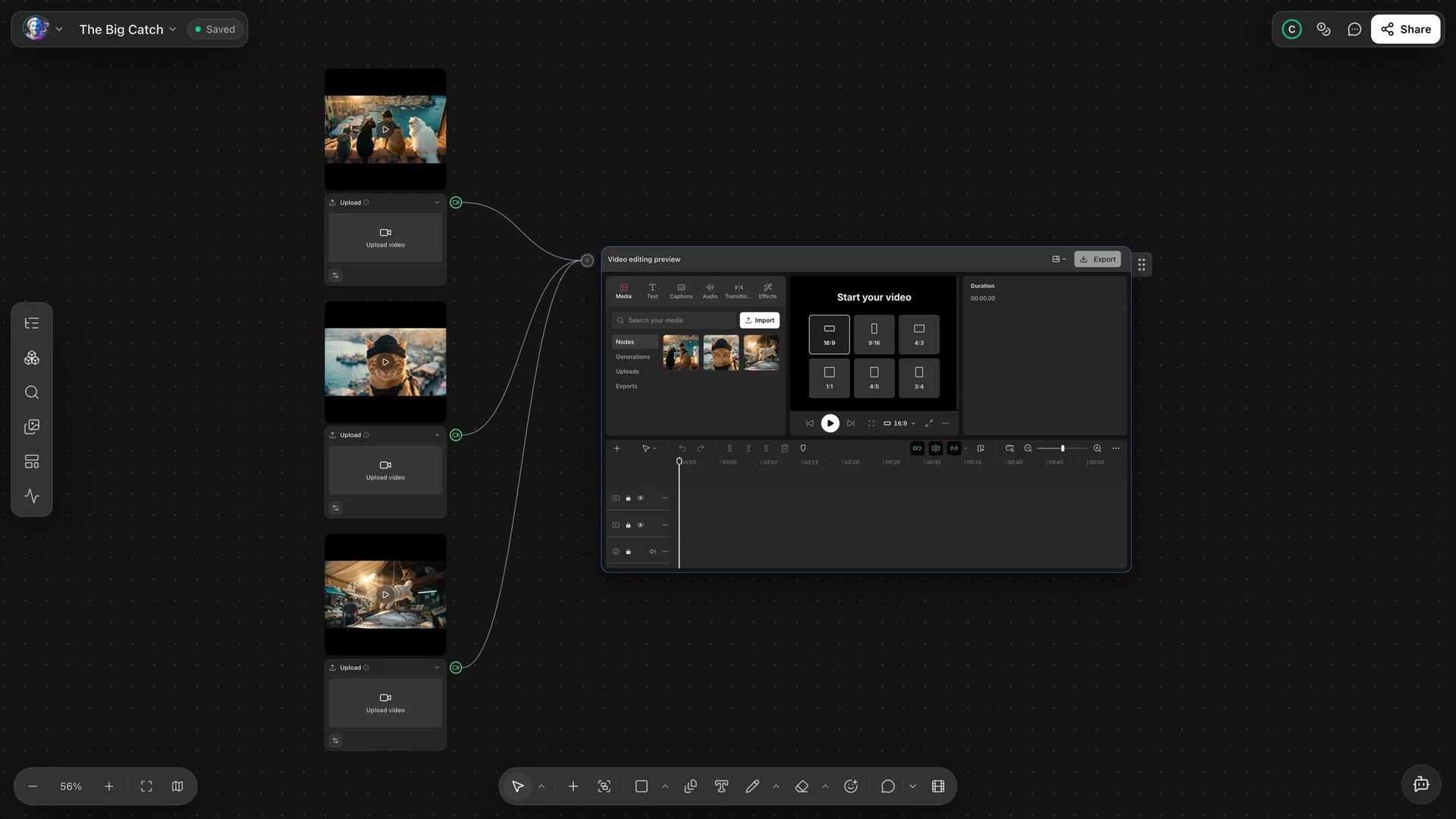
In Workflows, the editor is a node.
Add a Video Editor node to your canvas.
Drag a wire from each shot's output to the editor's input. The shots appear in its Media panel, under Nodes.
Open the node and cut as usual.
Export, then press Canvas. The finished cut lands on the canvas as its own node, ready for the next step.
Or ask Tuko in the workflow chat: "Build a trailer: three shots wired into a Video Editor that cuts them together." Tuko adds the nodes and wires them for you.
Questions
Do I have to download my clips first?
No. Your generations, uploads and exports are already in the Media panel.
Which shortcuts work?
⌘B, Q, W, Space, J, K, L and ⌘Z work the way you expect. Press ? in the editor for the full list.
Can I undo what Tuko did?
Yes. Press Undo under its answer.
What does Export give me?
An MP4 with H.264 video and AAC sound, at 720p, 1080p or 4K.