Notifications and the Bell: What You Hear About and Where to Change It
 by Aristotto3 min
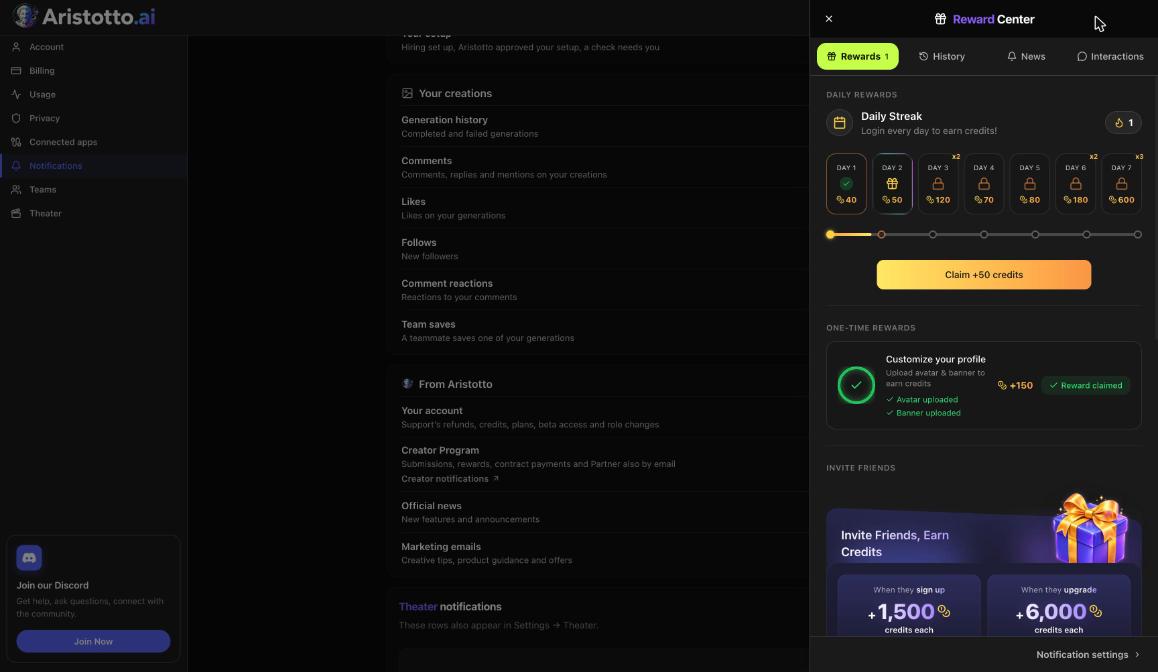
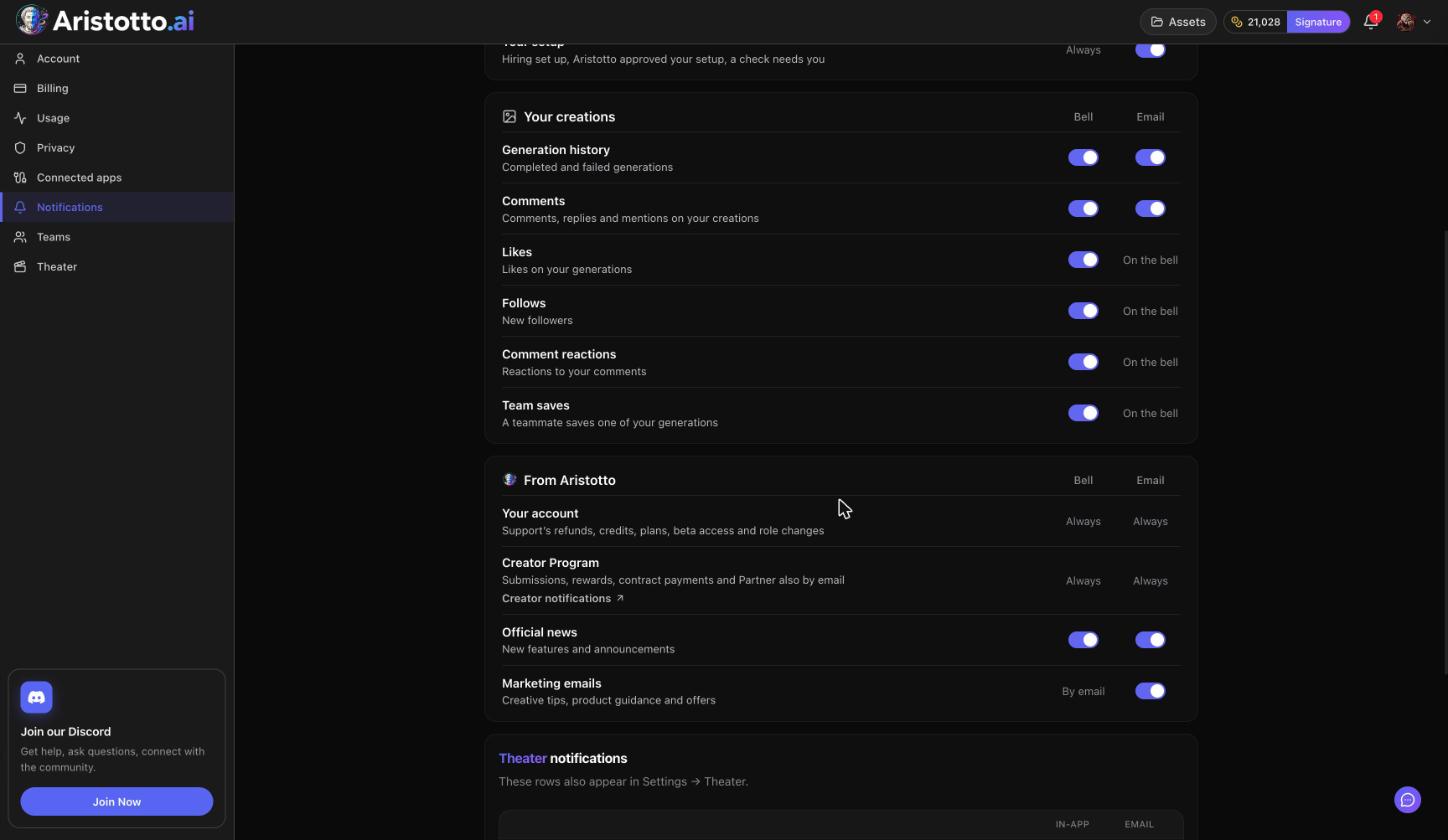
The bell in the header is where Aristotto tells you what happened: rewards to claim, runs that finished or failed, announcements, and likes, comments and follows. It opens a drawer with four tabs. You choose which updates reach you by bell, by email or both in Settings, Notifications, and changes save instantly. Every email also has a link to your email preferences.
What the bell shows
| Tab | What it shows |
|---|---|
| Rewards | Daily Streak, one-time rewards and Invite Friends |
| History | Your runs as they finish or fail |
| News | Announcements |
| Interactions | Likes, comments and follows |
Notification settings sits at the bottom of the drawer.
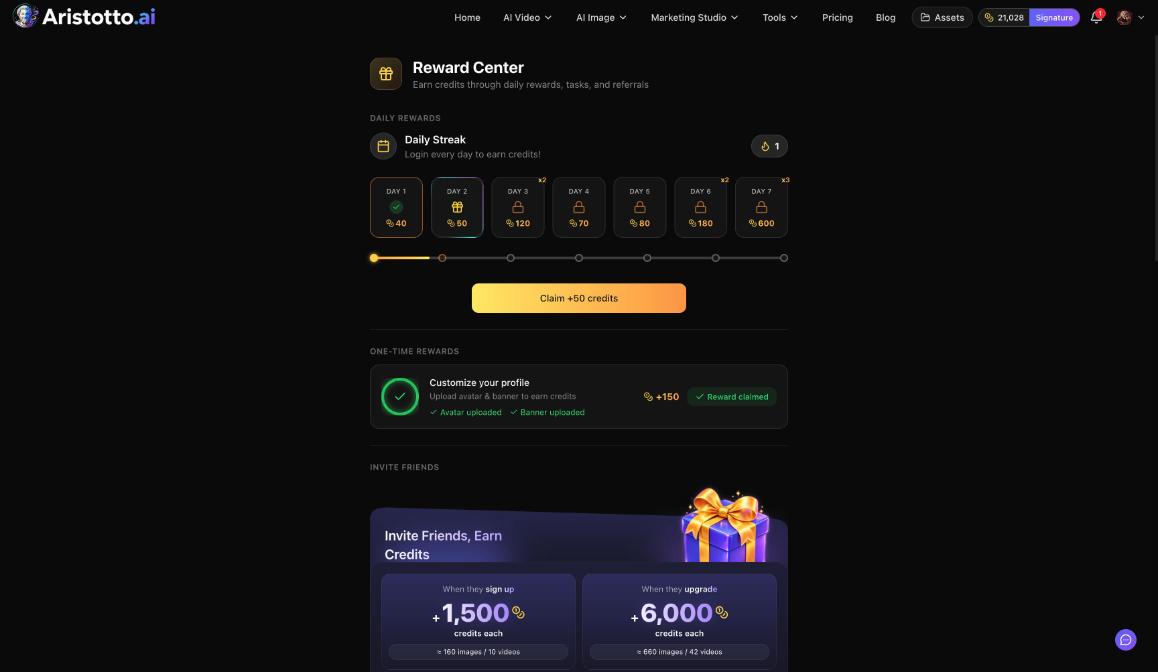
The Rewards tab is a shortcut to the Reward Center, where you claim your Daily Streak each day. The History tab lists failed runs as well as finished ones. Failed, timed-out and partly failed runs are refunded automatically, and you see the refund in Settings, Usage.
How to change your notifications
Open the bell and press Notification settings at the bottom. You can also open the account menu, press Manage Account and pick Notifications.
Find the row you want. Each row has Bell and Email.
Turn Bell or Email on or off. Changes save instantly.
What each row covers
Your creations
| Row | How it reaches you |
|---|---|
| Generation history (completed and failed generations) | Bell and Email |
| Comments (comments, replies and mentions) | Bell and Email |
| Likes | Bell |
| Follows | Bell |
| Comment reactions | Bell |
| Team saves | Bell |
From Aristotto
Your account: always on.
Creator Program: always on. It covers submissions, rewards, payments and Partner.
Official news.
Marketing emails: by email.
Theater notifications also appear for invited accounts. Theater is open by invite only today.
How to change your email preferences
Every email from Aristotto has a link to your email preferences. There you choose:
Community or Challenges
Newsletter
Product updates
Promotions and offers
Product tips
You can unsubscribe from all of them at once, or re-subscribe later. When you signed up, you already chose whether Aristotto may email you tips and offers.
Team notifications
Team notifications go to everyone on the team. Owners and admins edit them.
Team comments: in app and email.
Team likes.
Team comment reactions.
Team saves.
Team generation history: in app and email.
Questions
Where do I see when a run finishes or fails?
In the bell's History tab. Generation history in Settings, Notifications can also send it by email.
Can I turn off account emails?
No. Your account notifications are always on, and so are Creator Program notifications.
How do I stop marketing emails?
Open the email preferences link in any Aristotto email and unsubscribe, or turn off the Marketing emails row in Settings, Notifications.
Do I need to press Save after changing a setting?
No. Changes in Settings, Notifications save instantly.
Who decides which team notifications go out?
The team's owners and admins. Team notifications go to everyone on the team.