Seedance 2.5 Flash on Aristotto: How to Make Videos Fast From Text, Frames, References or a Clip
 by Aristotto12 min
Seedance 2.5 Flash is ByteDance's faster version of Seedance 2.5, and it's live on Aristotto today. Volcano Engine, ByteDance's cloud arm, released it on November 12, 2026, and describes its results as the closest yet to the Seedance 2.5 flagship, at nearly twice the generation speed. It makes clips of up to 30 seconds with sound, at 480p or 720p, from text, from a picture, from a first and last frame, from your own references, or by editing a clip you already have.
We made a whole fantasy film with it: a knight on a pegasus racing an opal dragon to a white citadel. This guide covers what Flash is, how it differs from Seedance 2.5, how to write prompts for it, and how to use each mode on Aristotto step by step, with the prompts and pictures from that film.
What is Seedance 2.5 Flash?
Flash is a speed- and cost-tuned edition of Seedance 2.5. ByteDance says it keeps as much of the flagship's ability as possible: 30-second generation in one pass, references, video editing and close instruction following. In its launch announcement, ByteDance rates Flash's instruction following, physical motion and audio above the previous flagship, Seedance 2.0, and puts its cost about 34% below Seedance 2.5 at ByteDance's own 720p prices.
No independent benchmarks were out at launch, so treat the speed and quality figures as ByteDance's own claims. Here's Flash at a glance:
Length: any whole number of seconds from 4 to 30, made in one pass rather than stitched together.
Resolution: 480p or 720p.
Aspect ratio: Auto, 16:9, 4:3, 1:1, 3:4, 9:16 or 21:9. Image to Video keeps your picture's shape.
Sound: voice, sound effects and music, generated with the picture and in sync with it. It's on by default.
Inputs: text, a start picture, a start and end picture, up to 10 images, 5 videos and 5 audio clips as references, or one clip to edit.
Speed: about twice as fast as Seedance 2.5, by ByteDance's measure.
How is Flash different from Seedance 2.5?
Flash and Seedance 2.5 read prompts and references the same way, so a prompt that works on one carries over to the other. Three things change:
Resolution: Flash stops at 720p. Seedance 2.5 also makes 1080p and 4K.
References: Flash takes up to 10 images, 5 videos and 5 audio clips per video. Seedance 2.5 takes up to 30, 10 and 10.
Draft mode: Seedance 2.5 can make a 480p draft before a high-resolution final. Flash has no draft mode; it's already fast and cheaper to run.
On Aristotto, Flash costs about half the credits of Seedance 2.5 for the same length and resolution. You see the exact price on the Generate button before you start.
How to open Seedance 2.5 Flash on Aristotto
Open AI Video and click the model name to see the model list.
Pick Seedance 2.5 Flash. Its card shows 720p and 4–30s.
Choose a mode: Text to Video, Image to Video, Reference to Video or Video to Video.
Set Resolution, Duration and Aspect Ratio. Leave Audio FX on Generate Audio if you want sound, or pick No Audio for a silent clip.
How to write a prompt for Seedance 2.5 Flash
ByteDance's prompt guide for Seedance 2.5 applies to Flash too. Start with one sentence that says who does what, and where. Then add only the parts your shot needs:
Subject and action: who or what is in the shot, and the main thing that happens.
Scene: the place, the time of day and the weather.
Camera: the shot size (wide, medium, close-up), the angle, and one camera move per shot, such as a push in, pan, orbit or tracking shot. Tie the move to something that happens on screen.
Light and style: for example, bright golden-hour light, photorealistic, cinematic.
Timing: for takes with several events, split the prompt into stages such as 0–5 s and 5–10 s, each with one main change and a clear end state.
Sound: end with a sound line, such as “Sound: rushing wind, wingbeats, a dragon roar.” If you leave sound out, the model picks it for you.
Limits: say what to avoid, such as no cuts, no slow motion or no on-screen text.
For dialogue and music, ByteDance's guide puts music in round brackets ( ), sound effects in angle brackets < > and spoken lines in curly brackets { }. Name the language before a line, for example “Dialogue language: American English.”
Here's a prompt in that shape: “12-second continuous take, natural real-time speed. A young knight in silver armor stands on a white castle wall at sunrise; the camera starts on a medium shot from the front. 0–4 s: she looks up as a shadow passes over her. 4–8 s: a white pegasus lands beside her and the camera pulls back to a wide shot. 8–12 s: she climbs onto its back and raises her sword. Sound: wind, wingbeats, a crowd cheering below. No cuts, no text.”
How to make a 30-second take with sound
Pick Text to Video, set Duration to 30 seconds and Resolution to 720p. Write the take as one moment after another, and name the sounds you want to hear.
Prompt we used: “One continuous 30-second take with no cuts. The camera follows a young woman knight in polished silver armor with a violet cape, riding a white pegasus with huge white wings. They burst up out of sunlit white clouds into a bright blue sky, dive into a canyon of floating green islands with waterfalls and rainbows, weave between the waterfalls, skim low over a sparkling turquoise sea beside a giant pearl-white dragon whose wings throw up spray, and finally sweep over the walls of a white marble citadel where crowds wave violet and lime banners and throw flower petals. Bright daylight the whole time, vivid color, photorealistic, cinematic. Sound: rushing wind, wingbeats, roaring waterfalls, a dragon roar, then a cheering crowd and ringing bells.”
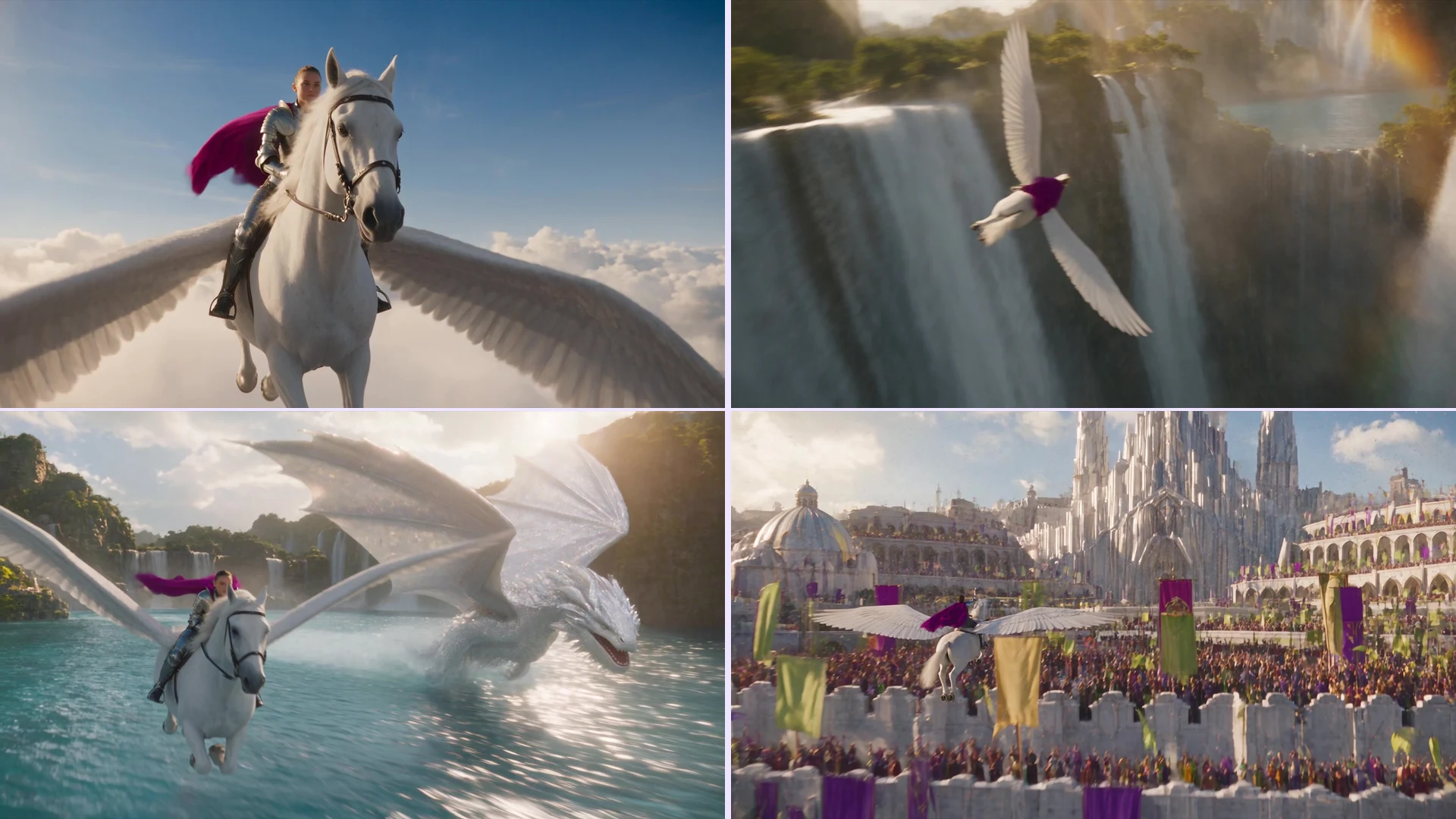
Give the camera one clear path, such as following the rider, so the take holds together for 30 seconds.
List places and events in the order you want to see them; Flash moves through them in that order.
Try ideas at 480p and shorter lengths first, then make the final at 720p.
How to animate a picture
Pick Image to Video and keep Mode on Image. Add the picture the video starts from, then describe the motion, not the picture: Flash already sees what's in it. The video keeps your picture's aspect ratio.
We made our film's first frames with Seedream 5.5, then animated each one with Flash. Prompt we used for the dragon run: “The pegasus and the giant pearl-white dragon race side by side just above the turquoise sea, the dragon's wingtips slicing the water into long walls of white spray, the camera tracking alongside them at speed; the dragon turns its head and roars, the knight laughs. Sound: crashing spray, a thunderous dragon roar, wind. The pegasus keeps both of its wings visible the whole time, beating together. Bright daylight the whole time, vivid color, photorealistic, cinematic camera, no text.”

Start from a sharp, well-lit picture; Flash carries its look through the whole clip.
Describe what moves, where the camera goes and what we hear.
If something in the picture must not change, such as a logo, a face or a product, say so.
How to go from a first frame to a last frame
Pick Image to Video and switch Mode to Frames. Add the picture the video starts on and the picture it ends on, then say what happens in between.
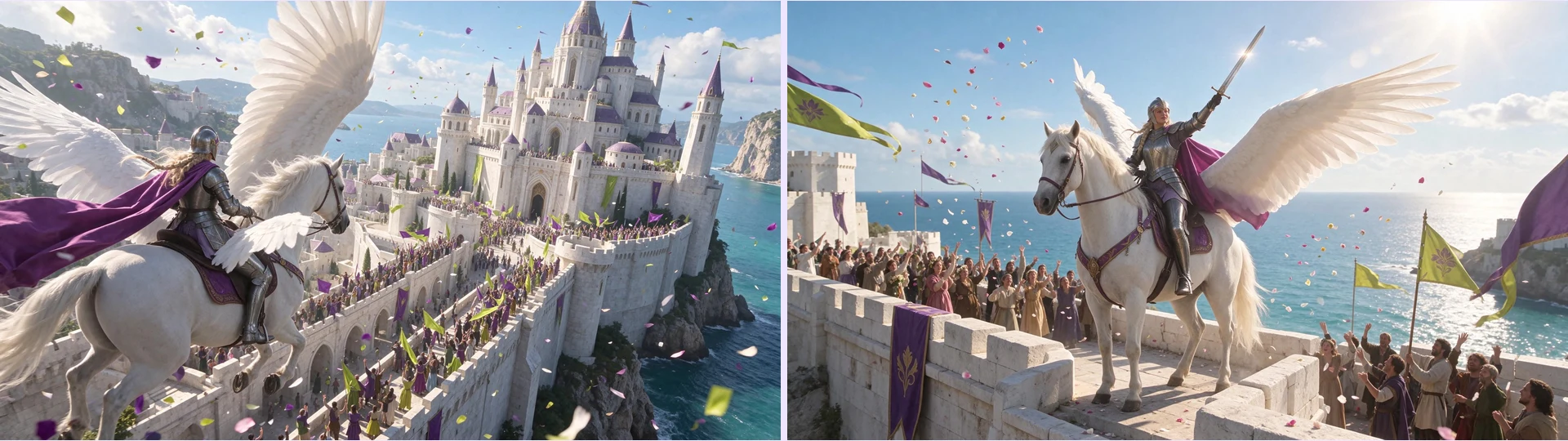
Prompt we used: “The pegasus sweeps low over the cheering crowds on the citadel walls, circles once and lands on top of the wall, and the knight raises her sword to the sun as petals swirl.”
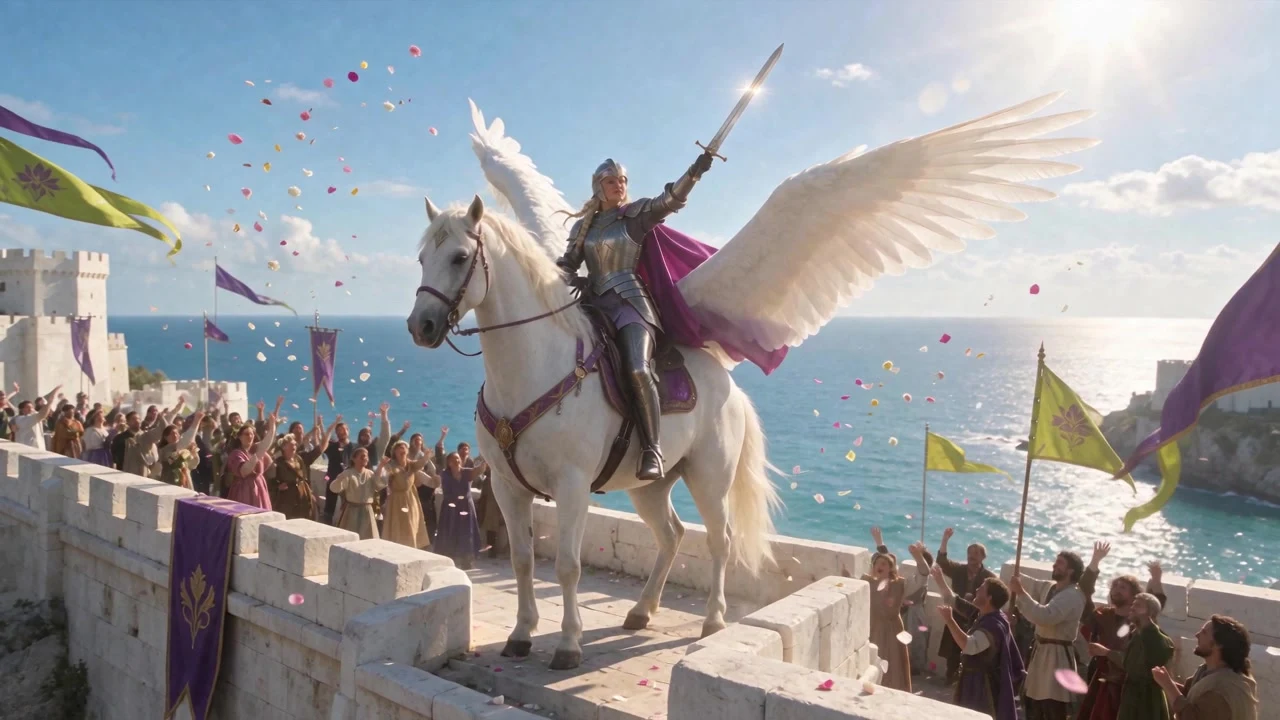
Use the same aspect ratio for both pictures. The video takes the first picture's shape.
Describe the path between the two pictures in stages, so Flash knows what happens first.
How to combine references
Pick Reference to Video. Add up to 10 images, 5 videos and 5 audio clips, then call them in the prompt by their order: @Image1, @Image2, @Video1, @Audio1.

Prompt we used: “@Image1 rides her white pegasus side by side with the dragon from @Image2, low over the sea, toward the white citadel from @Image3; the camera tracks beside them, then rises to reveal the citadel.”
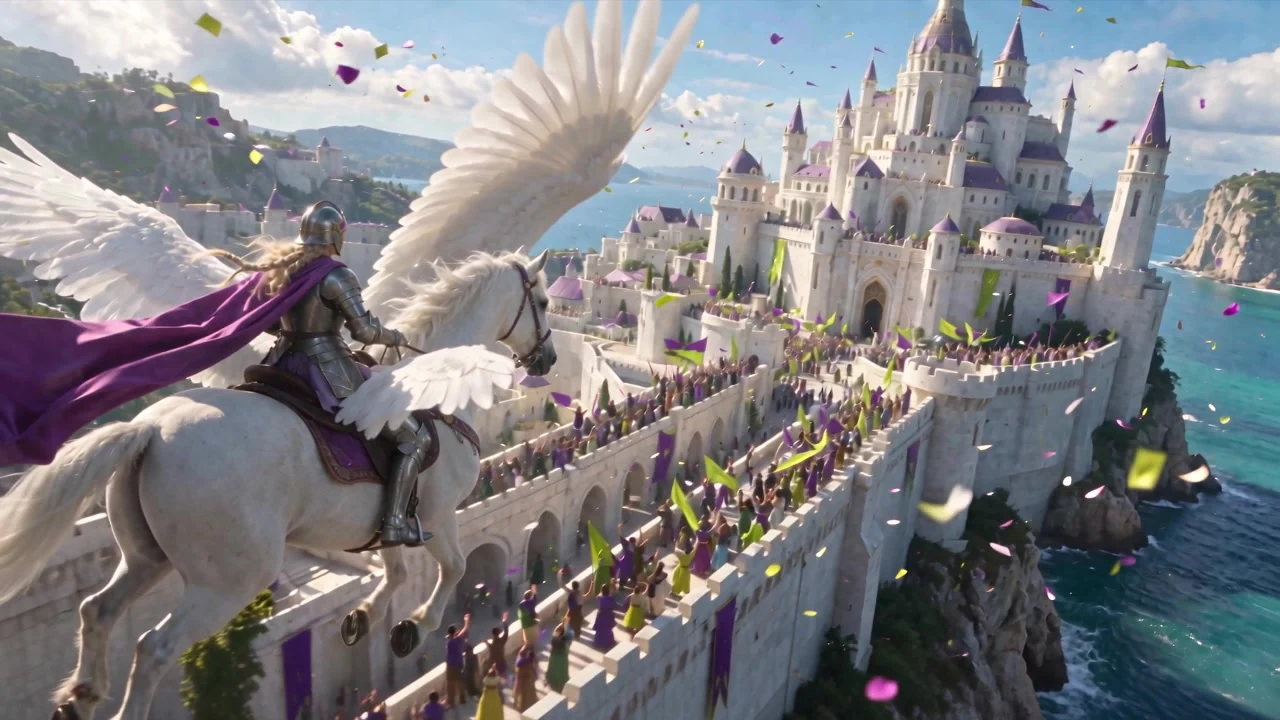
Give each reference one job, and say what not to copy: “@Image1 is the knight's look; do not copy its background.”
Bind each character, prop and place to its own picture instead of relying on text inside the pictures.
Use reference videos for movement and camera work, and keep them short; ByteDance suggests 5 to 10 seconds per video of a subject.
Reference videos can total up to 30 seconds per generation, and so can reference audio.
A single audio clip can drive the pacing, the beat and lip-sync on its own.
How to keep the same character in every shot
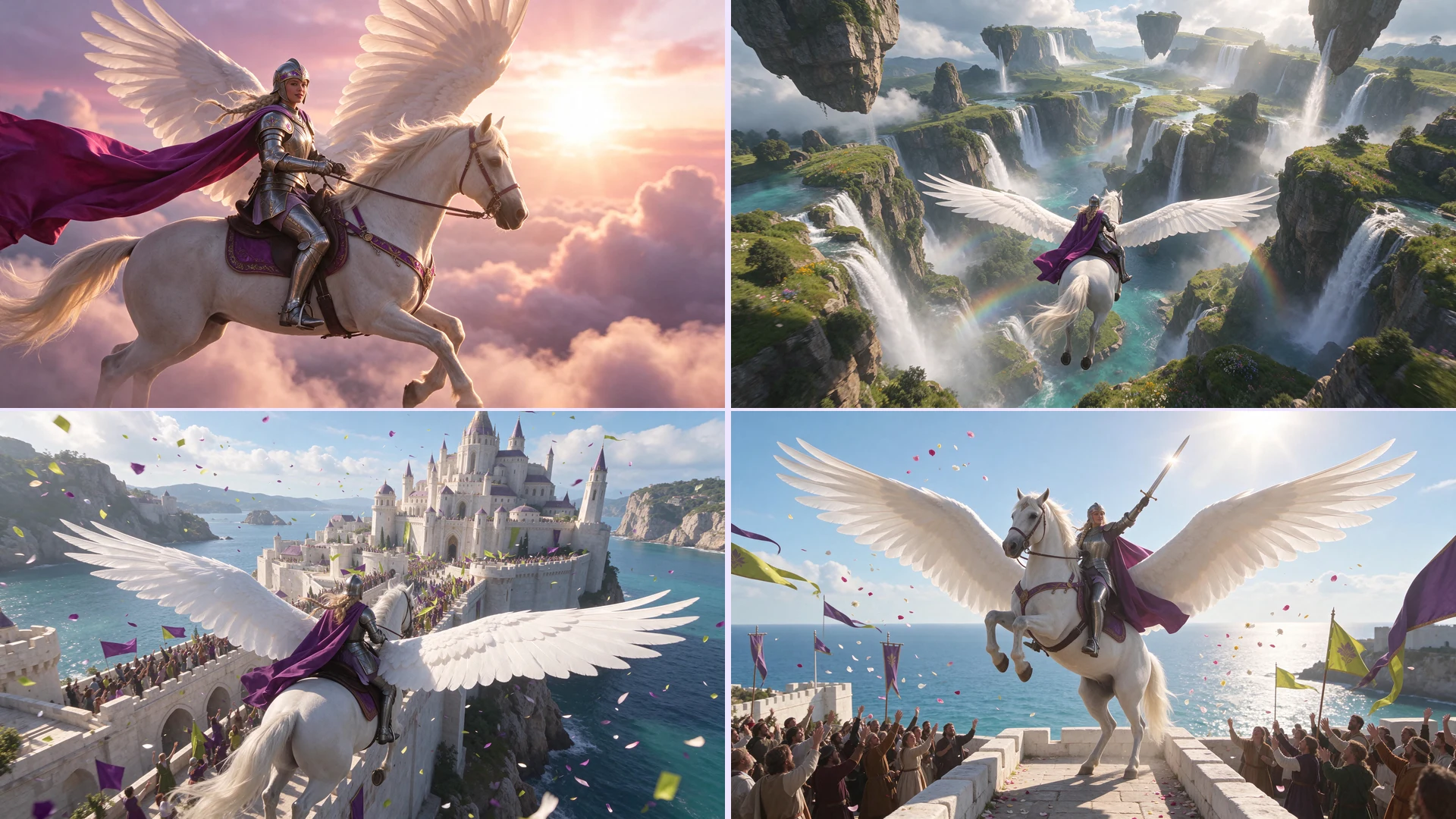
Flash follows the picture you start from, so consistency starts with your first frames. We made one hero picture of the knight and her pegasus in Seedream 5.5, then made every first frame with that picture as a reference, in wide and tall. Flash animated each frame, and the knight, her armor, her cape and the pegasus stayed the same across all seven shots.
How to edit a clip
Pick Video to Video and add the clip you want to change. Say what to change and what to keep. The result keeps your clip's length and shape.
Prompt we used: “Turn the green summer meadow into deep fresh snow with snowflakes falling and frost on the banners. Keep the riders, the horses, their armor, the banners, the dragon, the pegasus and the white citadel exactly the same.”
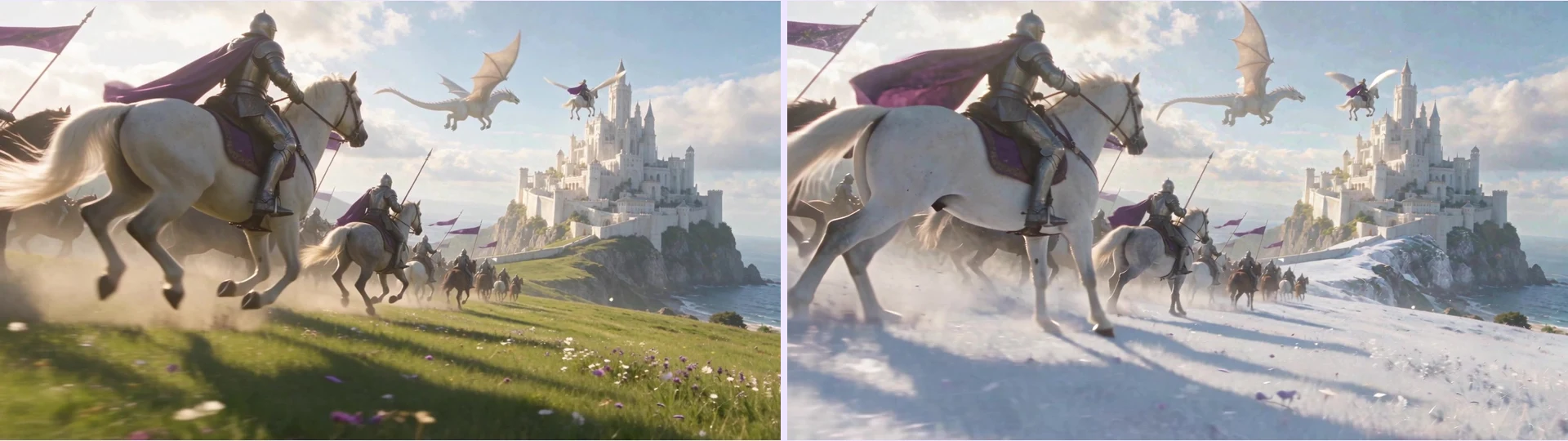
Say what to change and what to keep, in one sentence each.
Change one thing per edit. To change several, edit the result again.
Shorter clips edit more reliably; ByteDance's guide suggests sources under 20 seconds.
How to make vertical videos
For Reels, Shorts and TikTok, set Aspect Ratio to 9:16 in Text to Video or Reference to Video. In Image to Video, start from a vertical picture; the video keeps its shape. Keep your subject large and near the center, and leave room at the top and bottom, where apps put their buttons and captions.
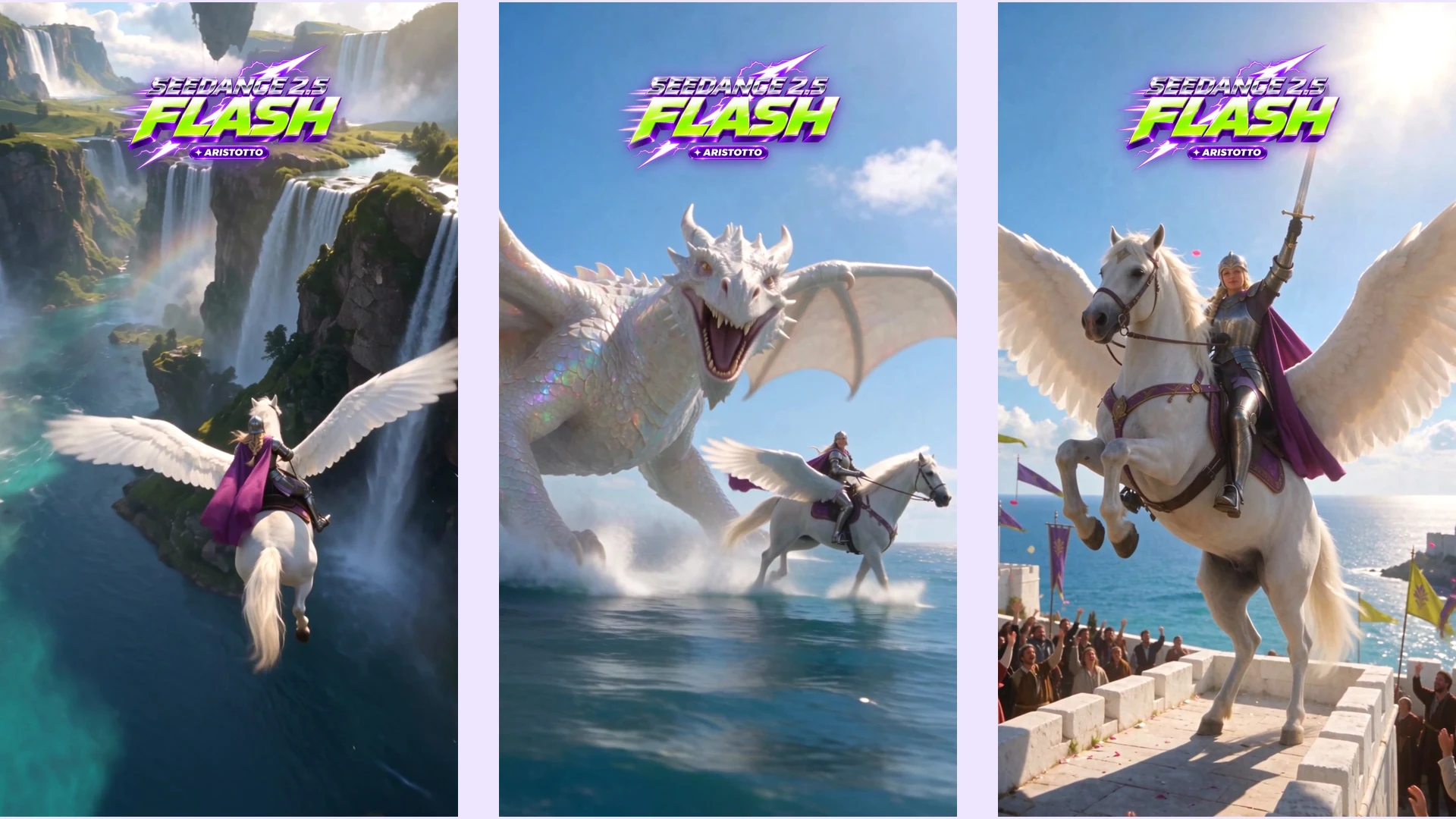
How we made the Seedance 2.5 Flash film
One hero picture of the knight and her pegasus, made in Seedream 5.5.
Seven first frames made from that picture, in 16:9 and 9:16: the storm, the burst out of the clouds, the waterfall canyon, the dragon run, the cavalry charge, the citadel and the landing.
Seedance 2.5 Flash takes from those frames, 6 to 8 seconds each at 720p with sound.
An orchestral score written for the cut, with every shot cut on its beats.
A frame-by-frame check of every take. Where a wing disappeared behind the rider, we made a new first frame with both wings in view and ran the take again.
Flash or Seedance 2.5?
Pick Flash for drafts, fast rounds, ad variations, storyboards, product clips and social videos at up to 720p.
Pick Seedance 2.5 for 1080p or 4K finals, and for bigger reference sets: up to 30 images, 10 videos and 10 audio clips.
Or use both: find the shot on Flash, then run the same prompt and references on Seedance 2.5 for the final. It makes the shot again rather than upscaling it, so expect a close match, not an exact copy.
Questions
What is Seedance 2.5 Flash?
ByteDance's faster, lower-cost version of Seedance 2.5, released on November 12, 2026. ByteDance says its results are the closest to Seedance 2.5, at nearly twice the speed.
How long can a video be?
Any whole number of seconds from 4 to 30, made in one take.
What resolutions and sizes does it make?
480p or 720p, in Auto, 16:9, 4:3, 1:1, 3:4, 9:16 or 21:9. For 1080p or 4K, use Seedance 2.5.
Does it make sound?
Yes. Voice, sound effects and music come with the picture. Sound is on by default; switch Audio FX to No Audio for a silent clip.
How many references can I use?
Up to 10 images, 5 videos and 5 audio clips in Reference to Video. Reference videos can total up to 30 seconds, and so can reference audio.
Can I edit a video I already have?
Yes. In Video to Video, add a clip and say what to change and what to keep. The result keeps the clip's length and shape.
Does it cost less than Seedance 2.5?
Yes. On Aristotto, Flash costs about half the credits of Seedance 2.5 for the same length and resolution, and 480p costs less than 720p.
Can I make vertical videos for Reels and TikTok?
Yes. Choose 9:16 in Text to Video or Reference to Video, or start Image to Video from a vertical picture.