Team Roles and Invites: Owner, Admin and Member Explained
 by Aristotto3 min
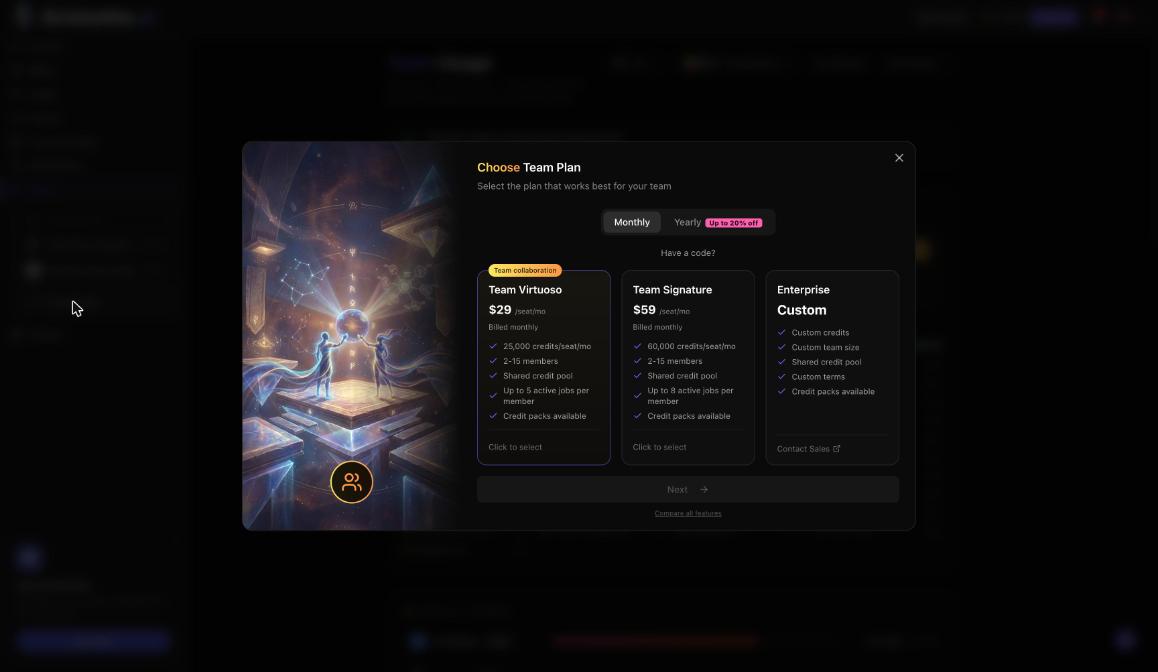
An Aristotto team has three roles: Owner, Admin and Member. The Owner handles billing, seats, the plan and ownership; Admins manage people and credits; Members create with the team's credits. You add people from the Invitations tab on the team page, and each invite needs a free seat.
What each role can do
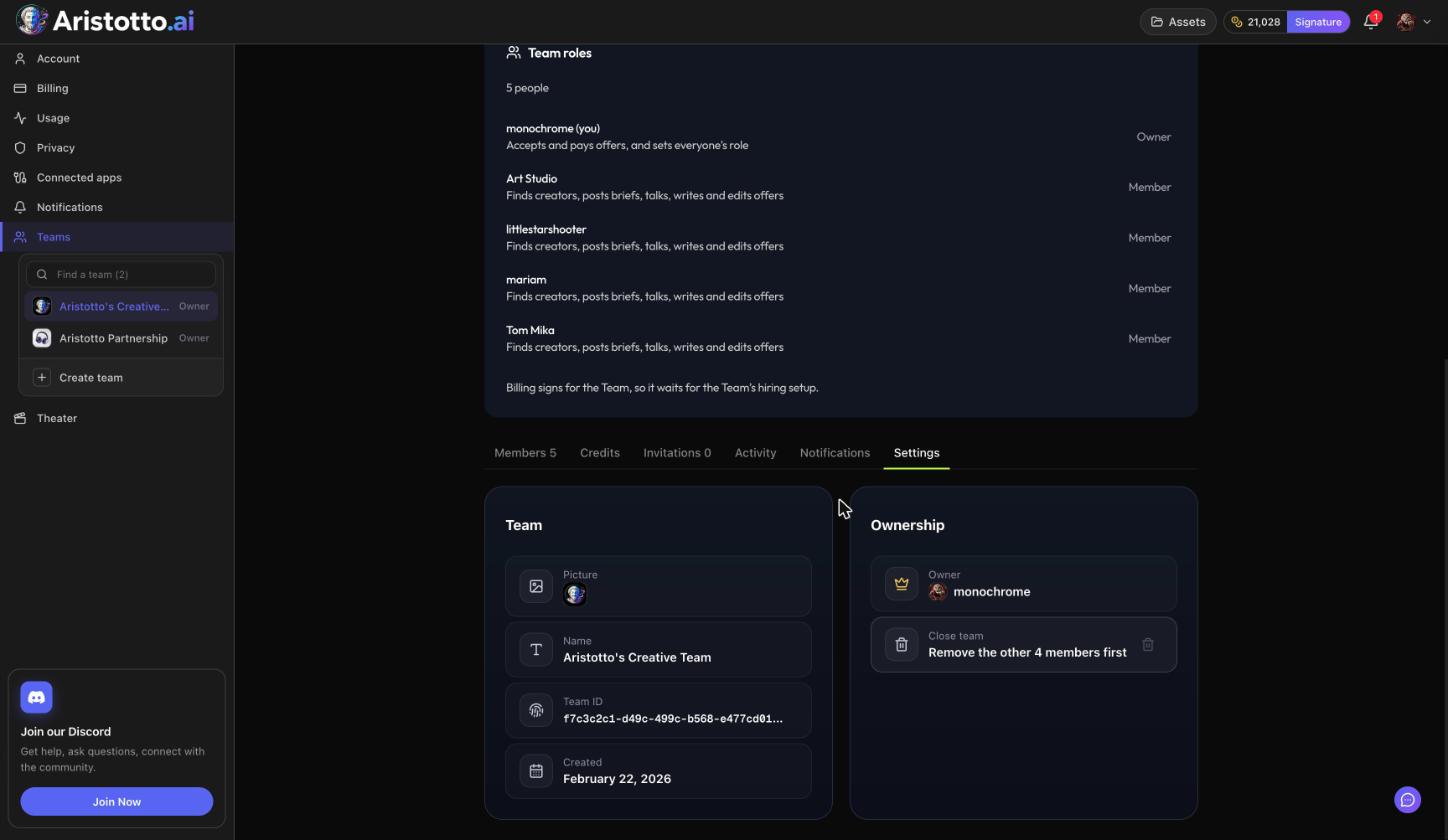
Owner: billing, seats, the plan, changing roles, transferring ownership and closing the team, plus everything an Admin can do. The person who pays for the team becomes the Owner.
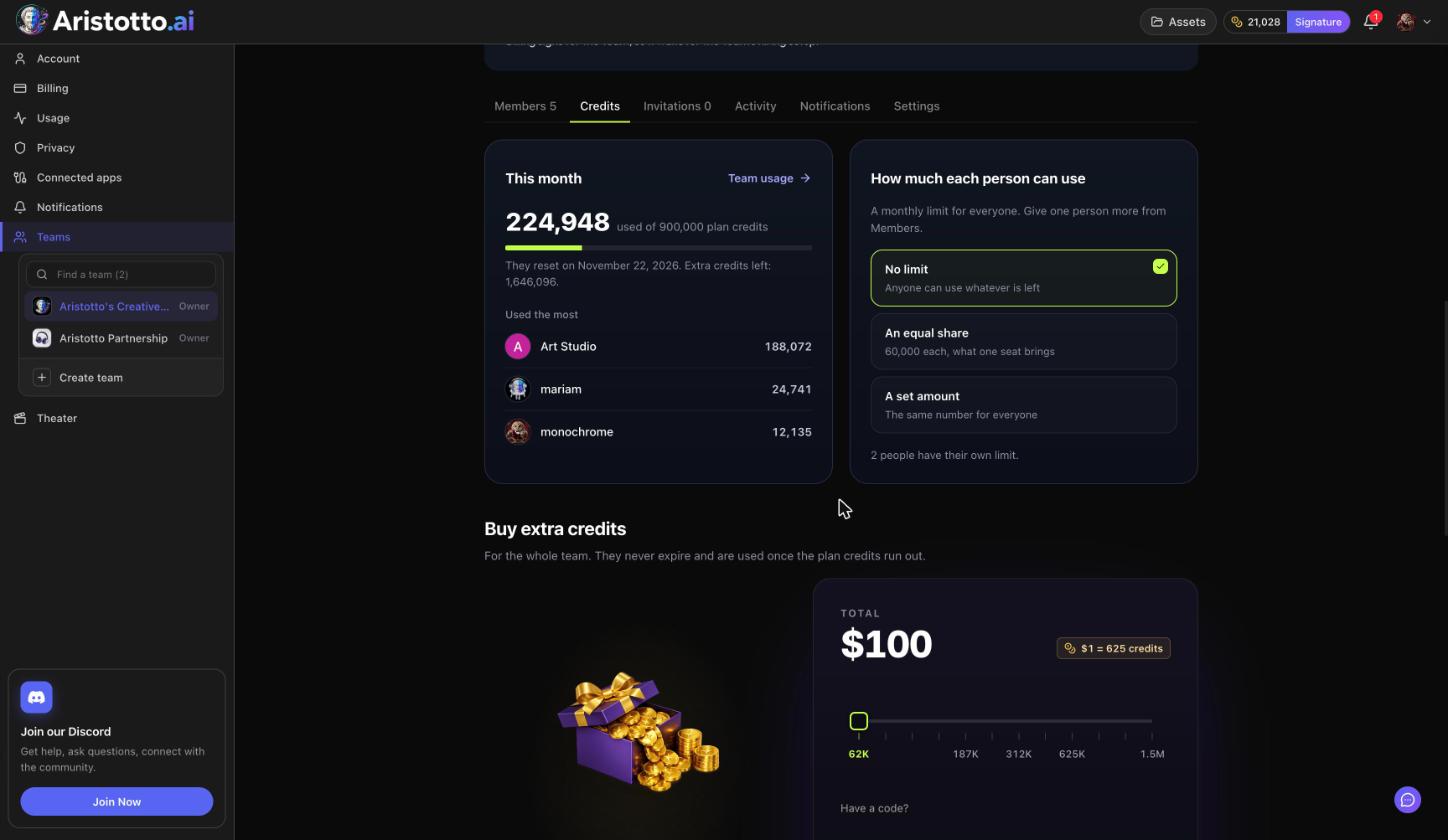
Admin: invite, pause, resume and remove members; buy credits; set limits; see the Activity log and Team usage.
Member: create with the team's credits and see their own limit.
A few rules sit on top of that:
Changing someone between Admin and Member is owner only.
Owners and admins edit team notifications, which go to everyone on the team.
Publishing a Trends or TottoMotto remake from the team workspace asks for a second tick, I have the team's permission. The team's owners and admins can take it down.
Anyone who is not the Owner can press Leave team on the Settings tab.
How to invite someone
Open the team page and go to the Invitations tab.
Press Invite.
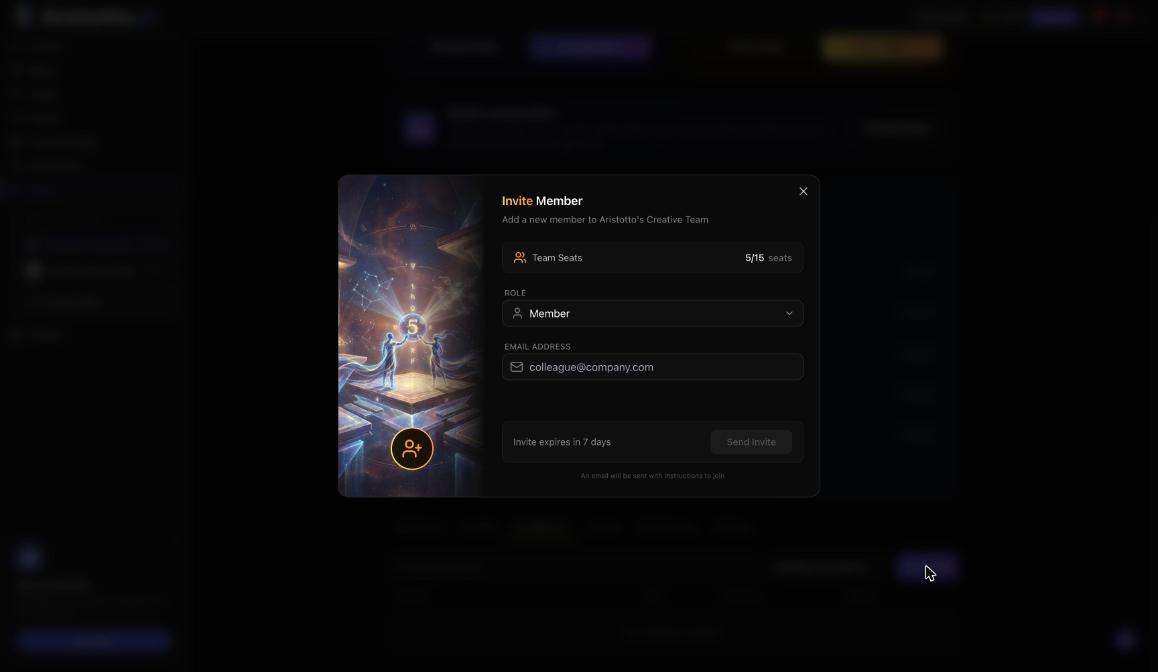
The Invite Member dialog shows Team Seats used. Pick a Role: Member or Admin.
Type the Email address.
Press Send invite. The dialog shows that the invite expires in 7 days.
Every invite needs a free seat. If all seats are taken, the Owner adds a seat first and pays a prorated amount today.
What the invited person sees
They open the link in the invite email.
They sign in with the invited email. A different email is refused.
They see the team, the plan, who invited them and their role.
They press Accept or Decline.
Pending invites also show under Invitations for you on the Teams page in Settings.
Manage invites and members
From the Invitations tab you can Resend, Send again or Cancel an invite.
On the Members tab you can:
search, filter and sort the list
Pause, Resume or Remove a person
use bulk actions to do the same for several people at once
The Activity log records invites, joins, role and status changes, removals and leaves. Owners and admins see who made each change in the By column.
Working inside a team
Work in this team on the team page switches your workspace to the team. Switch in the account menu moves you between Personal and the team.
The team shares one workspace and its assets.
Comments on a generation's preview are open to its owner and team members, with reactions, mentions and GIFs.
Team notifications cover comments, likes, comment reactions, saves and generation history.
Questions
Can an Admin make someone else an Admin?
No. Changing someone between Admin and Member is owner only.
What if the person signs in with a different email?
The invite is refused. They need to sign in with the email the invite was sent to.
How long does an invite last?
7 days. From the Invitations tab you can Resend, Send again or Cancel an invite.
Can I invite someone when every seat is taken?
No. Each invite needs a free seat, and only the Owner adds seats.
How does a member leave a team?
Anyone who is not the Owner can press Leave team on the team's Settings tab.