How to Use Altermorph: Recreate Any Video Scene With Your Own Cast
 by Aristotto6 min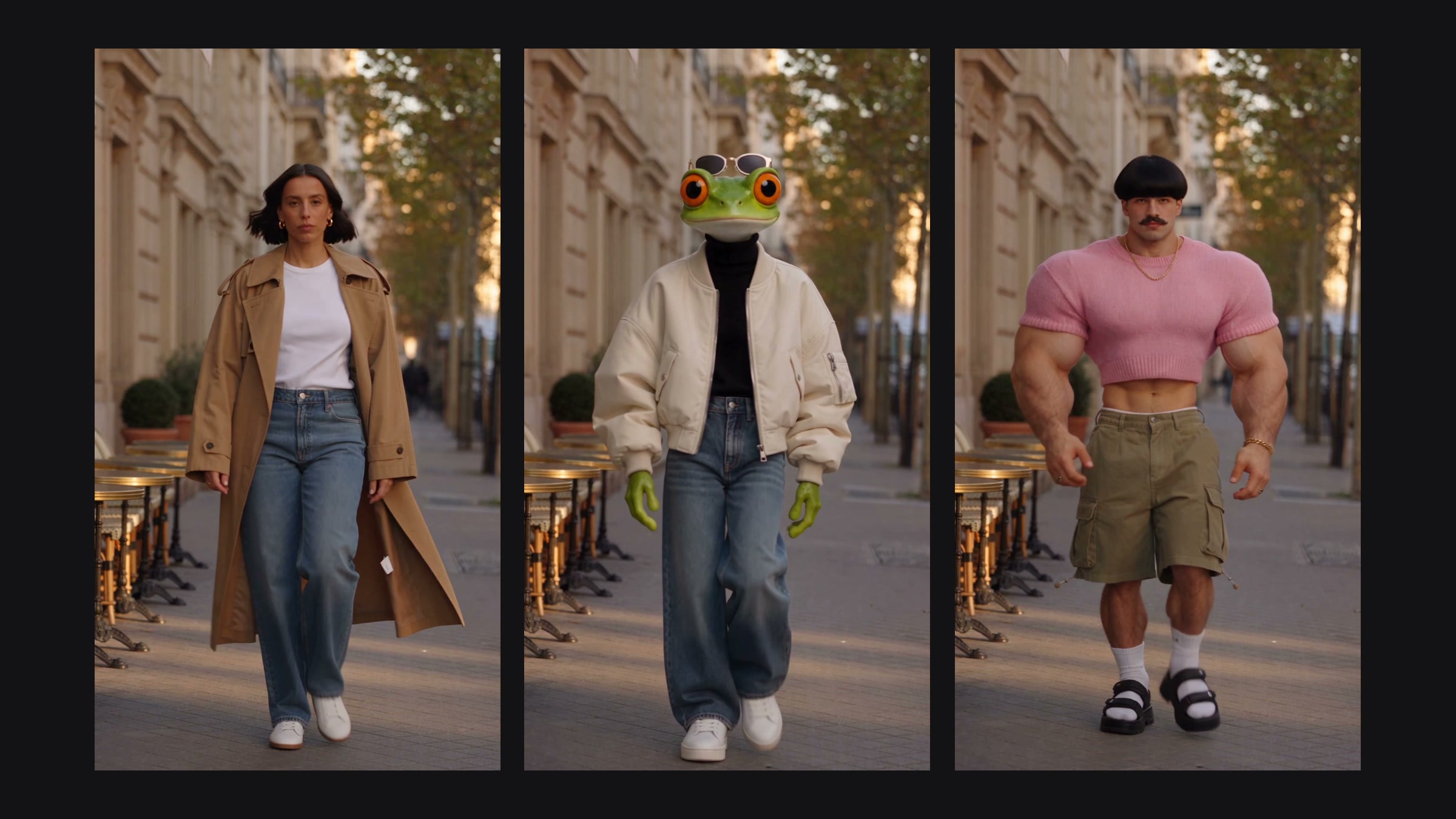
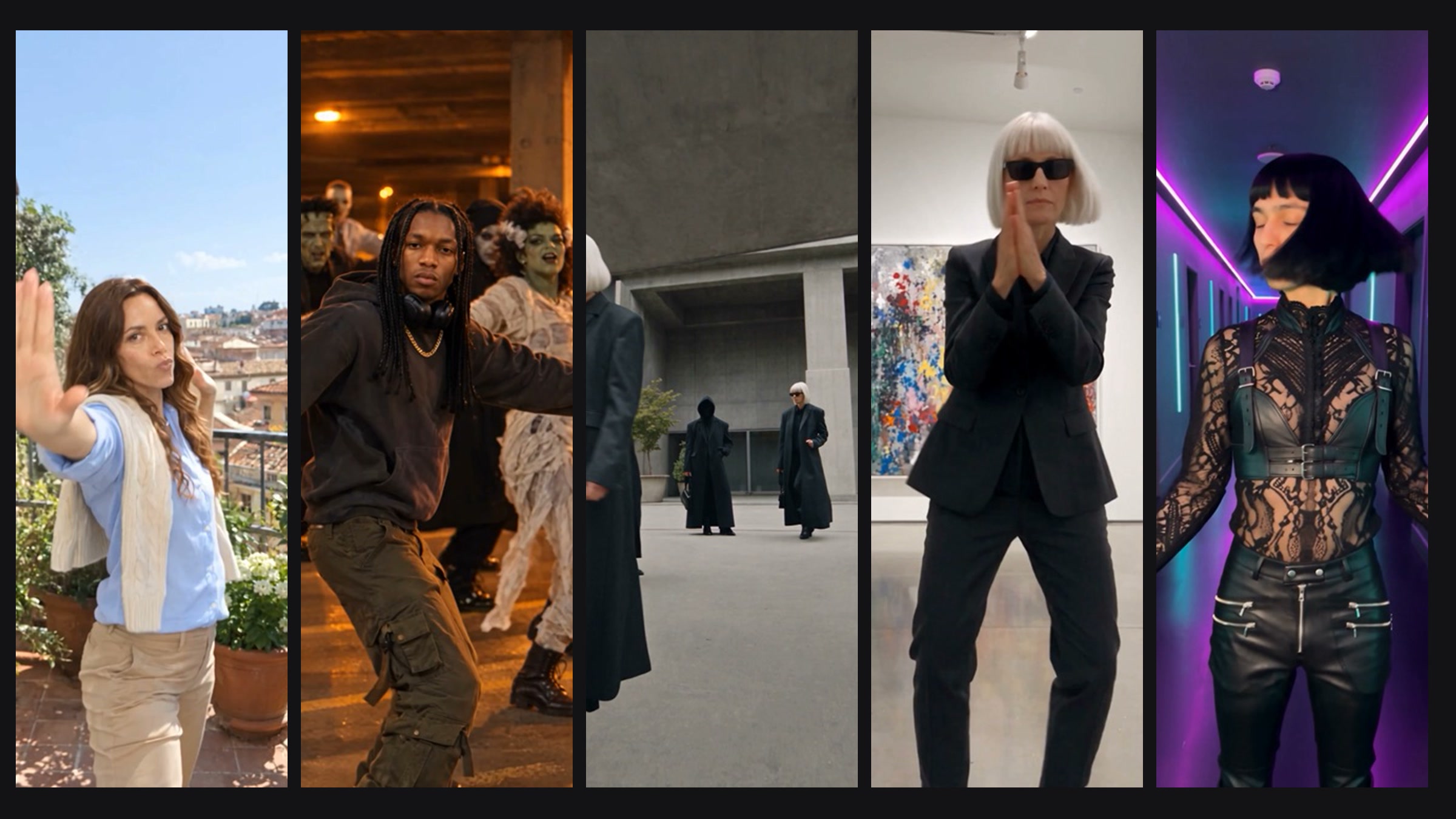
You found a clip with great moves, a camera that does exactly the right thing and timing that lands. Altermorph takes that clip and renders it again with your characters, your products and your clothes, keeping the motion, the camera and the timing.
This guide explains the two modes, what to upload, how to cast each person, how to write the optional prompt, and what happens to your credits if a render does not go through.
What is Altermorph?
Altermorph is a video app in Aristotto. It reads your clip beat by beat (who is in it, how they move, where the camera goes), writes a shot list, and renders the scene again with the cast you choose. The new video keeps the clip's shape and length, and it can keep the clip's original sound.
Cast Swap or Scene Swap?
| Mode | What stays | What changes | Use it for |
|---|---|---|---|
| Cast Swap | The place, light, camera and moves | The people you recast | Putting your character into a trend exactly as filmed |
| Scene Swap | The moves, camera and timing | The place, and every person in the clip | The same dance or walk in a new set, like a neon arcade at night |
In Cast Swap you can leave someone as filmed by choosing Original for that person. In Scene Swap everyone gets a new look.
What clip can you use?
Length: 4 to 30 seconds. If your clip is longer, choose the part to recreate.
Format: MP4 or MOV, under 200 MB.
Frame rate: clips outside 24 to 60 frames per second are re-timed for you, keeping the same frames.
Where from: a trend from the Trends tab, your own upload, one of your generated videos, or a community post.
The finished video keeps the clip's aspect ratio, so a vertical clip stays vertical.
What images should you add?
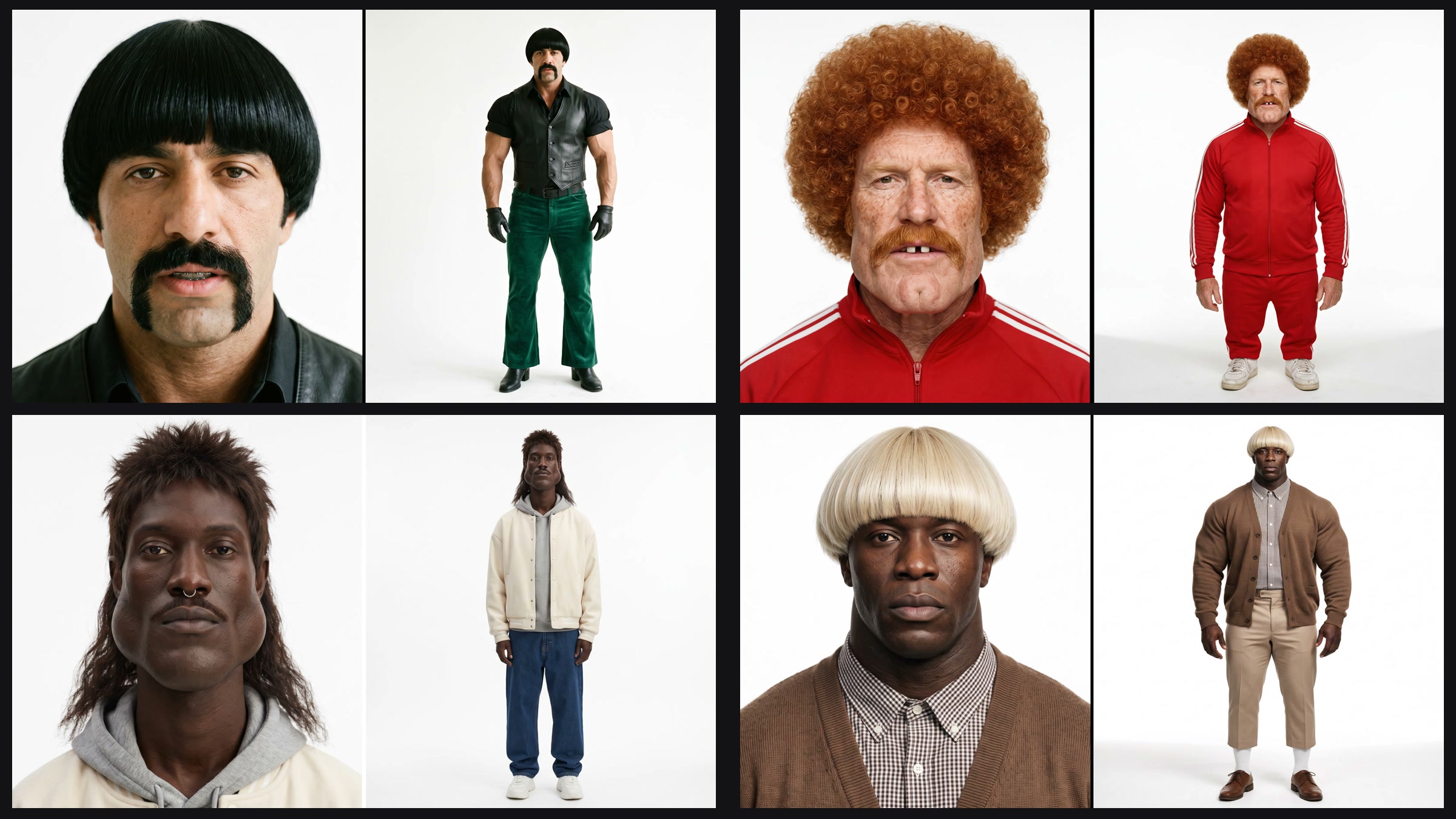
Add between 1 and 30 images (JPG, PNG or WebP, up to 30 MB each). Altermorph sorts each one for you:
People, characters and animals are cast as people in the scene.
Clothes are worn by someone you cast.
Products and props are placed where they fit the scene.
Your AI influencers are listed right under the image tile, so one tap adds them. You can also pick from your uploads, generations, avatars and elements. Images are never cropped: if one is too large or an unusual shape, it is padded and scaled to fit.
How do you choose who plays who?
When you add your own clip, Altermorph finds the people in it (up to 12) and lists them left to right. Give each person an image, or Original in Cast Swap. If it missed someone, add them yourself.
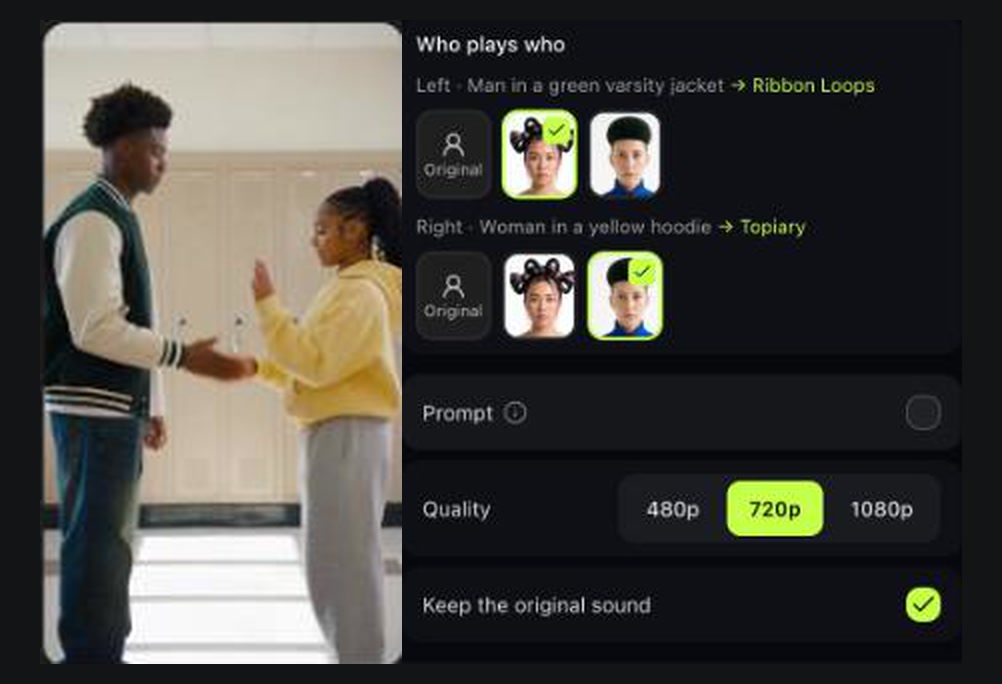
Who plays who: each person in the clip is listed with a short description. Tap an image to cast it, or Original to keep that person as filmed.
If you do not pick, images are assigned in order, so one character fills a solo scene. Someone who appears again in other clothes keeps the same image.
Do you need a prompt?
No. The prompt is optional and up to 500 characters. What it does depends on the mode:
Cast Swap: small changes only, such as "make it rain". The place stays as in your clip, so a new location written here will not show.
Scene Swap: describe the new set, such as "a neon arcade at night". With no prompt, the place stays the clip's.
To point at a specific image, type @Image1, @Image2 and so on.
Which quality and sound settings should you pick?
Quality: 480p, 720p or 1080p. 720p is the default; 480p is the cheapest way to test a cast.
Keep the original sound: on by default. Your clip's own audio is put back in sync with the new video. Turn it off to let the model make its own sound.
Example: recreate a trend with your influencer
Open Altermorph and pick Street Style Turn from the Trends tab. It loads as an 8 second, one-person scene in Cast Swap.
Under Your influencers, tap the character you want. It is cast as the person in the clip.
Leave the prompt off, keep 720p and keep the original sound.
Check the price on the Recreate scene button, then tap it.
Leave the page if you like. The video lands in Your recreations; click it to watch it next to the original.
How long does a render take, and what does it cost?
A render takes a few minutes. You can follow each stage: mapping the people, reading the scene, writing the shot list, rendering and putting the sound back.
The price depends on the clip's length and the quality you choose, and the Recreate scene button always shows it before you start. You are charged once, when the render runs. If the price changes before rendering, the run stops and nothing is charged.
How do you compare the recreation with the original?
Open Your recreations and click a thumbnail. The original and the recreation play side by side, in sync, so you can see exactly what was and what it turned into.
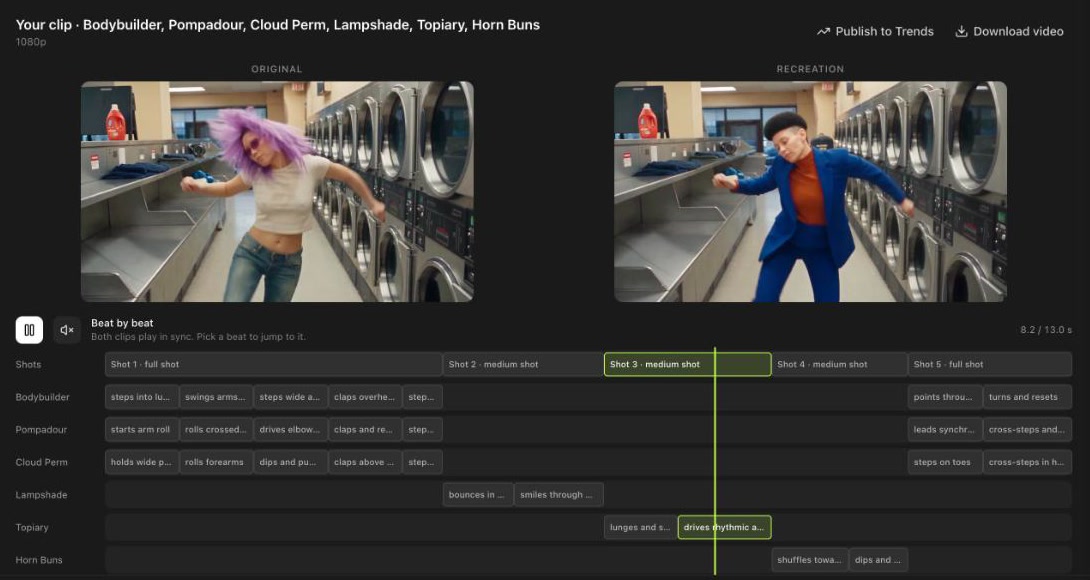
The original and the recreation play together. Beat by beat lists every shot and what each person does in it.
Beat by beat: the timeline below shows each shot and each person's moves. Pick a beat to jump both clips to that moment.
Download video saves the recreation, and Publish to Trends shares it with the community.
What if a clip is refused or a render fails?
Clips and images are checked before anything starts. If one cannot be used, you are told which, and nothing is charged.
Footage that looks like it could be copyrighted (recognisable people, broadcast footage) can be refused by the video model. Altermorph then tries once more from the clip's shapes and motion only. If that is refused too, nothing is charged.
If a render fails partway, its credits go back to your balance.
Got any questions left?
Can I use a clip longer than 30 seconds?
Yes. Choose the part to recreate, up to 30 seconds.
Can I put my product in a trend?
Yes. Add a product image; Altermorph places it where it fits the scene.
Why didn't my new location show?
Cast Swap keeps the place. Switch to Scene Swap and describe the set.
Can I keep one person as filmed?
Yes, in Cast Swap. Choose Original for that person.
Do I pay for a refused render?
No. Refused renders cost nothing, and failed renders are refunded.
Can I share my recreation?
Yes. Open it in Your recreations and choose Publish to Trends. The Trends guide explains how publishing works.