How to Use Seriesly: Make a Series From One Topic
 by Aristotto4 min
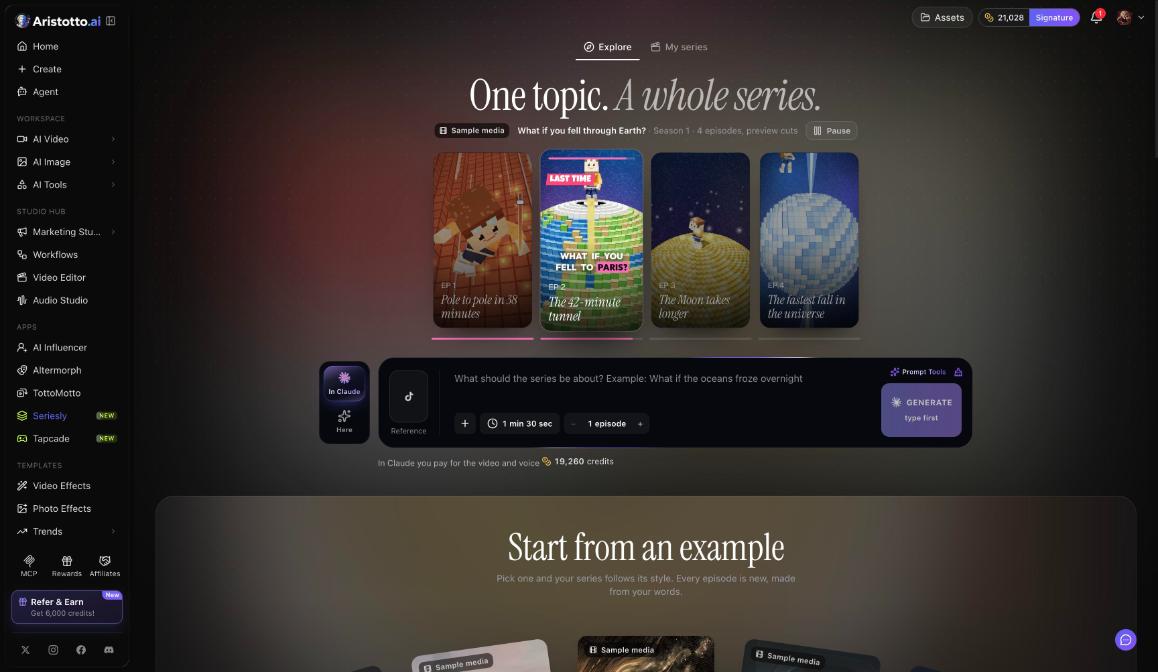
In Seriesly, one topic becomes a full series of episodes. Type what the series is about, set the episode length and the number of episodes, choose whether it runs here or in Claude, and start. A run is paid as soon as it starts, and it cannot be undone.
Seriesly is under Apps in the left rail (/app/seriesly), marked New. This guide covers setting up a series, where it runs, starting from an example, finding your episodes and what to check first.
How do you set up a series?
In the left rail, open Apps, then Seriesly.
Type what the series should be about, for example: What if the oceans froze overnight.
Add a Reference.
Choose an episode length, such as 1 min 30 sec.
Set the number of episodes.
Choose In Claude or Here.
Read the cost, then start.
The page has two tabs: Explore and My series.
Should you run it here or in Claude?
| Option | Where it runs |
|---|---|
| Here | On Aristotto |
| In Claude | Your own Claude, after a one-time MCP connection |
When you pick In Claude, the page lists what you will pay in Claude for video and voice. With the example settings, that is 19,260 credits; read the number for your own settings before you start.
To use In Claude, connect Claude once. Open the MCP tile in the left rail, press Connect to Claude, and sign in with your Aristotto account when Claude asks. After that, you approve prices in the chat, unless a charge fits inside a Spend without asking allowance you set in Settings, Connected apps.
How does starting from an example work?
Under Start from an example, pick one. Your series follows that example's style, but every episode is new and made from your words, not copied from the example.
To see finished work first, open Trends under Templates in the left rail. It lists 25 finished Seriesly series.
Where do you watch your episodes?
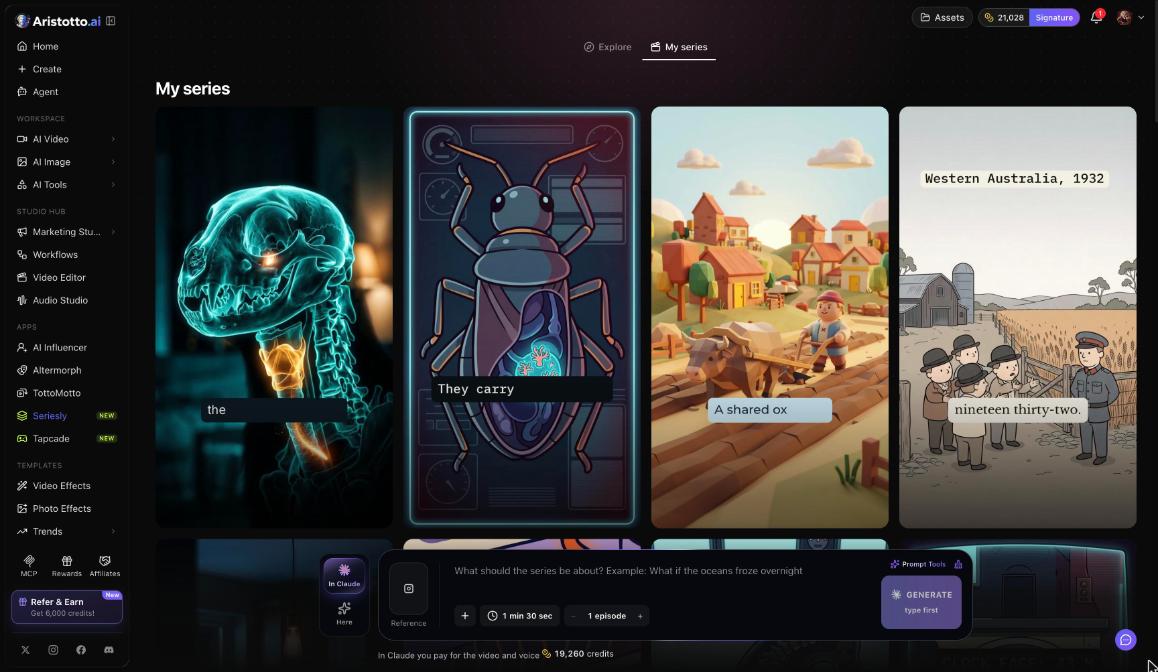
Open the My series tab. It holds every series you made. Open a series to watch its episodes.
Example: how do you make a short science series?
Open Seriesly from Apps.
Under Start from an example, pick one if you like its look.
Type the topic: What if the oceans froze overnight.
Add a Reference.
Set the episode length to 1 min 30 sec and choose how many episodes you want.
Choose Here.
Read the cost and check every setting again, because a started run cannot be undone.
Start the run.
Open My series, then open your new series to watch the episodes.
What should you check before and after you start?
Before you start:
The topic says what you mean. It drives every episode.
The episode length and number of episodes are what you want.
You picked the right option, Here or In Claude.
You read the cost. Once the run starts it is paid, with no undo.
If you want a set look, you picked an example under Start from an example first.
After you start:
In Claude does not run: check that Claude is connected through the MCP tile, and approve the price in the chat.
The episodes do not have the look you wanted: next time, start from an example.
You cannot find your series: open the My series tab.
A run failed: failed, timed-out and partly failed runs are refunded automatically.
Questions
Can I cancel a series after it starts?
No. A started run is paid and has no undo. Check the cost and settings before you start.
What does running In Claude cost?
The page shows what you pay in Claude for the video and voice. With the example settings, it is 19,260 credits.
Will my series copy the example's story?
No. An example sets the style. Every episode is new and made from your words.
Where are my episodes?
In the My series tab. Open a series to watch its episodes.
Where can I see finished series before I make one?
Open Trends under Templates in the left rail. It lists 25 finished Seriesly series, and the Seriesly page itself has examples under Start from an example.