How to Use AI Tools, Video Effects and Photo Effects
 by Aristotto5 min
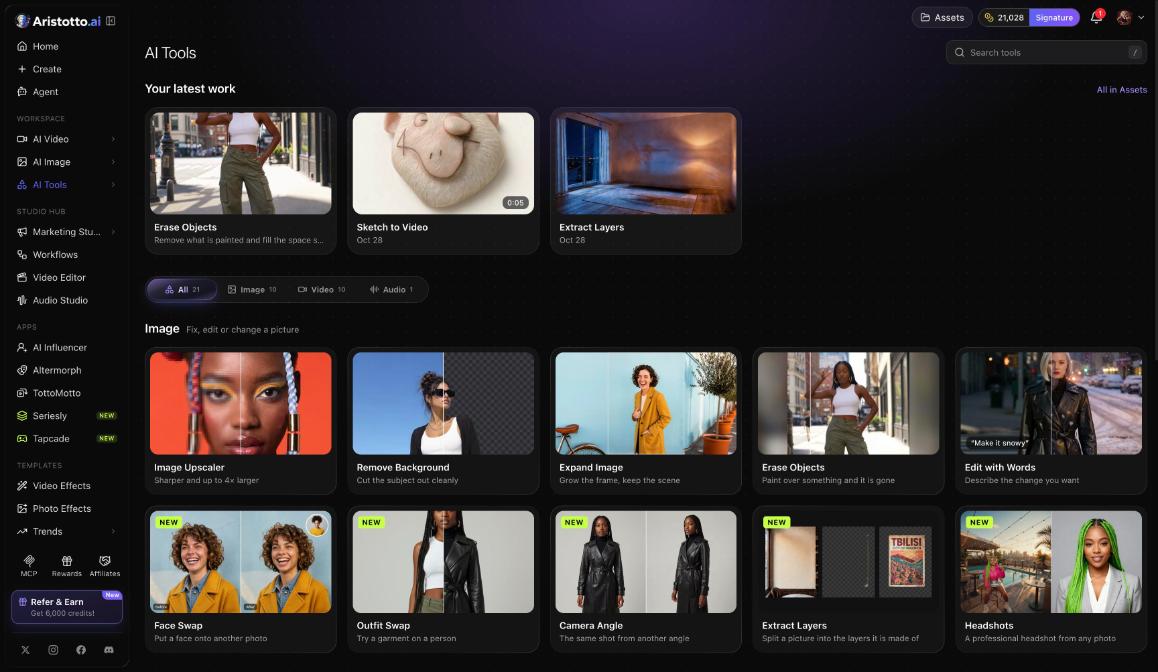
AI Tools are 21 one-job tools that work on a file you bring, such as Image Upscaler or Remove Background. Video Effects and Photo Effects are ready-made looks you apply to your own photo. Each one shows its price in credits before you run it.
Below: how a tool page works, how to apply an effect, a worked Edit with Words example and what to check when a run fails. Find AI Tools under Workspace and the effects under Templates in the left rail.
Where do you find AI Tools and effects?
| What | Where in the left rail | Address |
|---|---|---|
| AI Tools | Workspace, AI Tools | /app/ai-tools |
| Video Effects | Templates, Video Effects | /app/video-effects |
| Photo Effects | Templates, Photo Effects | /app/photo-effects |
Two other places lead to the same tools:
In the workspace (Create in the rail), the Video and Audio tabs each include an AI Tools task.
A creation's preview lists AI Tools for this video, and each one opens in place.
Which AI Tools are there?
Image (10): Image Upscaler (sharper and up to 4x larger), Remove Background, Expand Image, Erase Objects (paint over what should go), Edit with Words (describe the change), Face Swap, Outfit Swap (try a garment on a person), Camera Angle (the same shot from another angle), Extract Layers (split a picture into its layers) and Headshots (a professional headshot from any photo).
Video (10): Video Upscaler, Lip Sync, Face Swap Video, Dub Video, Video Background, Add Sound Effects, Relight Video, Video Reframe, Mask and Regenerate, Sketch to Video.
Audio (1): Voice Changer.
Type a name into Search tools on the AI Tools page to jump straight to one.
How does a tool page work?
Open the tool. The model card shows which model runs it; press Swap to pick another.
Add your file: upload one, or choose From your Assets.
Set the options in the settings area.
Read the price on the button, then press it.
Find the result under the Your work tab and in Assets.
Each tool page also has an Examples tab and a How it works tab. Under Examples, Use this example copies that example's words into your settings, so you can start from a result you like and change it.
How do you apply a Video Effect or Photo Effect?
Open Video Effects or Photo Effects under Templates.
Browse a category. Video Effects: Character, Viral growth, Dancing, E-commerce, Fashion, Emotion. Photo Effects (40+): Face Alchemy, Dream Frames, Mood Lens, Look Remix, Pet Charm.
Pick an effect, for example Pixel World or Plushie Chibi. It opens in the workspace on that effect.
Upload your photo.
Check the price on Generate and press it. The result lands in Assets.
Can you use a tool on something you already made?
Yes, in two ways:
On any tool page, choose From your Assets instead of uploading a new file.
Open a video's preview. Its AI Tools for this video list (for example Video Upscaler, Lip Sync and Dub Video) opens the tool in place.
Example: How do you change a product photo with Edit with Words?
Say you have a product photo on a busy table and want a plain white background.
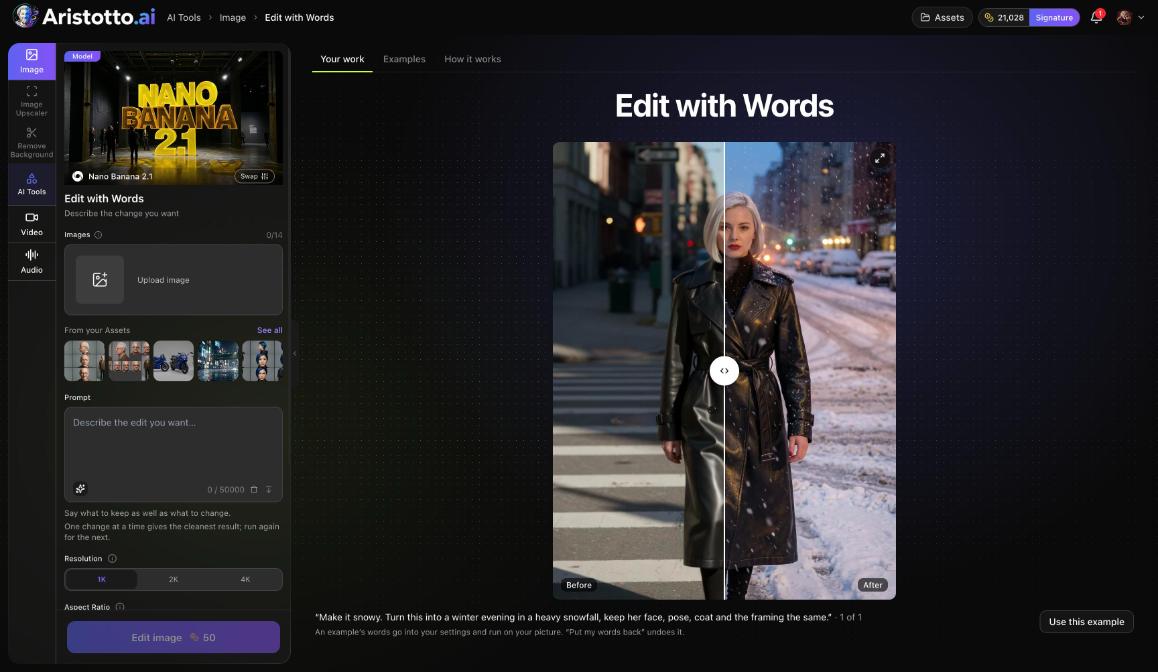
Open AI Tools and type Edit with Words into Search tools.
Check the model card. The example setup uses Nano Banana 2.1.
Upload the photo, or pick it From your Assets.
In the settings, describe the change: replace the table with a plain white studio background.
Pick a resolution: 1K, 2K or 4K.
Read the button. At the time of writing the example showed Edit image for 50 credits; your price depends on the model and settings you choose.
Press it, then open Your work to see the result.
If you need a larger file, open Image Upscaler and pick the new picture From your Assets.
What should you check when a tool or effect does not work?
Your balance. Compare the price on the button with the credits balance in the header.
File limits. Lip Sync takes a video up to 100 MB and 300 seconds. If the voice you upload is longer than the video, the page catches it before you pay.
The model. If the result is not what you wanted, press Swap on the model card and try another model.
Refunds. Failed, timed-out and partly failed runs are refunded automatically. Open Settings, Usage and filter the History ledger by the Refunded action to see them.
Where the result went. Look under Your work on the tool page, at the top of the AI Tools page, and in Assets.
Still stuck. Open the chat bubble at the bottom right on desktop and choose Send feedback.
Questions
How many Photo Effects are there?
More than 40, grouped into Face Alchemy, Dream Frames, Mood Lens, Look Remix and Pet Charm.
How large can an upscale be?
Image Upscaler makes a picture sharper and up to 4x larger. The Video Upscaler in Video Toolkits on the AI Video page goes up to 4K.
Do I pay if a tool run fails?
No. Failed, timed-out and partly failed runs are refunded automatically, and the refund shows in Settings, Usage.
Where do my results go?
To Assets, and to Your work on the tool page. The AI Tools page also shows your latest work on top, with All in Assets.
Can I start from an example?
Yes. Open the Examples tab on a tool page and press Use this example to load its words into your settings.