Aristotto Assets: Find, Organize and Publish Everything You Make
 by Aristotto3 min
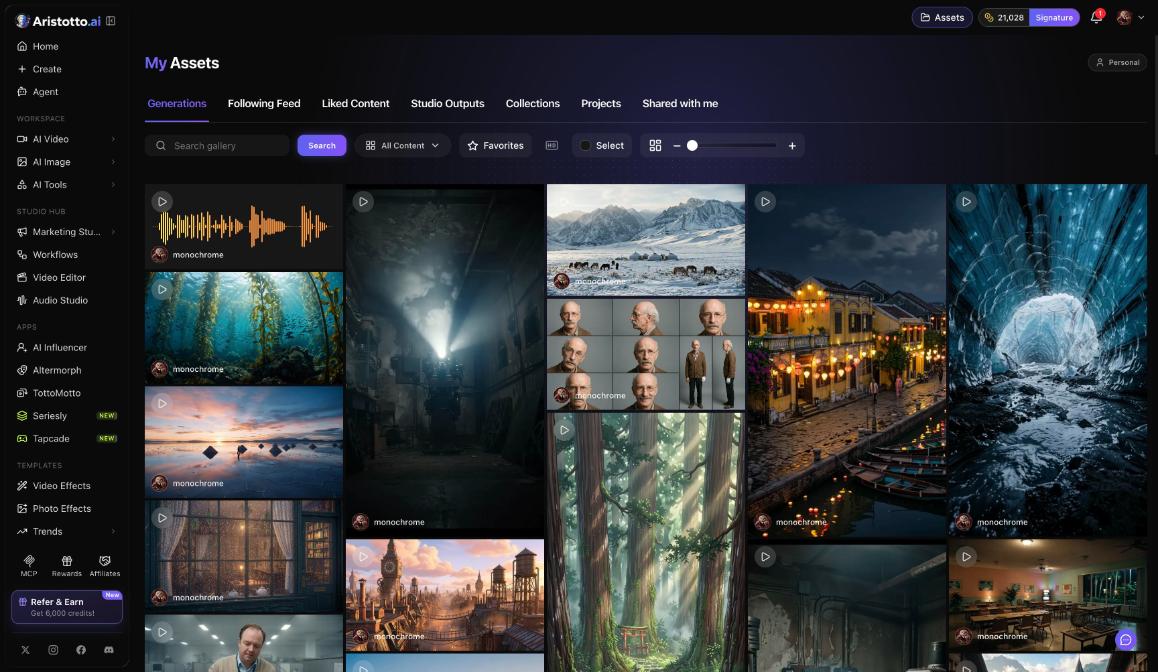
Assets is your library on Aristotto. It holds what you generate, the videos you export from the Video Editor, content you liked, new work from people you follow, and your collections. Open Assets in the header or go to /assets. Everything you make is private by default until you choose to make it public.
The five tabs
| Tab | What it holds |
|---|---|
| Generations | What you generate on Aristotto |
| Following Feed | Work from the people you follow |
| Liked Content | Everything you liked |
| Studio Outputs | Videos exported from the Video Editor |
| Collections | Your collections |
Where your work comes from
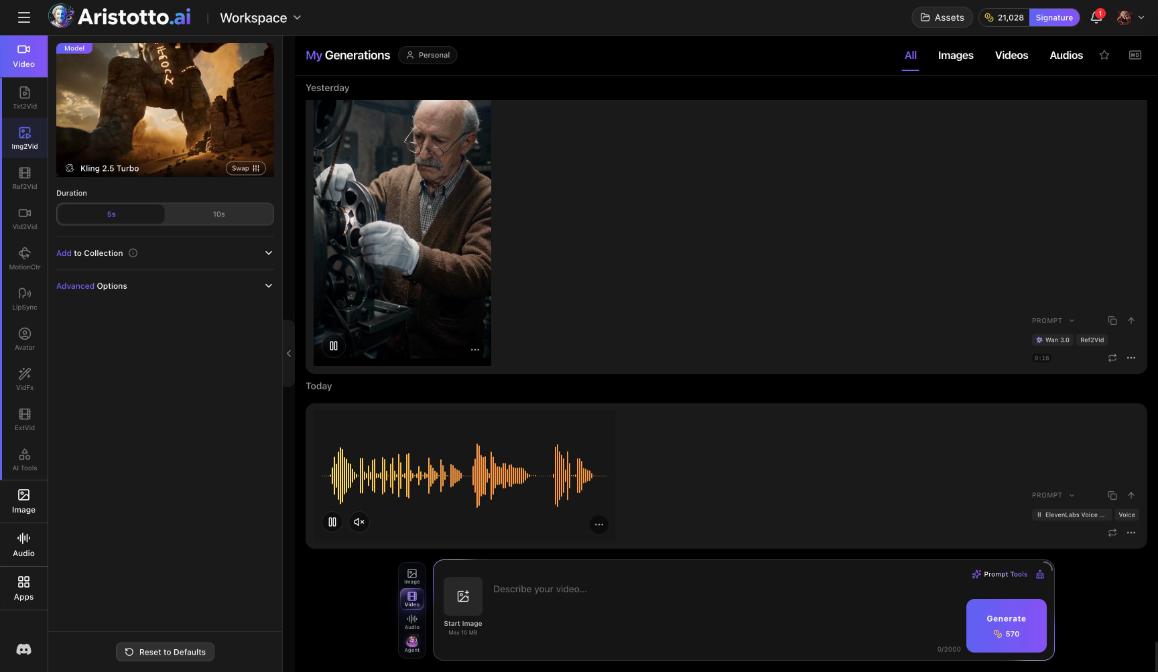
Create (the workspace): results land in My Generations, with tabs All, Images, Videos and Audios, and in Assets.
AI Tools: results go to Assets. A tool page shows your latest work on top, with All in Assets for the rest.
Video Effects and Photo Effects: results land in Assets.
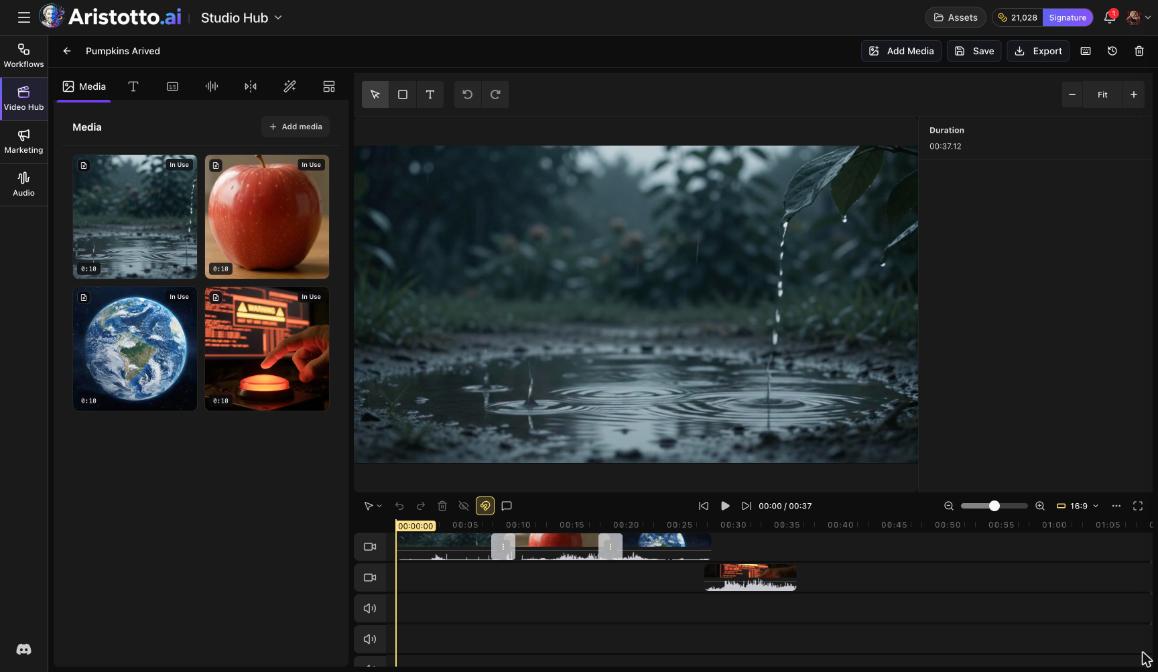
Video Editor: after Export, View in Assets opens Studio Outputs.
Likes: anything you like shows in Liked Content.
Follows: work from people you follow shows in Following Feed.
How to find something fast
Open Assets in the header.
Pick a tab, for example Generations.
Type in Search gallery.
Filter by All Content or Favorites.
Change the grid size to see more or fewer items at once.
Your Assets also feed the tools. On an AI Tools page, choose From your Assets instead of uploading a file.
How to organize with Collections
Assets has a Collections tab for your collections. In the workspace, Add to Collection sits with the settings under the model card, next to Advanced Options and Reset to Defaults.
How to make work public or private
Your outputs are private by default. You can make them public or private from four places:
the preview of a creation
the result row
Assets, in bulk: use Select many to change several items at once
your profile
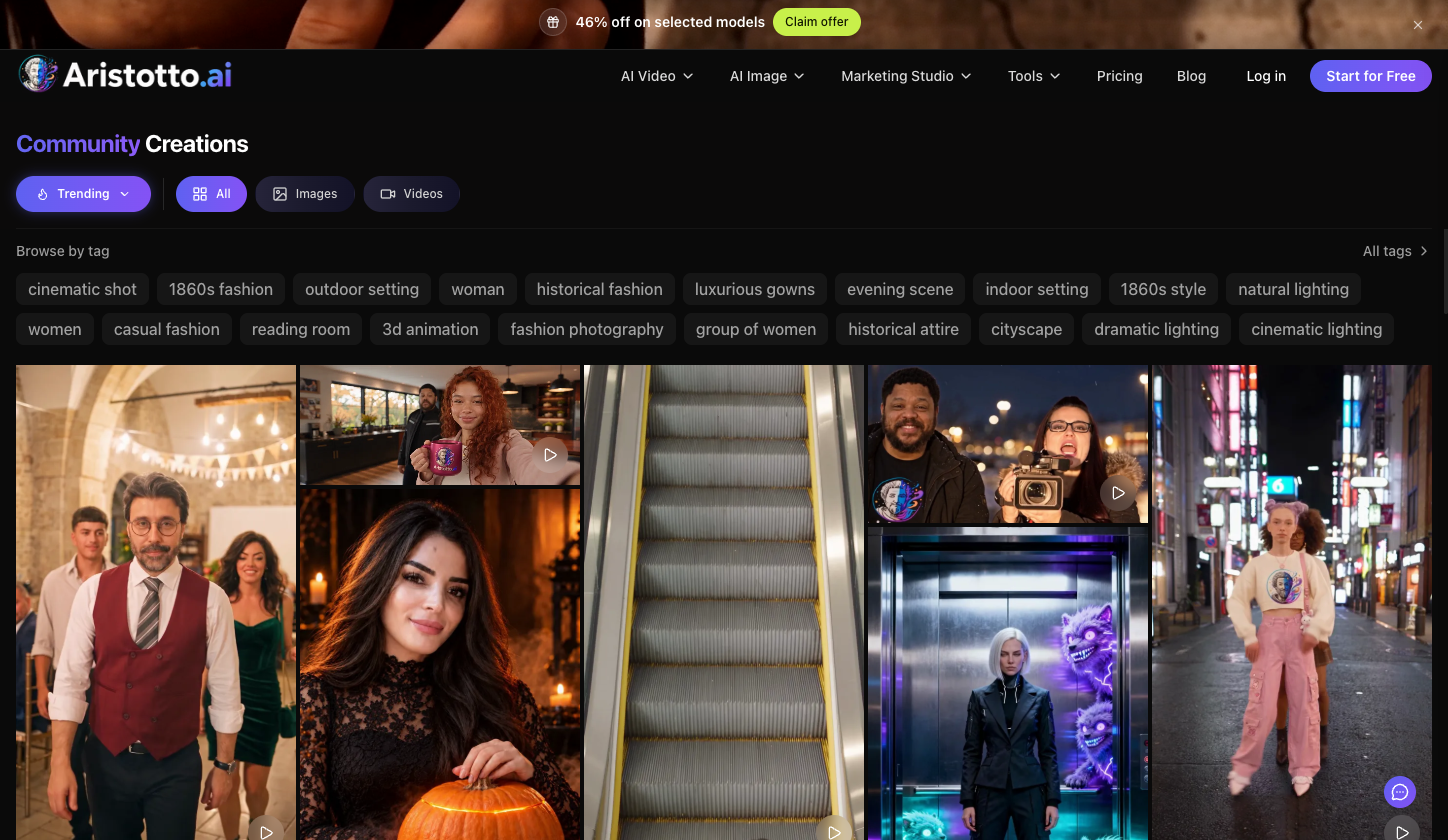
Public work gets a share page at aristotto.ai/media/<id> with Like, Share (Facebook, X, Reddit, Copy link), Download, Report and Follow. Share works for public outputs only. When you download your own work, it has no watermark. Community Creations shows public images and videos.
Check your training settings before you publish
Settings, Privacy has Model Training Preferences:
| Setting | Default |
|---|---|
| Allow training on my public content | On |
| Allow training on my private content | Off |
| Allow training on my uploads | Off |
If you do not want your public work used for training, turn off Allow training on my public content before you make anything public.
Comments and teams
Comments live on a generation's preview, for its owner and team members, with reactions, mentions and GIFs. There are no public community comments. Team plans include a shared workspace and assets.
Questions
Where do my generations go?
Workspace results land in My Generations and in Assets. Results from AI Tools, Video Effects and Photo Effects also go to Assets.
Is my work public when I make it?
No. Outputs are private by default. You make them public from the preview, the result row, Assets or your profile.
Where do videos I export from the Video Editor go?
After Export, View in Assets opens Studio Outputs, the tab for Video Editor exports.
Can I change many items at once?
Yes. Use Select many in Assets to make several outputs public or private together.
Can other people comment on my work?
Comments are on a generation's preview for its owner and team members. There are no public community comments.