Community Creations: How to Browse, Publish, Like and Follow
 by Aristotto3 min
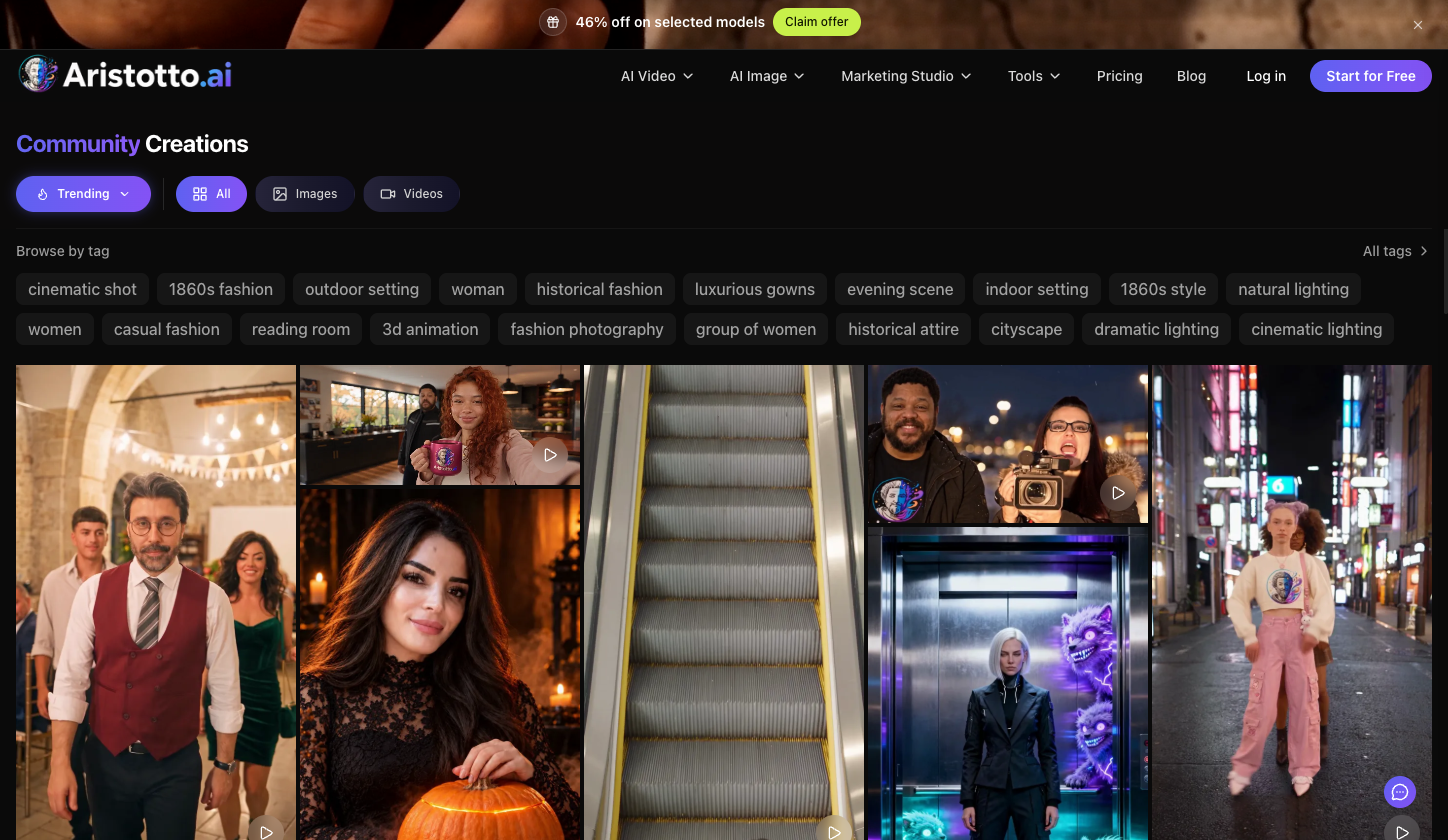
Community Creations is the page of public images and videos made on Aristotto. Open Community in the left rail to browse it. Each creation shows the model, mode and prompt behind it, so you can copy what works. Your own outputs are private by default, and you choose which ones to make public.
How to browse
Sort: Trending or New.
Type: All, Images or Videos.
Search: search work or styles.
Tags: Browse by tag, or open All tags to see every tag.
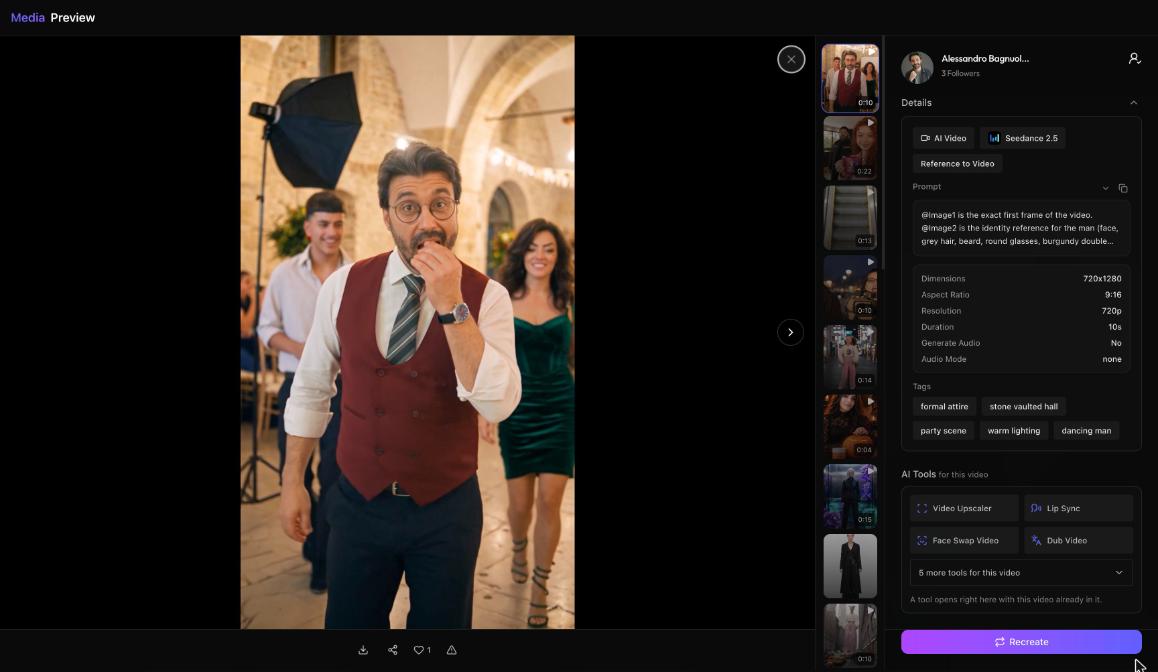
What a creation's preview shows
Open any creation to see its preview:
The author, with a Follow button.
Details: the task (for example AI Video), the model (for example Seedance 2.5), the mode (for example Reference to Video), the prompt with a copy button, the dimensions, ratio, resolution, duration and audio.
Tags on the creation.
AI Tools for this video: Video Upscaler, Lip Sync, Face Swap Video, Dub Video and more. They open in place.
Recreate.
A bar with download, share, like and report.
To make your own take on a creation, copy the prompt from Details or press Recreate. Each run shows its price in credits on the Generate button before you press it.
The share page
A creation's share page is at aristotto.ai/media/<id>. It has:
Like
Share: Facebook, X, Reddit or Copy link. Sharing works for public outputs only.
Download: the owner gets no watermark.
Report
Follow
If you are signed out, these actions ask you to sign in first.
How to publish your own work
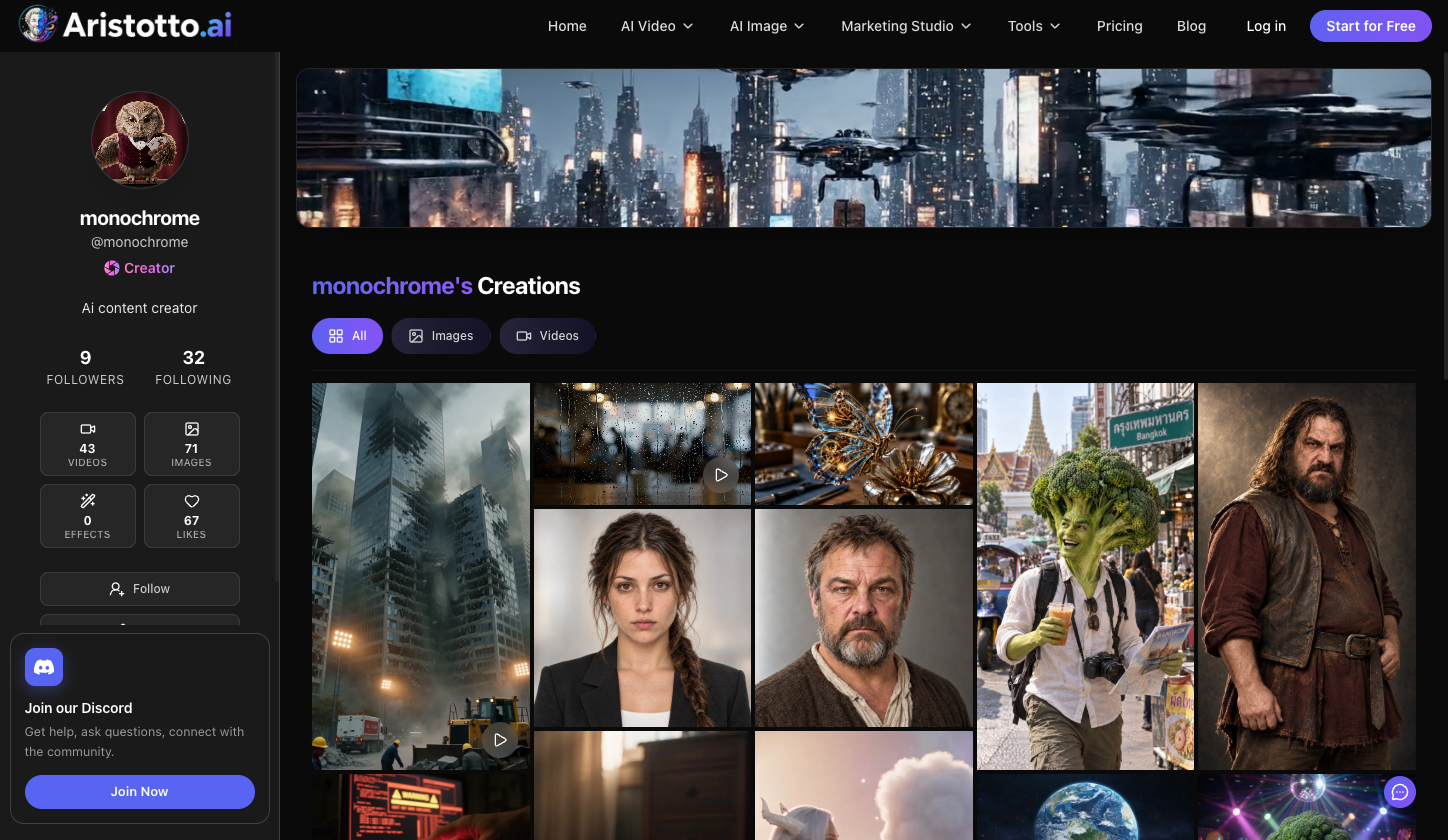
Everything you make is private by default. You can make a creation public, or private again, from four places:
The creation's preview.
The result row where it finished.
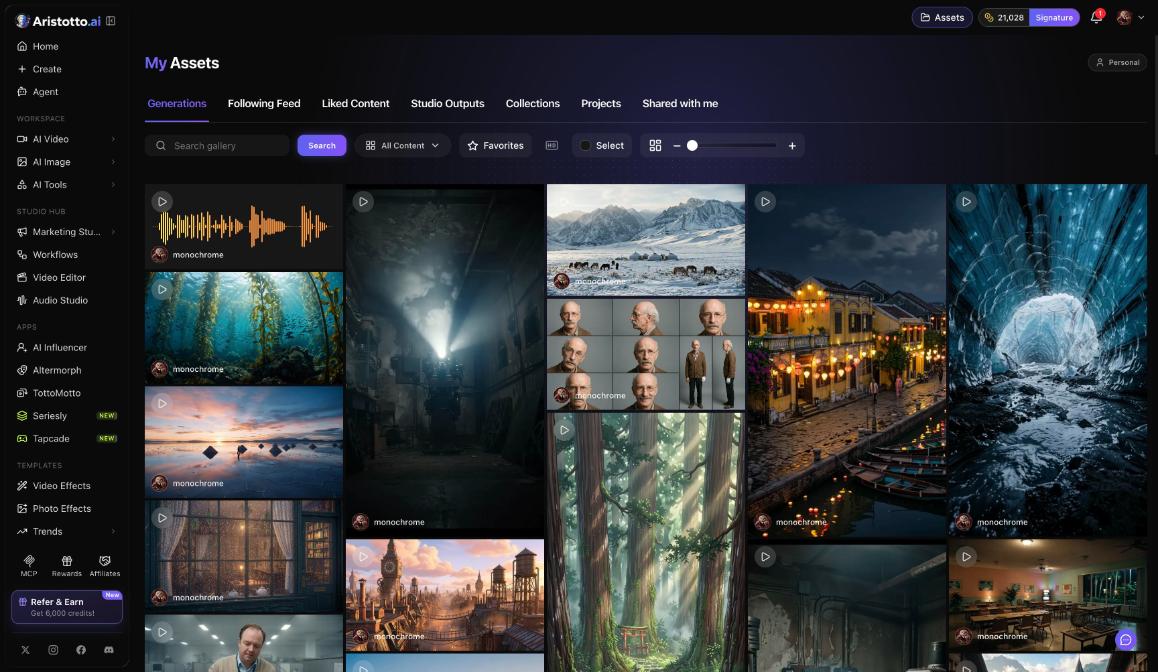
Assets, where you can select many and change them in bulk.
Your profile.
Once a creation is public, it can be shared with Facebook, X, Reddit or Copy link.
One setting to know: in Settings, Privacy, Model Training Preferences, Allow training on my public content is on by default. Turn it off there if you do not want your public work used for training. Training on private content and on uploads is off by default.
Likes, follows and comments
Likes: creations you like show in Assets, Liked Content.
Follows: Assets has a Following Feed tab for the creators you follow.
The bell: the Interactions tab shows likes, comments and follows.
Comments: comments live on a generation's preview, for its owner and team members. They support reactions, mentions and GIFs, and can be reported. There are no public community comments.
Questions
Is my work public as soon as I make it?
No. Outputs are private by default. You make each one public from its preview, the result row, Assets or your profile.
Can people comment on my public creations?
No. There are no public community comments. Comments are on a generation's preview, for its owner and team members.
Can I see which model and prompt made a creation?
Yes. Open the creation and read Details. It shows the task, model, mode, prompt, dimensions, ratio, resolution, duration and audio, and you can copy the prompt.
Where do I find creations I liked?
In Assets, under Liked Content. Creators you follow appear in the Following Feed tab.
Is my public work used to train AI?
Allow training on my public content is on by default. You can turn it off in Settings, Privacy, Model Training Preferences.