How to Set Up a Team: Plan, Seats, Invites and Roles
 by Aristotto5 min
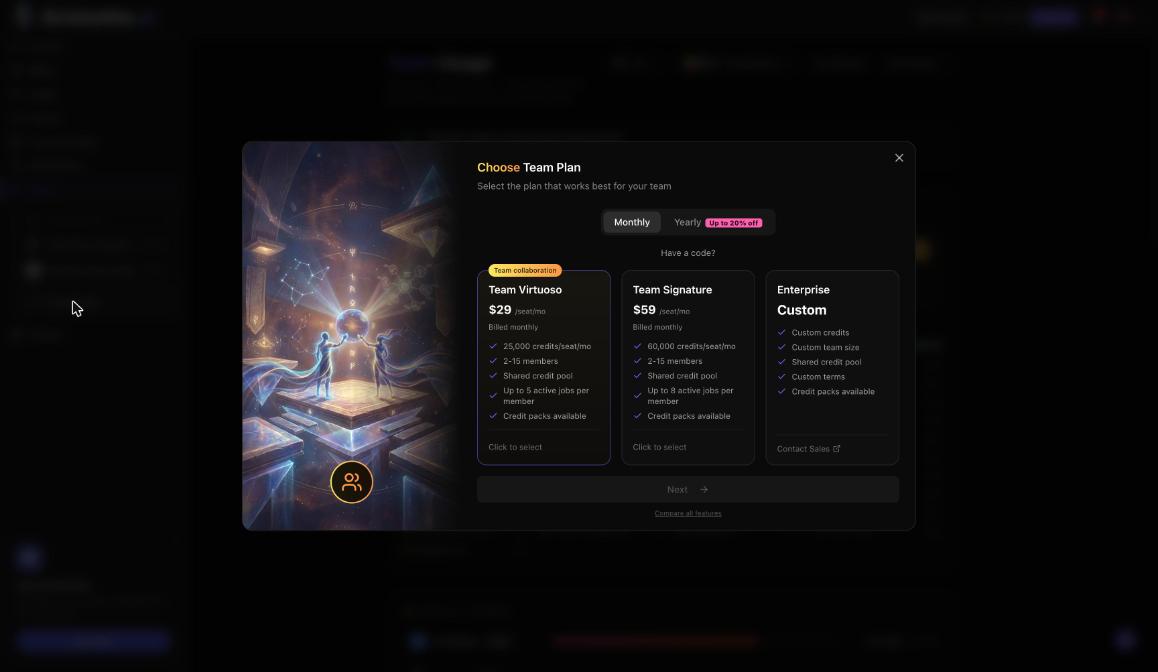
A team shares one pool of credits and one workspace. Create it from Create New Team in the account menu, pick Team Virtuoso or Team Signature, choose seats and pay through Stripe. You become the Owner, then invite people by email.
This guide covers the team plans, the setup steps, invites, seats and roles, and what to check when something blocks a teammate. Teams also live in Settings, Teams at /settings/teams.
Which team plan should you pick?
| Plan detail | Team Virtuoso | Team Signature | Enterprise |
|---|---|---|---|
| Price today | $29 per seat a month | $59 per seat a month | Custom |
| Pooled credits | 25,000 per seat a month | 60,000 per seat a month | Volume rollover credits |
| Members | 2 to 15 | 2 to 15 | Unlimited |
| Parallel generations | Up to 16 (5 per member) | Up to 24 (8 per member) | Higher, set in the agreement |
| Analytics and support | Basic usage analytics | Detailed analytics, priority support | Dedicated Slack support |
| Spend control | Admin spend control | Admin spend control | A limit for each person |
Yearly billing saves up to 20%. For more than 15 people, use Contact Sales under Need a custom plan? on the team page.
How do you create a team?
Open the account menu and choose Create New Team, or go to Settings, Teams and press Create team.
In Choose Team Plan, pick Monthly or Yearly and the plan. Enter a promo code under Have a code? if you have one.
Press Next.
Name the team and choose the number of seats.
Pay through Stripe. You are now the Owner.
On the team page, press Work in this team to switch your workspace to it.
How do you invite people?
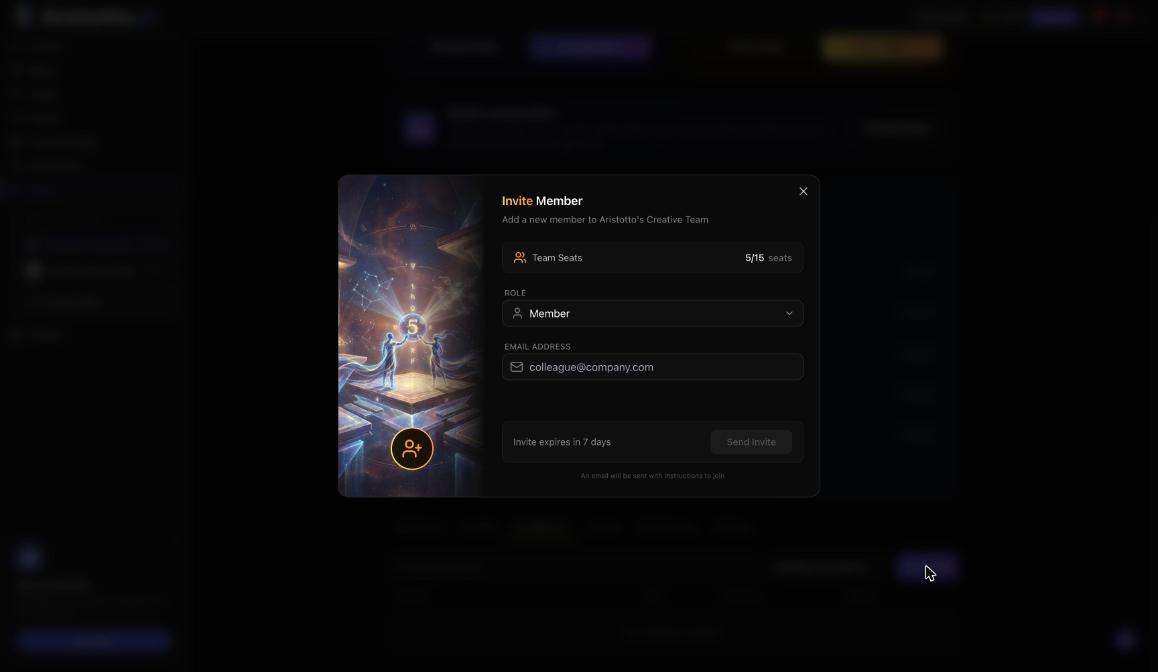
On the team page, open the Invitations tab and press Invite.
The Invite Member dialog shows Team Seats used. You need a free seat.
Pick a Role: Member or Admin.
Enter the Email address and press Send invite. The invite expires in 7 days.
The person opens the link in the email and signs in with the invited email. They see the team, plan, inviter and role, then press Accept or Decline. From Invitations you can Resend, Send again or Cancel.
What can each role do?
| Role | What they can do |
|---|---|
| Owner | Billing, seats, plan, changing roles, transferring ownership, closing the team, plus everything an Admin can |
| Admin | Invite, pause, resume and remove members; buy credits; set limits; see the activity log and team usage |
| Member | Create with the team's credits and see their own limit |
How do you add or remove seats?
The Owner manages seats from Seats used (Manage) on the plan card. An added seat is charged a prorated amount today. A removed seat comes off at renewal.
How do you decide who can spend what?
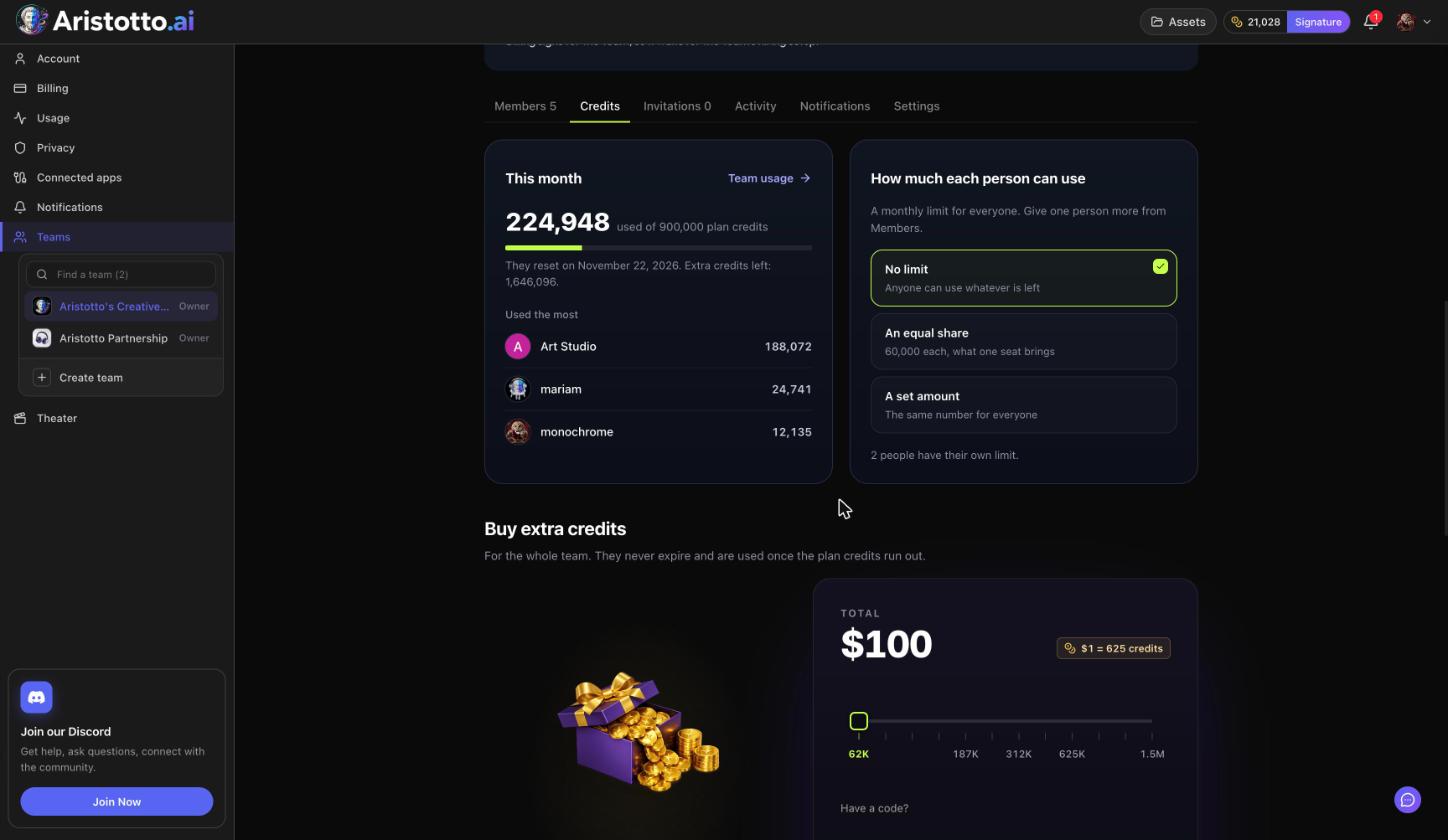
In the Credits tab, How much each person can use offers No limit, An equal share (what one seat brings) or A set amount (the same number for everyone). You can give one person their own limit from Members.
Example: How do you set up a team of three?
Open the account menu and choose Create New Team.
Pick Team Virtuoso and Monthly, then press Next.
Name the team, choose 3 seats and pay through Stripe.
On the team page, press Work in this team.
Open Invitations, press Invite, and invite one colleague as Admin.
Press Invite again and invite the other as Member.
Each of them opens the email link, signs in with the invited email and presses Accept.
In the Credits tab, choose An equal share so each person can use what one seat brings.
What should you check when an invite or setup does not work?
No free seat. The Owner adds a seat first, paying a prorated amount today.
The wrong email. The invitee must sign in with the invited email; a different one is refused.
An expired invite. After 7 days, use Resend or Send again.
Invites sent to you. They show under Invitations for you on the Teams page.
A role change refused. Only the Owner moves someone between Admin and Member.
Nobody can generate. A team payment has failed. Credits are kept; the Owner handles billing from Manage billing on the plan card.
One person cannot generate. Check their limit and whether they are paused in Members.
The wrong workspace. The account menu shows Personal or the team; use Switch.
Questions
Who becomes the Owner?
The person who pays when the team is created.
Can I use a promo code on a team plan?
Yes. Enter it under Have a code? in the Choose Team Plan step.
Can I hand the team to someone else?
Yes. In the Settings tab, transfer ownership: pick a member and type the team name. The old owner becomes an Admin.
How do I leave or close a team?
Members who are not the Owner use Leave team in the Settings tab. The Owner can close the team only once the other members are removed.
How many people can be on a team?
2 to 15 on Team Virtuoso and Team Signature. Enterprise has unlimited members.