A Run Failed or Is Taking Long: Refunds, Cancelling and What to Check
 by Aristotto4 min
If a run fails, times out or partly fails, it is refunded automatically; you do not need to ask. While a run is still queued, you can cancel it. Once it has started, it runs to the end.
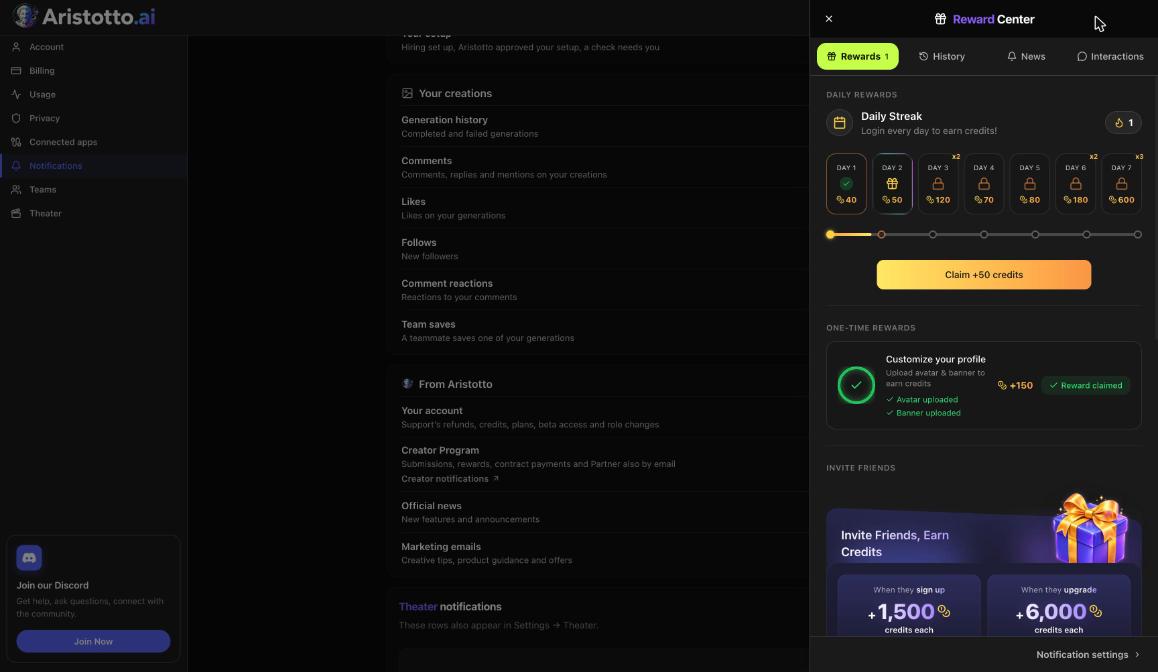
This guide shows where to follow a run, how the queue differs by plan, how to confirm a refund, and what to check before you try again. Run status shows in the bell, on the History tab.
What happens to your credits when a run fails?
| What happened | Credits |
|---|---|
| The run failed | Refunded automatically |
| The run timed out | Refunded automatically |
| The run partly failed | Refunded automatically |
| The run finished | Spent, at the price shown on the button |
Can you cancel a run?
Only while it is still queued. Once a run has started, it runs to the end. In Seriesly, a run is paid as soon as it starts and there is no undo.
Why is a run taking long?
Your plan sets your place in the queue and how many runs you can have going at once:
| Plan | Queue | Active runs at a time |
|---|---|---|
| Base | Standard | 1 |
| Atelier | Priority | 3 |
| Virtuoso | Priority, 2x faster | 5 |
| Signature | Highest priority, 3x faster | 8 |
On team plans, Team Virtuoso allows up to 16 parallel generations (up to 5 per member) and Team Signature up to 24 (up to 8 per member).
How do you know when a run is done?
The bell. The History tab lists your runs as they finish or fail.
Notifications. In Settings, Notifications, the Generation history row covers completed and failed generations; turn on Bell, Email or both.
Results. Finished work lands in My Generations in the workspace (All, Images, Videos, Audios) and in Assets.
How do you confirm a refund?
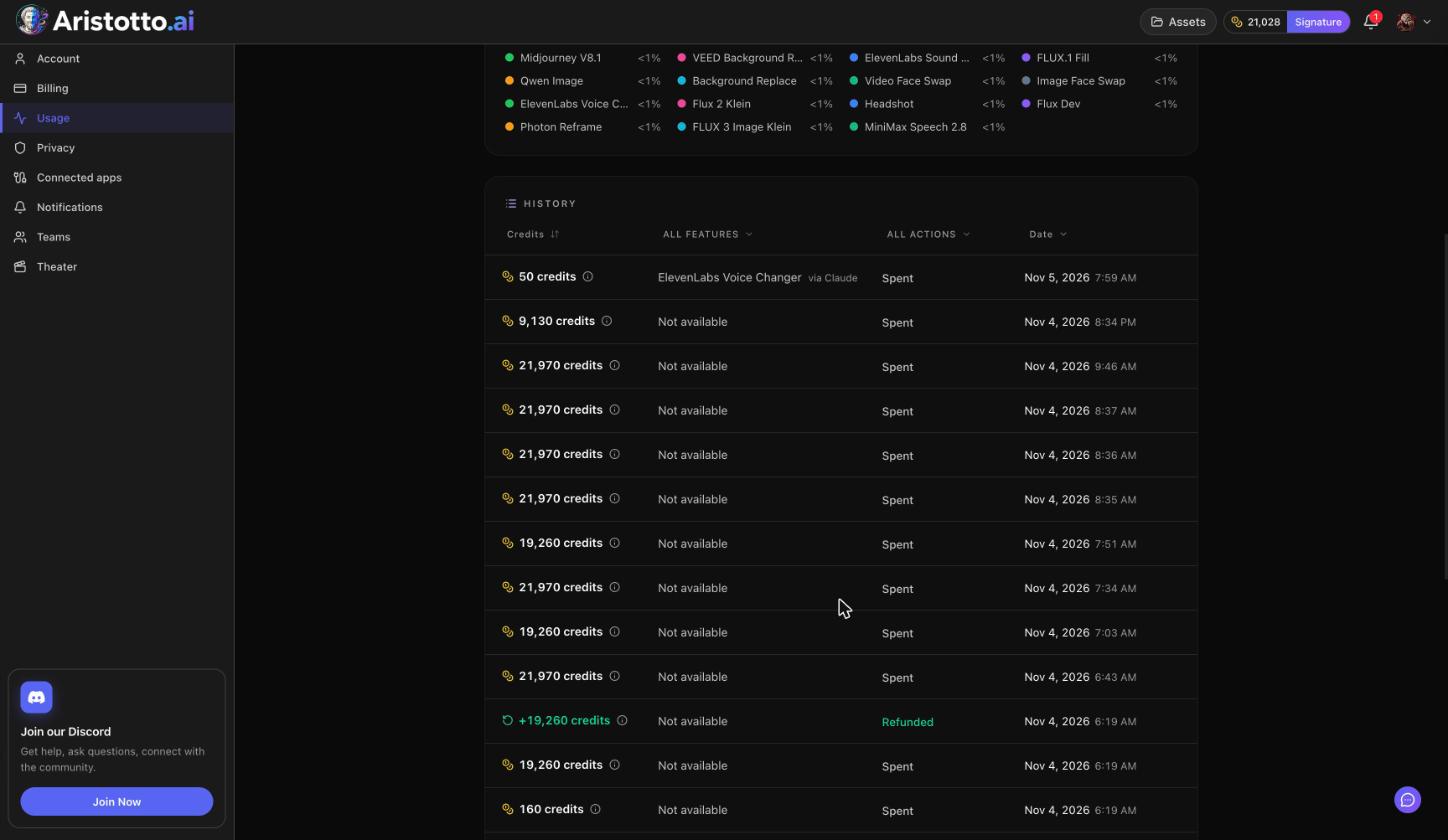
Open Settings, Usage.
In the History ledger, set the action filter to Refunded.
Narrow it by feature or date to find the run.
Example: What do you do when a video run fails?
You set up a video in the workspace and press Generate, with the price shown on the button.
The bell's History tab shows the run as failed.
Open Settings, Usage and filter the History ledger by Refunded. The refund row is there, so the credits are back.
Go through the checks in the next section.
Run it again, or press Swap on the model card to try a different model.
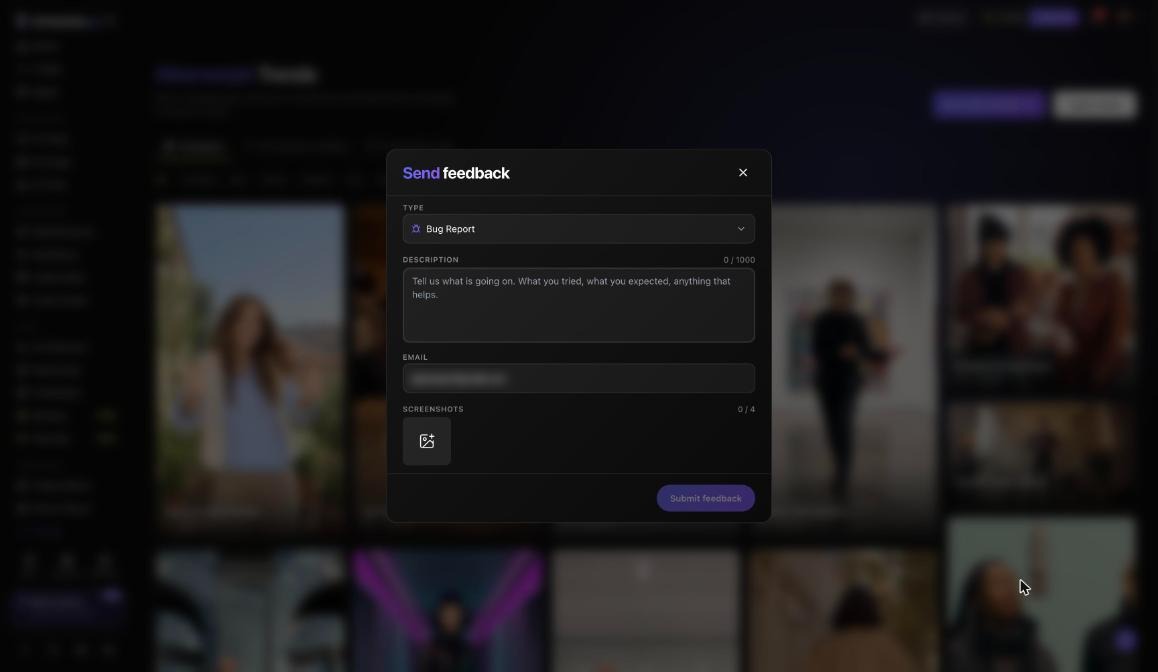
If it fails again with the same inputs, open the chat bubble at the bottom right on desktop, choose Send feedback, pick Bug Report and attach a screenshot.
What should you check before you run it again?
Your balance. Compare the price on the button with the balance in the header.
Input limits. For example, Lip Sync takes a video up to 100 MB and 300 seconds; an Altermorph scene is 4 to 30 seconds; a TottoMotto video is 4 to 60 seconds; both take up to 30 pictures of your people and products.
Active runs. You may already have as many runs going as your plan allows.
Team limits. In a team workspace, the team can set how much each person can use. If a team payment fails, nobody on the team can generate, though credits are kept.
Connected apps. A run started from Claude or another MCP client that costs more than your Spend without asking allowance waits for your approval. You can review those quotes at aristotto.ai.
Questions
Do I need to ask for a refund when a run fails?
No. Failed, timed-out and partly failed runs are refunded automatically. The refund shows as a Refunded row in Settings, Usage.
Can I stop a run that has already started?
No. You can cancel a run only while it is still queued.
Will a higher plan make runs faster?
Paid plans use a priority queue. Virtuoso is 2x faster, and Signature has the highest priority at 3x faster. Higher plans also allow more active runs at once.
Can I get an email when a run fails?
Yes. In Settings, Notifications, turn on Email for Generation history, which covers completed and failed generations.
How do I report a run that keeps failing?
Use Send feedback in the chat bubble with the Bug Report or Generation Quality type, describe the run and add up to 4 screenshots. You get a ticket number.