How to Generate Images, Videos and Audio in the Workspace
 by Aristotto5 min
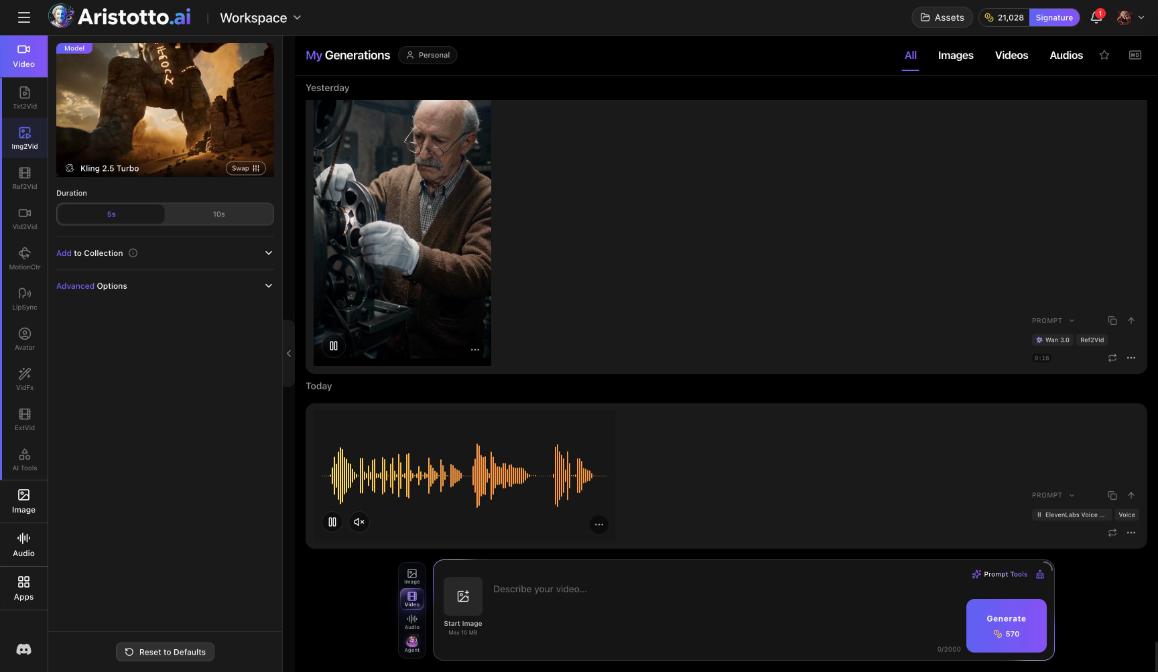
You make images, videos and audio in the workspace. Pick a tab and a task, check the model, set its options, write a prompt and press Generate. The price in credits is on the button before you press it, so nothing is spent by surprise.
Open it with Create in the left rail (/app/workspace). This guide covers the tabs, choosing a model, prompts, music, the AI Video and AI Image pages, a worked example and what to check when a run fails.
Which tab and task should you pick?
The tabs on the far left set what you are making. Video and Audio each list tasks you choose between.
Video: Txt2Vid (text to video), Img2Vid (image to video), Ref2Vid (reference to video), Vid2Vid (video to video), MotionCtr, LipSync, VidFx, ExtVid and AI Tools.
Image: pictures from a prompt. The AI Image page also offers Text to Image and Image to Image.
Audio: Music, Speech, SFX, LipSync and AI Tools.
How do you choose a model and its settings?
Read the top card. It names the model that will run.
Press Swap to choose a different model.
Choose the options below the card, such as Duration 5s or 10s.
Open Advanced Options for more settings. Add to Collection sits in the same area.
Press Reset to Defaults to clear your changes.
To learn what a model can do before you pick it, open its page at aristotto.ai/models/ followed by the model name. Each page has an at-a-glance list and a composer already set to that model.
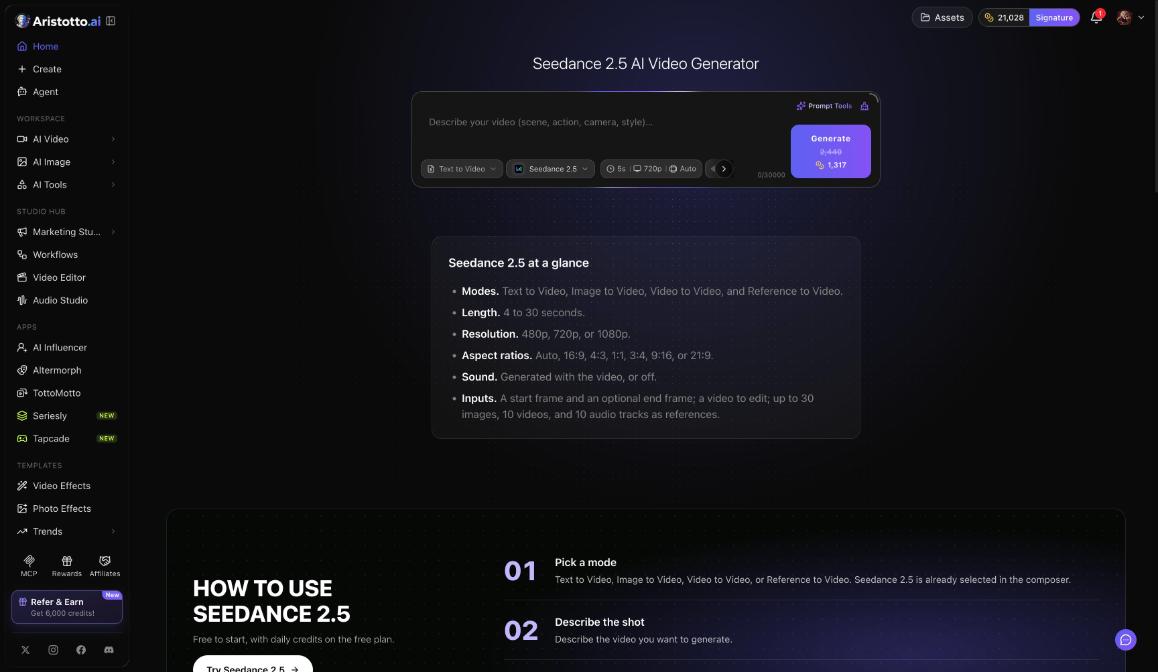
For example, the Seedance 2.5 page lists Text to Video, Image to Video, Video to Video and Reference to Video; 4 to 30 seconds; 480p, 720p or 1080p; ratios Auto, 16:9, 4:3, 1:1, 3:4, 9:16 and 21:9; and sound made with the video or turned off. It takes a start frame, an optional end frame, a video to edit, and up to 30 images, 10 videos and 10 audio tracks as references.
How do you write the prompt and start the run?
The bar at the bottom of the workspace holds everything for the run itself.
Add a start image if the task uses one.
Write your prompt. Prompt Tools helps you shape it.
Read the price on the Generate button.
Press Generate.
Plan credits are used first, then purchased credits, oldest first.
How do you make music in the workspace?
Pick the Audio tab, then Music. The music model is ElevenLabs Music.
Length: 1, 2 or 3 min.
Instrumental Only, for a track with no singing.
Private Mode.
Prompt or Composition.
Output format, for example MP3 44.1 kHz 128 kbps.
Describe the song in the prompt and include any lyrics. There are 11 audio models across the Audio tasks.
What do the AI Video and AI Image pages add?
Both pages are under Workspace in the left rail.
| Page | What it has |
|---|---|
| AI Video (/app/ai-video) | A composer with mode (Text to Video, Image to Video and more), model, length, resolution and sound chips. Featured: FLUX 3 Max, Kling 4.0, Gemini Omni 1.1 Flash. Video Toolkits, including Video Upscal |
| AI Image (/app/ai-image) | Text to Image or Image to Image, a model chip, Standard or LoRA, ratio and number of images. Featured: FLUX 3 Image, Nano Banana 2.1, GPT Image 2.5. Image Community. |
Example: how do you turn a photo into a short video?
Press Create in the left rail and pick the Video tab.
Choose the Img2Vid task.
Press Swap on the top card and pick Seedance 2.5.
Set the length and resolution under the card. Seedance 2.5 takes 4 to 30 seconds at 480p, 720p or 1080p.
Add your photo as the start image in the bottom bar.
Write what should move, for example: the camera slowly circles the cup while steam rises.
Read the price on Generate. Length and resolution both change it.
Press Generate, then open My Generations and pick the Videos tab.
What should you check when a run does not work?
Generate shows more credits than you have: lower the length, resolution or number of results, or buy credits.
Odd settings carried over from an earlier run: press Reset to Defaults.
You want to stop a run: you can cancel only while it is still queued. A started run always goes on to the end.
A run failed or timed out: it is refunded automatically. Settings, Usage shows a History ledger you can filter by the Refunded action.
Too many runs going at once: each plan limits how many can be active together, 1 on Base, 3 on Atelier, 5 on Virtuoso and 8 on Signature.
You cannot find a result: check the right tab in My Generations (All, Images, Videos, Audios), or open Assets.
Questions
Can I see the price before I generate?
Yes. Every run shows its price in credits on the Generate button before you press it.
Where do my results go?
To My Generations, with tabs All, Images, Videos and Audios, and to Assets in the header.
Do unused plan credits carry over?
No. Plan credits reset every billing month. Purchased credits never expire, even after you cancel a plan.
Can I cancel a run?
Only while it is queued. A run that has started goes on to the end, and if it fails it is refunded automatically.