How to Use Marketing Studio to Make Product Ads
 by Aristotto4 min
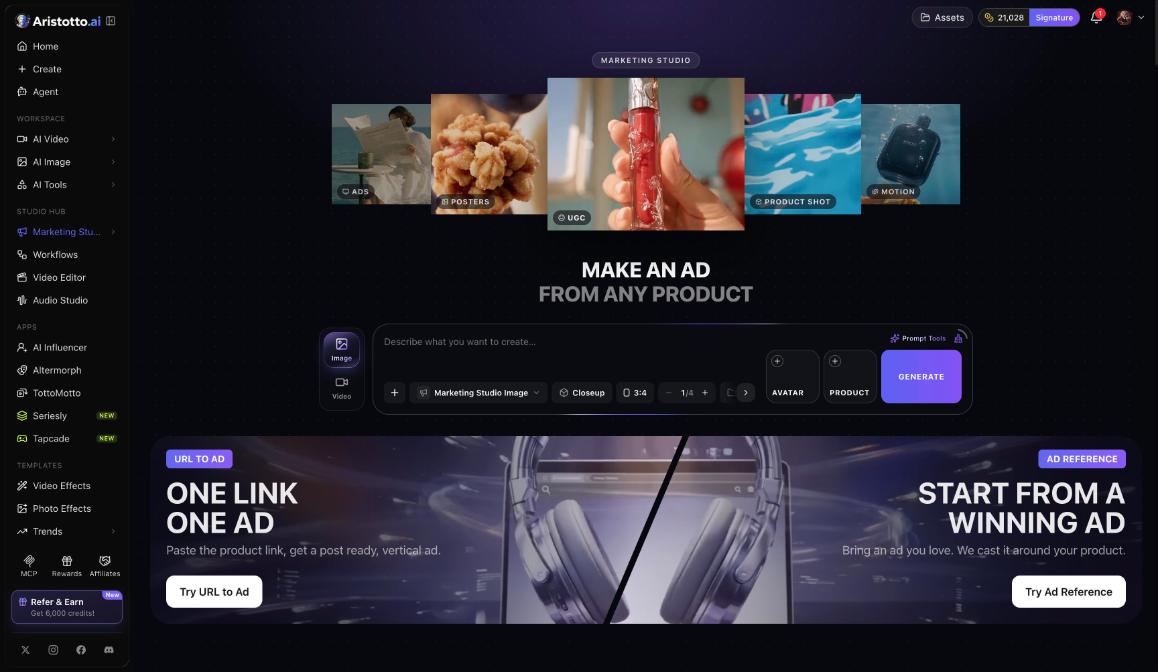
Marketing Studio makes ads from a product. Choose Image or Video, add your product, pick a style, a ratio and how many results you want, and press Generate with the price on the button. You can also start from a product link or from an ad you like.
Open it from Studio Hub in the left rail. This guide covers the composer, URL to Ad, Ad Reference, ad formats, My Ads, a worked example and what to check when results miss.
How do you set up an ad in the composer?
Open Marketing Studio from Studio Hub.
Choose Image or Video.
Check the model. Image ads use the Marketing Studio Image model.
Add your product in the Product slot. The composer also has an Avatar slot.
Pick a style, for example Closeup.
Choose a ratio.
Choose how many results you want, from 1 to 4.
Check the credits on the Generate button and press it.
The price depends on the model and on how many results you ask for.
How does URL to Ad work?
URL to Ad starts from a link instead of a photo.
Pick URL to Ad in Marketing Studio.
Paste the link to your product.
Read the price on the button before you start.
You get a post-ready vertical ad.
Use it when your product already has its own page online.
How does Ad Reference work?
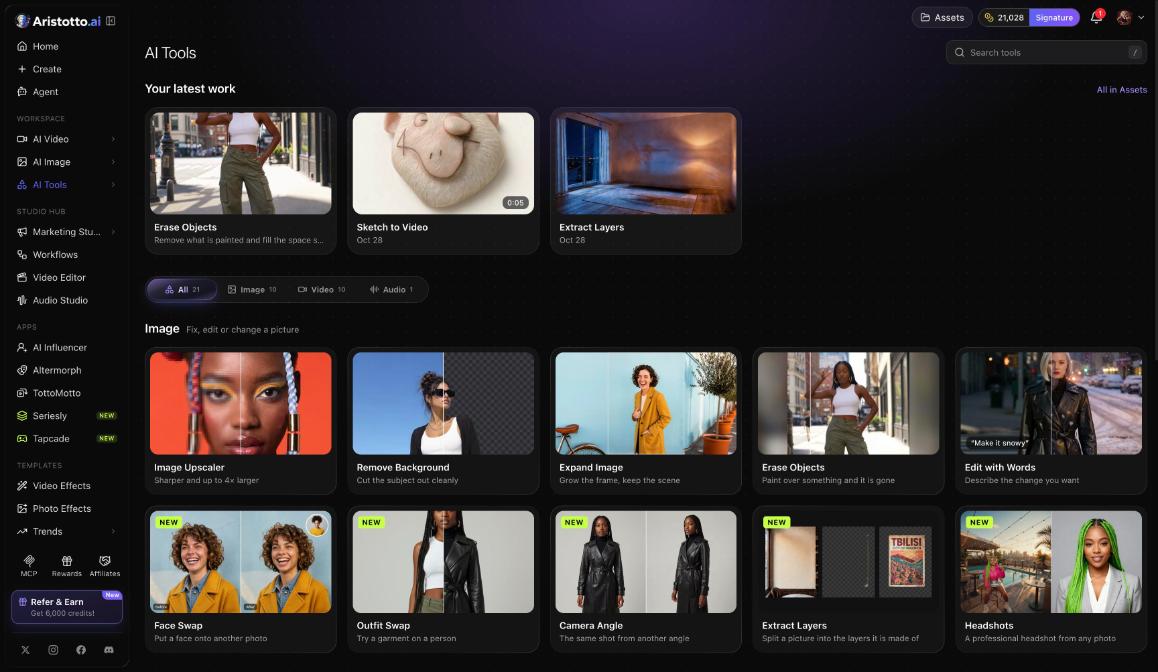
Ad Reference starts from an ad you like. Bring that ad in, and it is recast around your product. Use it when you already have an example of the ad you want and need the same idea with your own product in it.
Which ad formats can you choose?
Marketing Studio offers these formats:
UGC Creator
Unboxing
Try-on
Tutorial
ASMR
Motion Product
TV Commercial
For ideas, browse the gallery. Its categories include Ads, Posters, UGC, Product shot and Motion.
Where do your ads go?
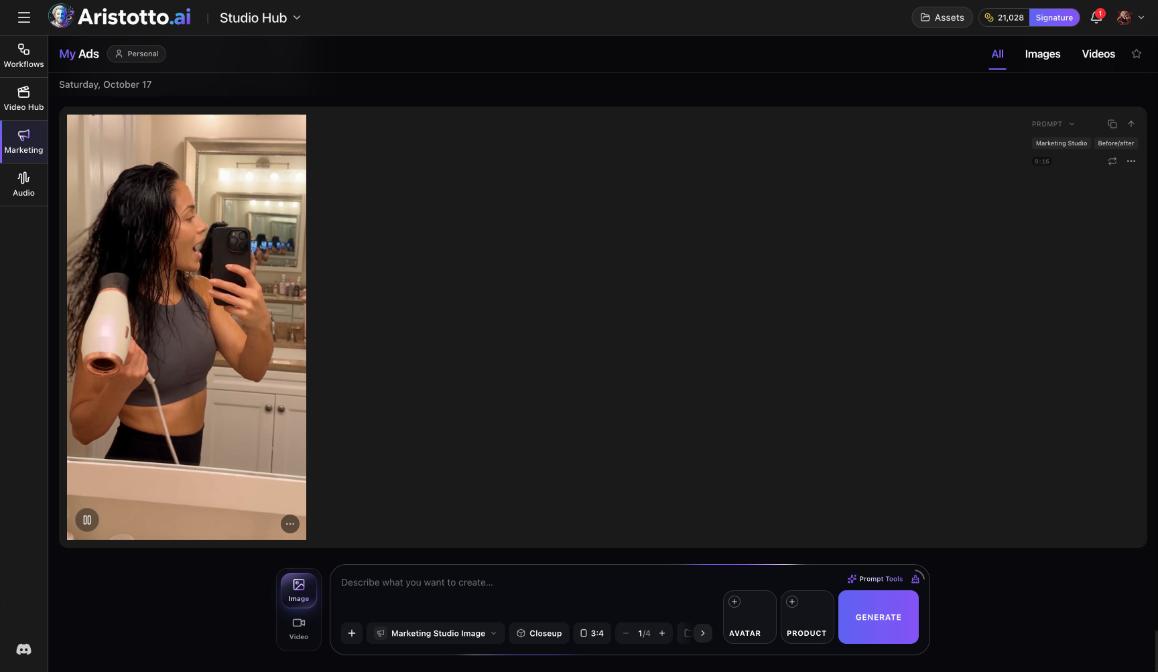
Every result goes to My Ads, grouped by date.
Filter by All, Images or Videos.
Copy the prompt of any result.
Run a result again.
Use My Ads to repeat an ad that worked: copy its prompt or run it again.
Example: how do you make four launch images of one product?
Open Marketing Studio and choose Image.
Check that the model is Marketing Studio Image.
Add a clear photo of your product in the Product slot.
Pick the Closeup style.
Choose the ratio for where you will post.
Set how many to 4.
Read the price on Generate, then press Generate.
Open My Ads and filter by Images.
Copy the prompt of the best image and run it again to get a second set.
What should you check when the ads miss?
The price is higher than you expected: lower how many results you ask for.
The product looks wrong: check that the Product slot holds a clear photo of your product.
URL to Ad shows the wrong product: check that the link you pasted goes to the product itself.
You want the same look again: open My Ads, copy the prompt and run it again.
A run failed: failed, timed-out and partly failed runs are refunded automatically.
A result is missing from My Ads: set the filter back to All.
Questions
How many ads can I make in one run?
From 1 to 4 in the composer. The price on Generate changes with the number you pick.
Can I make an ad from just a product link?
Yes. URL to Ad takes the product link and gives you a post-ready vertical ad.
Can I base my ad on one I already like?
Yes. Ad Reference takes an ad you bring and recasts it around your product.
How do I rerun a result that worked?
Open My Ads, find the result by date, and copy its prompt or run it again.
Do I lose credits if an ad fails?
No. Failed, timed-out and partly failed runs are refunded automatically. You can check the refund in Settings, Usage, where the History ledger can be filtered by the Refunded action.