How to Use Workflows: Build, Run, Share and Publish
 by Aristotto4 min
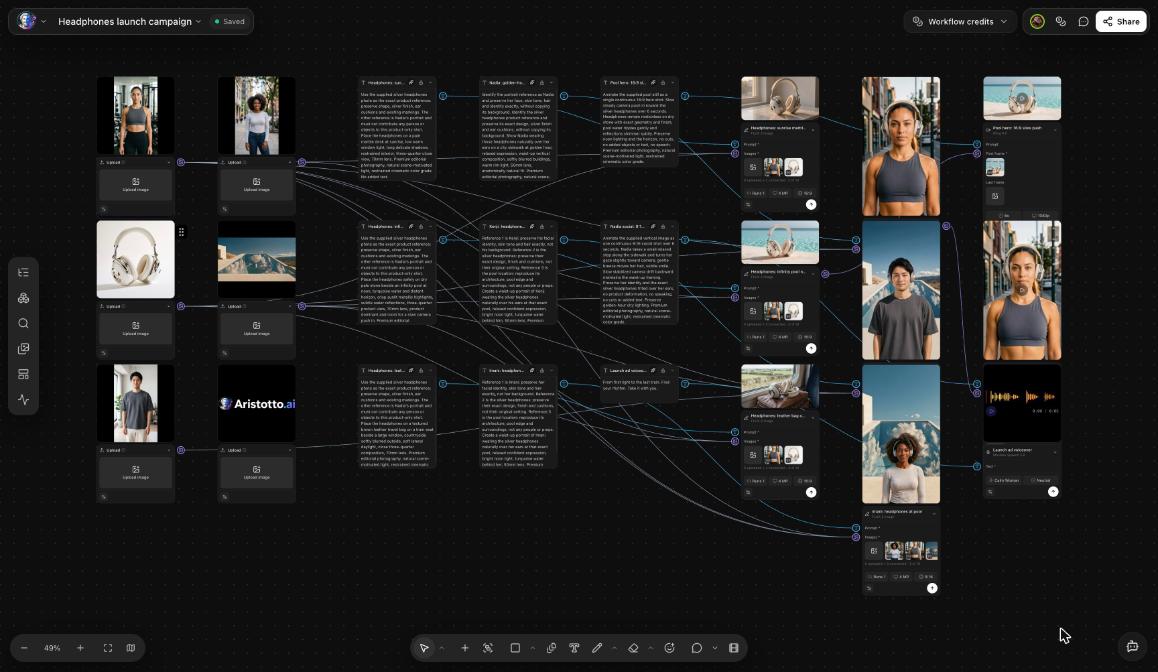
Workflows chain image, video, audio and text nodes on an infinite canvas, so you can repeat a creative process. Building, saving and duplicating a workflow are open to every account. Running, publishing and cloning need a paid plan, and each node shows its price before it runs.
Open Workflows from Studio Hub in the left rail. This guide covers building, running, sharing, live co-editing, publishing and community workflows, with a worked example and what to check when a run stalls.
How do you build a workflow?
Open Workflows from Studio Hub.
Press New Workflow. The canvas opens.
Add nodes. There are about 52 node types, including prompt, AI copilot, generate image, video, voice and music, edit, upscale, inpaint, relight, lipsync, compositor, ad maker and router.
Link each node's output to the next node's input.
Save the workflow. Duplicate it when you want to try a variation without changing the original.
You can do all of these steps on the free Base plan.
How do you run it, and what does it cost?
Run one node on its own, or run the whole workflow.
Each node shows its price before it runs.
At the top of the canvas there is a Workflow credits menu.
Running needs a paid plan.
Run one node first to test a step before you run the full chain.
How do you share a workflow?
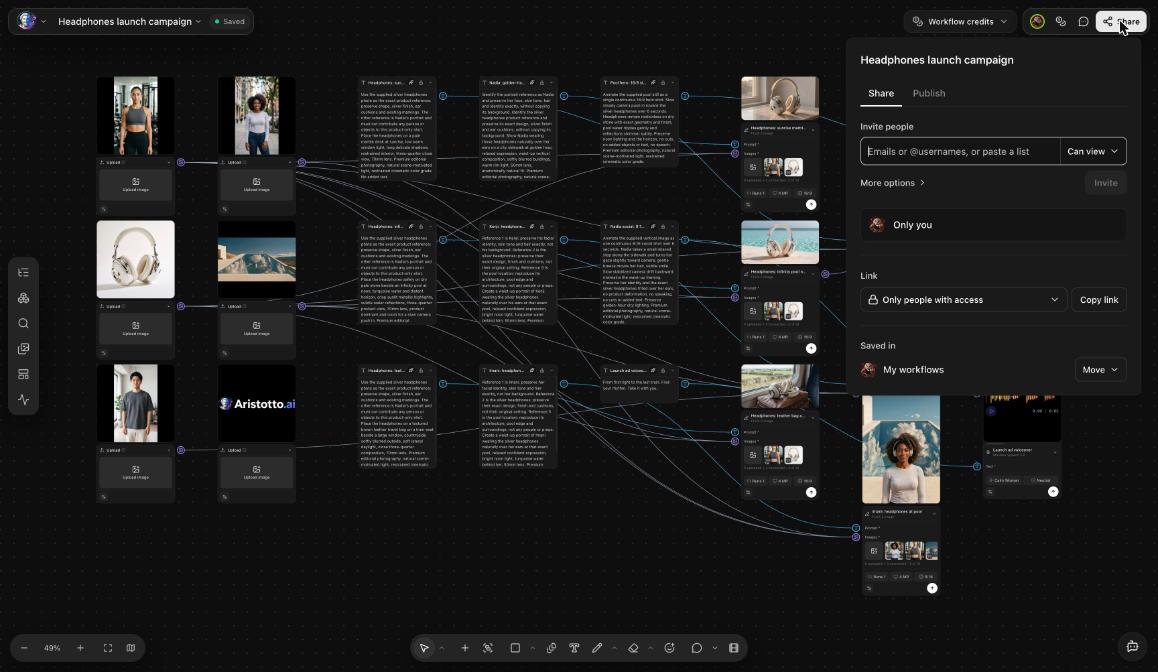
Open Share.
Invite people by email or @username, or paste a list.
Give each person Can view or Can edit.
Choose who the link works for: Only people with access, or anyone with the link (view only).
Check Saved in, which shows My workflows. Use Move to put the workflow somewhere else.
| Access | What they can do |
|---|---|
| Can view | See, comment, download and copy |
| Can edit | All of the above, plus edit and run on their own credits |
How do you edit a workflow together?
Teammates can edit the same workflow at the same time. The canvas shows their cursors and presence avatars, and an offline banner. Teams also get a team workflow chat.
The dashboard tabs help you find shared work: Yours, Team, Shared with you and Community.
How do you publish or copy a community workflow?
The share panel has a Publish tab. Publishing needs a paid plan.
The Community tab lists published workflows. You can search, sort by Most copied, and filter by category: From Aristotto, Marketing, Branding, E-commerce, Product, Social, Video, Image and Audio.
Use this workflow makes your own copy.
A paid template shows Unlock for N credits, with the price set by its creator.
At the time of writing, no community workflows are published yet. Contests, under Community in the rail, take entries made with a workflow; no contest is open today.
Example: how do you build a product image to video chain?
Press New Workflow.
Add a prompt node and describe the product scene.
Add a generate image node and connect the prompt output to its input.
Add an upscale node and connect the image output to it.
Add a generate video node and connect the upscaled image to it.
Read the price on each node.
Run the image node alone and check the picture.
Run the whole workflow.
Open Share and invite a teammate as Can edit, so they can change it and run it on their own credits.
What should you check when it does not work?
You cannot run, publish or clone: these need a paid plan.
A node has nothing to work with: check that its input is connected to the output of the node before it.
The total cost is higher than you expected: read each node's price, and run one node to test before you run everything.
A teammate cannot edit: they have Can view. Change them to Can edit.
People with the link cannot edit: link access is view only. Invite them by email or @username instead.
You cannot find a workflow: check Yours, Team and Shared with you on the dashboard.
The Community tab is empty: no community workflows are published yet today.
Questions
Can I build workflows on the free plan?
Yes. Anyone can build, save and duplicate. Running, publishing and cloning need a paid plan.
Whose credits does an editor use?
Their own. People with Can edit run the workflow on their own credits.
Can someone with the link change my workflow?
No. Link access is view only. To let someone edit, invite them as Can edit.
Are there ready-made workflows to copy?
The Community tab is where they appear, and Use this workflow makes your own copy. None are published yet at the time of writing.